



 Try for Free
 Try for Free


Since you have already known that Blu-ray is dominant in our life and will continue to play a key role in the media industry. Blu-ray or Blu-ray Disc Movie Information, known as BDMV for short, is a digital optical disc data storage format. As its name indicates, it carries Blu-ray disc information file and is capable of storing several hours of video in high-definition usually 720p and 1080p, even ultra high-definition. The drawback for this format is that it is just file information and cannot perform as media files. That is why we need to burn BDMV to Blu-ray so desperately if you want to stream them on your player or other devices.
Part 1: Introduction to BDMV Files
It is absolutely necessary to introduce BDMV files as some of you may still have doubts about what BDMV is. Basically, a file with the BDMV file extension is a Blu-ray information file or sometimes called a Blu-ray Disc Movie Information file. They contain information about the contents of a Blu-ray disc, but they don't hold the actual multimedia files themselves. These files describe the contents of an associated Blu-ray movie disc and can include information about the names of the movie files and the directory location of the movie, the movie objects, and the movie file's audio data. It seems that BDMV is quite powerful and comprehensive because it covers almost everything on a disc. However, it is not able to be streamed directly on your player.
This leads to our topic that we need to burn BDMV to Blu-ray. We will divide the topic into two major parts, namely burn BDMV to Blu-ray on Mac and burn BDMV to Blu-ray on Windows with two distinctive programs.
Part 2: How to Copy BDMV Files to a Blu-ray Disc on Mac
Mac has been made differently from Windows and other systems. Consequently, software developers have made different programs to suit the increasing needs of Mac users. To burn BDMV to Blu-ray on Mac, you may find Leawo Blu-ray Copy
for Mac very helpful. For Mac OS X, 10.7/10.8/10.9/10.10/10.11/10.12/10.13/10.14, this program provides all available features to facilitate users with burning files to high definition Blu-ray or DVD discs. Despite being called Blu ray Copy, Leawo Blu ray Copy can complete the task of converting BDMV files in full quality to Blu ray discs, just like other Blu ray burners.
Let's look at a brief tutorial guide on how to copy BDMV to a Blu-ray disc on Mac with the help of Leawo Blu-ray Copy for Mac.
Step 1: Download and install the program to your Mac. Click on the button below to download Mac version creator and install it correctly on your Mac. You can search it on App Store if you like.

-
Leawo Blu-ray Copy
- 1:1 Copy Blu-ray & DVD Movies in forms of Disc, Folder, and ISO Image file
- Copy with 6X higher speed without quality loss.
- Remove disc protection such as AACS, BD+, MKB, CSS and region restriction.
- Support Backup of BD50, BD25, DVD-9 and DVD-5
- Keeping all elements including 3D effect, video dot frame, subtitle, audio channel, etc.
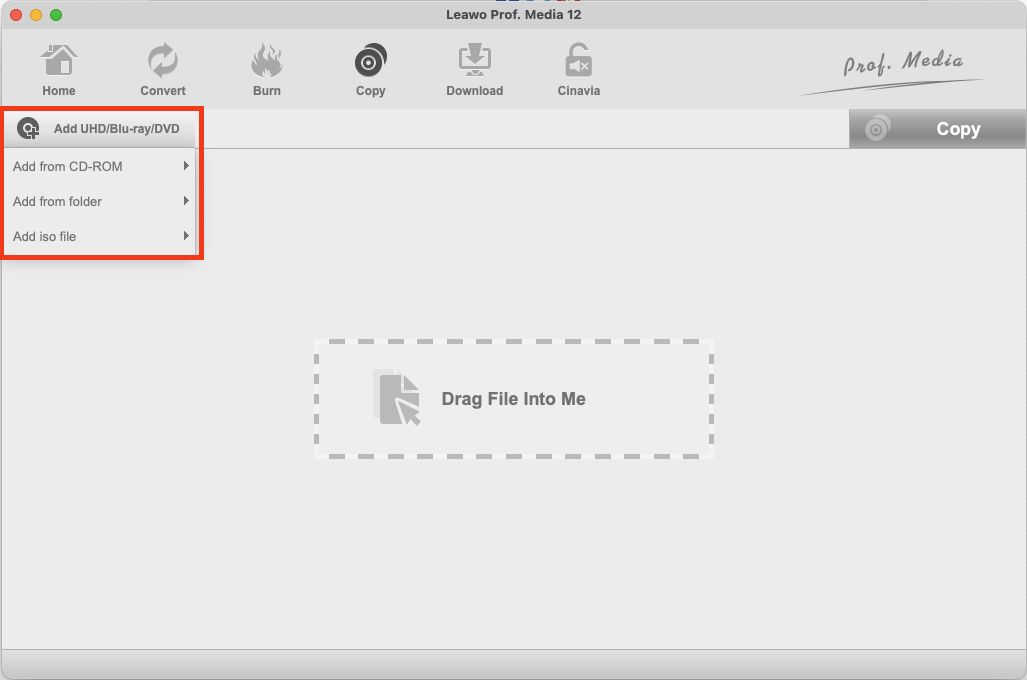
Step 2: Add source BDMV to the program. Click on Add UHD/Blu-ray/DVD,to awake the drop-down menu, choose Add from folder to load your BDMV folders to the program. The program will automatically recognize the added files and take you to the next section.
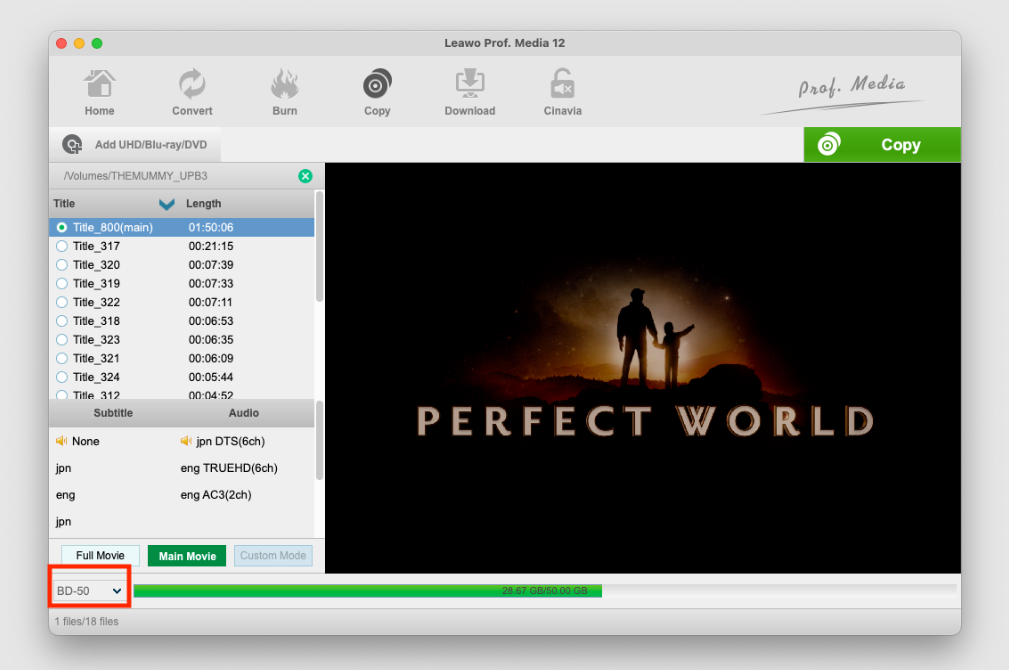
Step 3: Select the copy mode. A BDMV folder typically contains more than one video. To help you quickly select the videos, audio tracks and subtitles you need, the program offers three different copy modes, enabling you to select different content for the copy.
1. Full Movie: It copies all the content from the disc.
2. Main Movie: The copy only has the main movie, one audio track and one set of subtitles.
3. Custom Mode: This lets you choose as many videos, audio tracks and subtitles as you like for the copy.

Step 4: Set disc format for the copy. Click on the button in the bottom left-hand corner, on the following drop-down menu, select a disc format for the copy among BD50, BD25,DVD-9 and DVD-5.
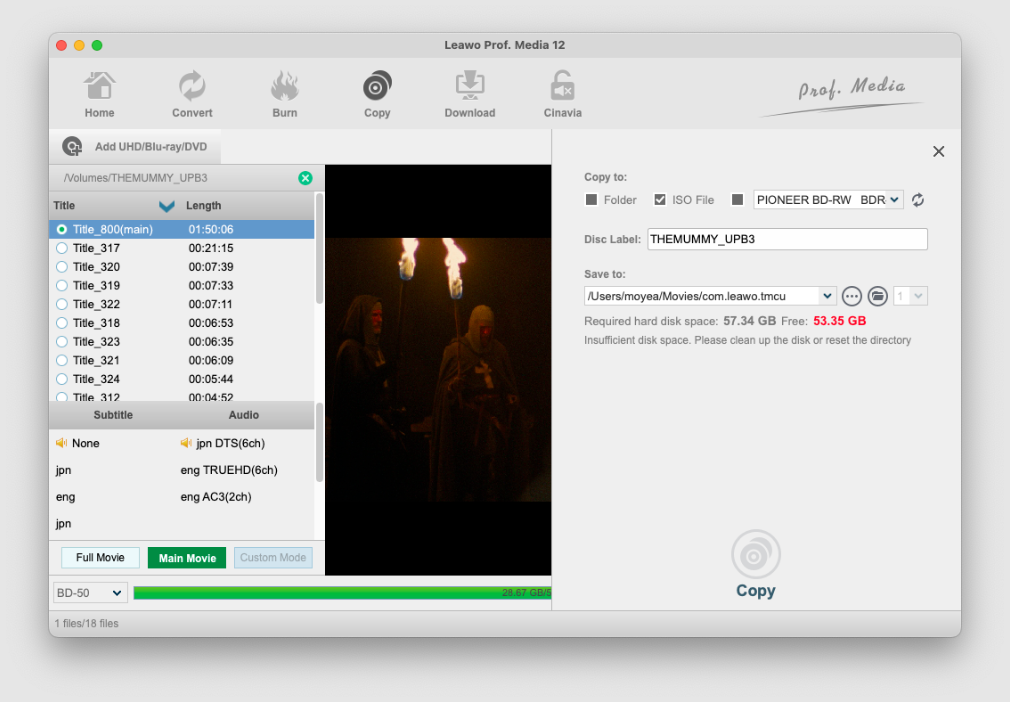
Step 5: Copy to the disc. Click on the green Copy button in the upper-right and the program will display a sidebar on top of the video preview window. Select the third option next to the ISO file to copy a BDMV folder to a blank Blu-ray disc. You will need an disc burner to finish the copying. After selecting this option, click on it and choose the correct disc from the drop-down menu to copy the source files to.
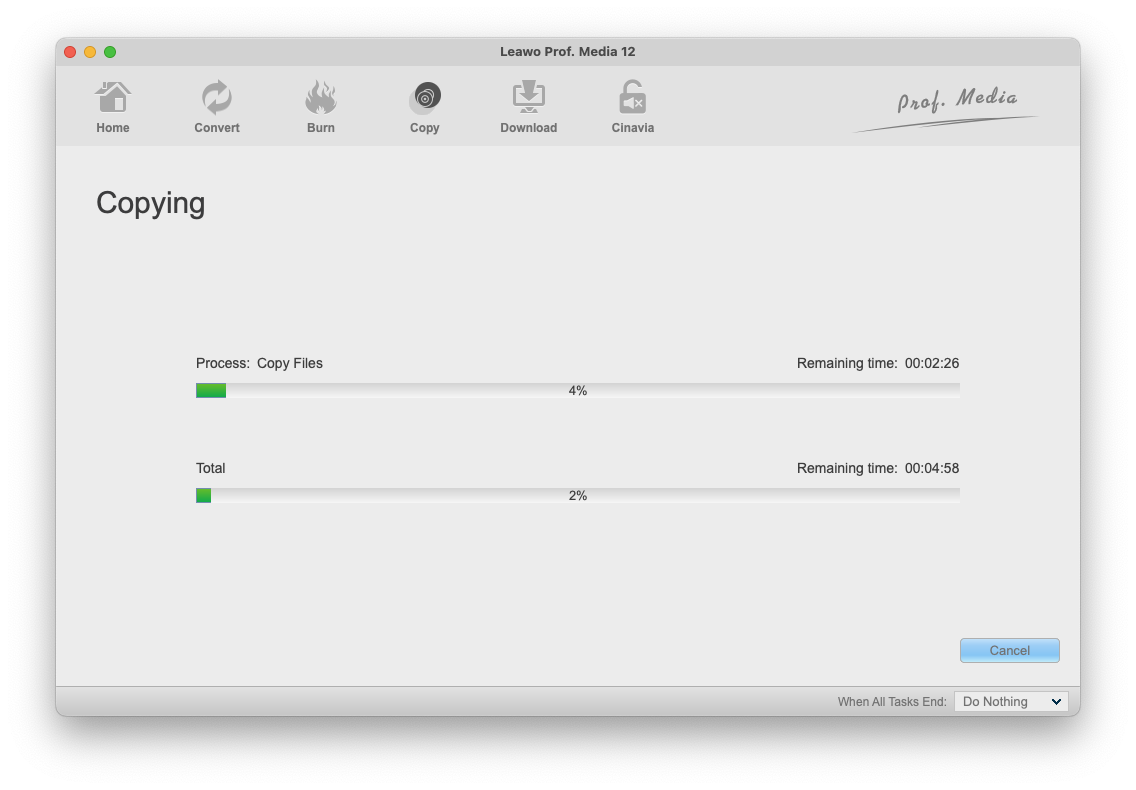
Step 6: Start the copying. You the view the percentage of the process of the copying. During the copying process, you can click the Cancel button in the bottom-right to stop and cancel it.
Part 3: How to Burn BDMV Files to Blu-ray on Windows
For Windows systems, I suggest you could try BurnAware to burn BDMV to Blu-ray on Windows. BurnAware is a full-featured and free burning software to create CD, DVD and Blu-ray of all types, including M-Disc. Home users can easily burn bootable discs, multisession discs, high-definition files. With this program, you will be hassle free to burn BDMV to Blu-ray.
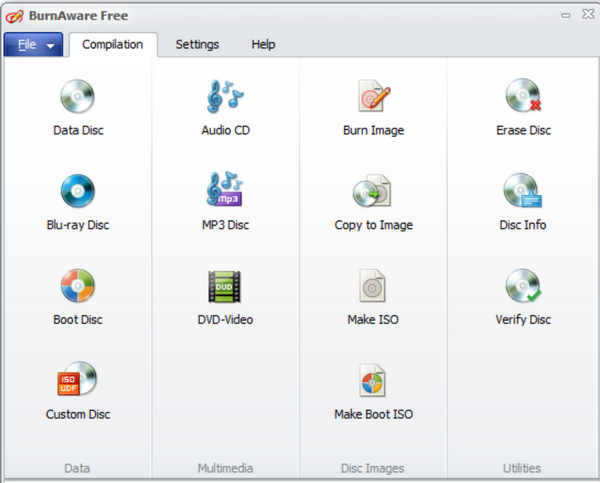
Step 1: Install the program. Click the button below to install this program. Once installation completes, launch it on your Windows. You may notice there are multiple units displayed for your choice. Just click on the target unit to enter the specific page for burning BDMV to Blu-ray.
Step 2: Add the BDMV files to the program. Click on Add Files to import the source BDMV files to the program. Otherwise, you may directly drag and drop the source files to the program. Your source BDMV files will be displayed on the home interface immediately after they have been successfully imported.

Step 3: Edit the files.Click on Options to set the relevant parameters to the file. Though you have very limited access to features, it still worth your try if you are a beginner. Remember to set the directory on the path directory before you kick off the burning process.
Step 4: Burn the BDMV to Blu-ray. Once all settings are done, click on the Burn button to kick off the burning process immediately. This will take some time so just wait patiently. If you need a more personalized design for the Blu-ray, you may need to buy the premium or professional version in order to get full access to all features.
Part 4: Comparison between Leawo Blu-ray Creator and BurnAware
Honestly Leawo Blu-ray Creator and BurnAware are two competitive programs that are popular among users across the globe. If we have to make an unflattering comparison between the two, we may say Leawo Blu-ray Creator outperforms BurnAware in three aspects. First of all, Leawo Blu-ray Creator is proved more reliable and professional when dealing with a variety of file formats and is fully capable of producing high definition files with the advanced media processing technology. Second, Leawo Blu-ray Creator is a Leawo Blu-ray Player, way faster than many other rivals in the category. You can finish the burning within a few clicks and no adware or malware will be allowed. The last but certainly not the least, Leawo Blu-ray Creator really gives many editing features for users to customize their files before burning.
BurnAware is not bad but you may experience limited access to features for editing. You will need a premium version for full access to the whole features. Besides, the user interface is less friendly than Leawo Blu-ray Creator. In general, BurnAware is more suitable for beginners and have no special requirements on Blu-ray output.
Part 5: Conclusion
All in all, to burn BDMV to Blu-ray is the only best way out for BDMV files. We have two distinctive programs introduced to you for the burning job, which may support you with a lot of handy features. Leawo Blu-ray Creator has been developed in both Windows and Mac versions to suit different needs, which by the way has the best offer for editing features. Being introduced to the market for years, this program recently has escalated to another level and continues to bring great convenience for users all over the world. BurnAware is also a good option if you need burning service randomly. The free version can be very handy for general users.
No matter what you choose to burn BDMV to Blu-ray, you should keep in mind that the best output quality always comes first. High definition or even ultra high definition files will eventually pay off when you experience a superb movie night. Hope you will get everything you need from this post. Enjoy and have fun!
-
Netflix vs HBO Max: Which Should You Choose?Cassie J./2026-03-11
-
How to DVR on YouTube TV and Fix Recording IssuesSunny Wen/2026-03-11
-
Loom Screen Recorder Guide: How It Works + Free Alternative ToolsSunny Wen/2026-03-10
-
Locoloader OnlyFans Downloader Review: Is It Really Working?Patrick Murray/2026-03-09
-
How to Download YouTube 8K Video Without Quality LossCassie J./2026-03-09
-
Disney Plus 8-Digit Code: How to Activate Your Account on Any DeviceLeia Liu/2026-03-06
-
Wondershare DVD Creator Review: Features, Test & PriceCassie J./2026-03-06
-
HiDIVE Downloads: Do They Expire? How to Keep Them Forever?Patrick Murray/2026-03-03
-
Paramount Plus Error Code 3205 Explained: Causes & Proven FixesLeia Liu/2026-02-27
-
Disney Plus HDCP Issue Explained: Causes, FixesLeia Liu/2026-02-25


-
12 Best Sites Like BestGore for Shocking VideosAugust/2025-03-17
-
12 Best Sites Like BestGore for Shocking VideosAugust/2024-02-22
-
12 Best Free Web Series Download Websites 2026August/2025-02-05
-
Top 10 Sites to Download Anime FreeAugust/2024-12-27
-
Top 5 OnlyFans Viewer Tools to View OnlyFans FreeAugust/2024-04-29
-
Top 10 Websites to Watch Uncensored AnimeAugust/2024-02-21
-
[2026] AudioBookBay Proxy Sites & Alternatives for Free AudiobooksCassie J./2026-01-06
-
How to download videos from MissAV? – Ways to download MissAV JavPatrick Murray/2025-02-08
-
Top 10 OnlyFans Search to Find Someone on OnlyFansAugust/2024-02-29
-
7 Best Free Sites for Pinoy Movies Download in 2026August/2024-10-31


Leave a Reply
You must be logged in to post a comment.