
How to Burn 4K Blu-ray/Blu-ray/DVD with Leawo Prof. Media 13
Featuring UHD Creator, Blu-ray Creator, DVD to Blu-ray Converter, and DVD Creator, Leawo Prof. Media 13 helps you easily convert and burn video to 4K Blu-ray/Blu-ray/DVD, convert DVD to Blu-ray, and offers one-click operation to burn ISO image file to 4K Blu-ray/Blu-ray/DVD disc.


- Home
- /
- Leawo Prof. Media 13
- /
- User Guide
How to Burn 4K Blu-ray/Blu-ray/DVD
Featuring UHD Creator, Blu-ray Creator, DVD to Blu-ray Converter, and DVD Creator, Leawo Prof. Media 13 helps you easily convert and burn video to 4K Blu-ray/Blu-ray/DVD, convert DVD to Blu-ray, and offers one-click operation to burn ISO image file to 4K Blu-ray/Blu-ray/DVD disc. In this Leawo Prof. Media 13 user guide part, you will learn how to use the Burn module of Leawo Prof. Media 13.
Section 1. Burn 4K Blu-ray/Blu-ray/DVD
Step 1. Import source files
On the Home interface, directly click UHD Creator, Blu-ray Creator, DVD to Blu-ray Converter or DVD Creator module, or open the "Burn" tab  to enter the Burner module. Click the "Add Video" button
  to load source video/ISO files. The "Add Video" drop-down panel
 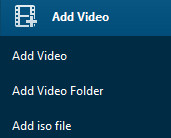 would pop up to let you choose what to import: Add Video, Add Video Folder or Add iso file. Or, to burn DVD to Blu-ray, click the "Add DVD" drop-down button
 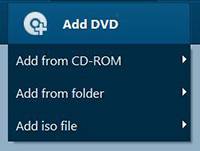 to choose to add DVD disc, folder, or ISO image file. This Leawo Prof. Media 13 user guide section would show you how to burn 4K Blu-ray/Blu-ray/DVD content. Burning ISO image file to disc would be described in Section 2.
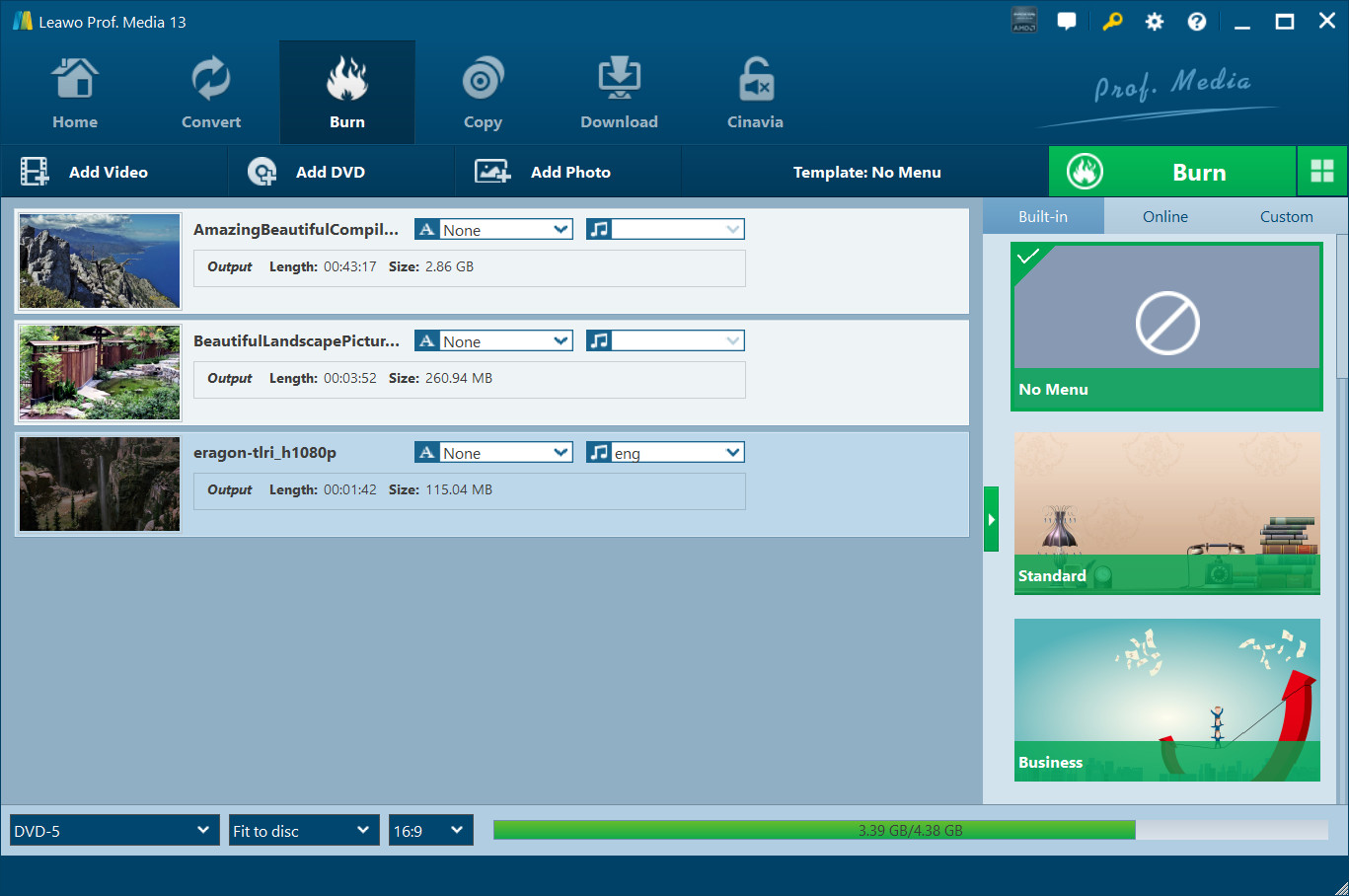
You could load multiple video files or video folders as you like. After importing, the imported media files could be displayed on the left processing panel. You could choose to display loaded media files in thumbnail by clicking Thumbnail button  , or in a list with details by clicking Detail button
  next to the big green Burn button
  . At the bottom, you need to set the output disc type, quality and aspect ratio.
Loaded video file could be played back via clicking the  button on the thumbnail, and edited by clicking the Edit button
  for detail display or
  button for thumbnail display on thumbnail. If you need, you could select a loaded video and then right click to call out right-click menu
 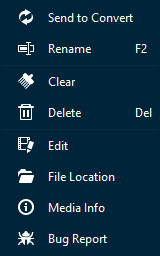 for more operations, including: Send to Convert, Rename, Clear, Delete, Edit, File Location, Media Info and Bug Report.
Also, you could directly drag loaded video files for moving up or down.
Step 2. Set disc menu
Leawo Prof. Media 13 allows you to select disc menu from built-in menu gallery or design disc menu yourself with the internal menu designer for output Blu-ray/DVD content. On the right sidebar, you could see various menu template themes: Standard, Business, Childhood, Education, Holiday, Nature, Sports and Wedding. (Note: Click the "No Menu" option on the top of right sidebar if you don't want to add disc menu.)
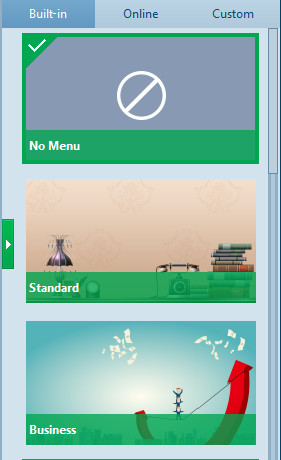
Under the Built-in menu tab, you could select any disc menu theme for output. Or, if you want more, you could open the Online tab and then download more disc menu templates from Leawo's disc menu online database. The Custom tab would collect all disc menu templates you've customized with the internal disc menu designer.
Keeping mouse on any disc menu theme template on the right sidebar would call out an eye-shape icon  , by clicking which you could enter the disc menu preview panel.

On the disc menu preview interface, you could move mouse to the Play button  and then click it to play back, or move mouse to the Scene button
  and then click it to view the disc menu displayed for scenes, as showed below:
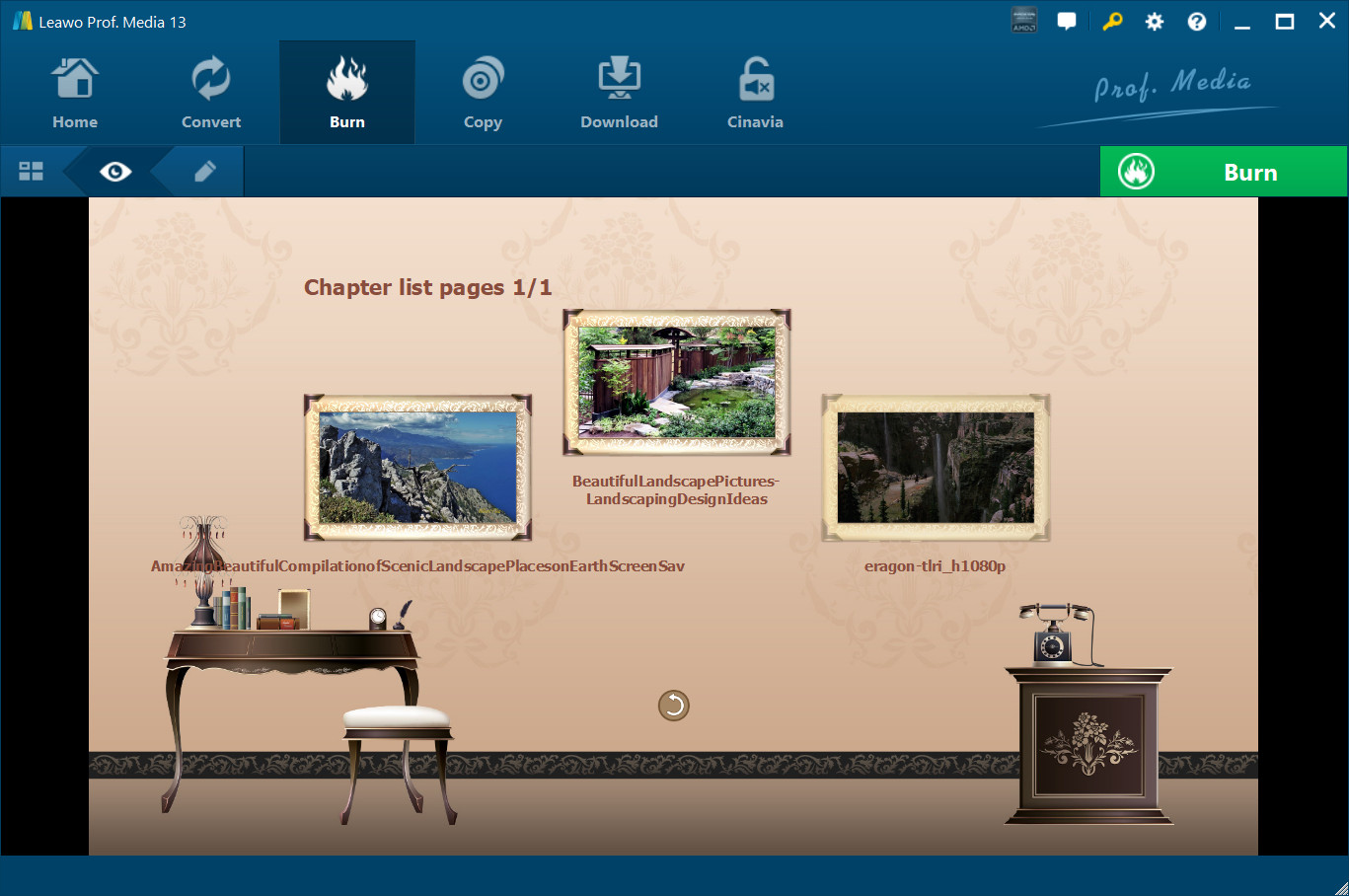
On the scene menu preview panel, you could play back scene via direct-click, click the Previous button  or Next button
  to view more scenes, click Back button
  to go back to the main menu preview panel.
Step 3. Edit disc menu (optional)
On the disc menu preview interface, click the Pencil icon  to enter the disc menu editing panel.
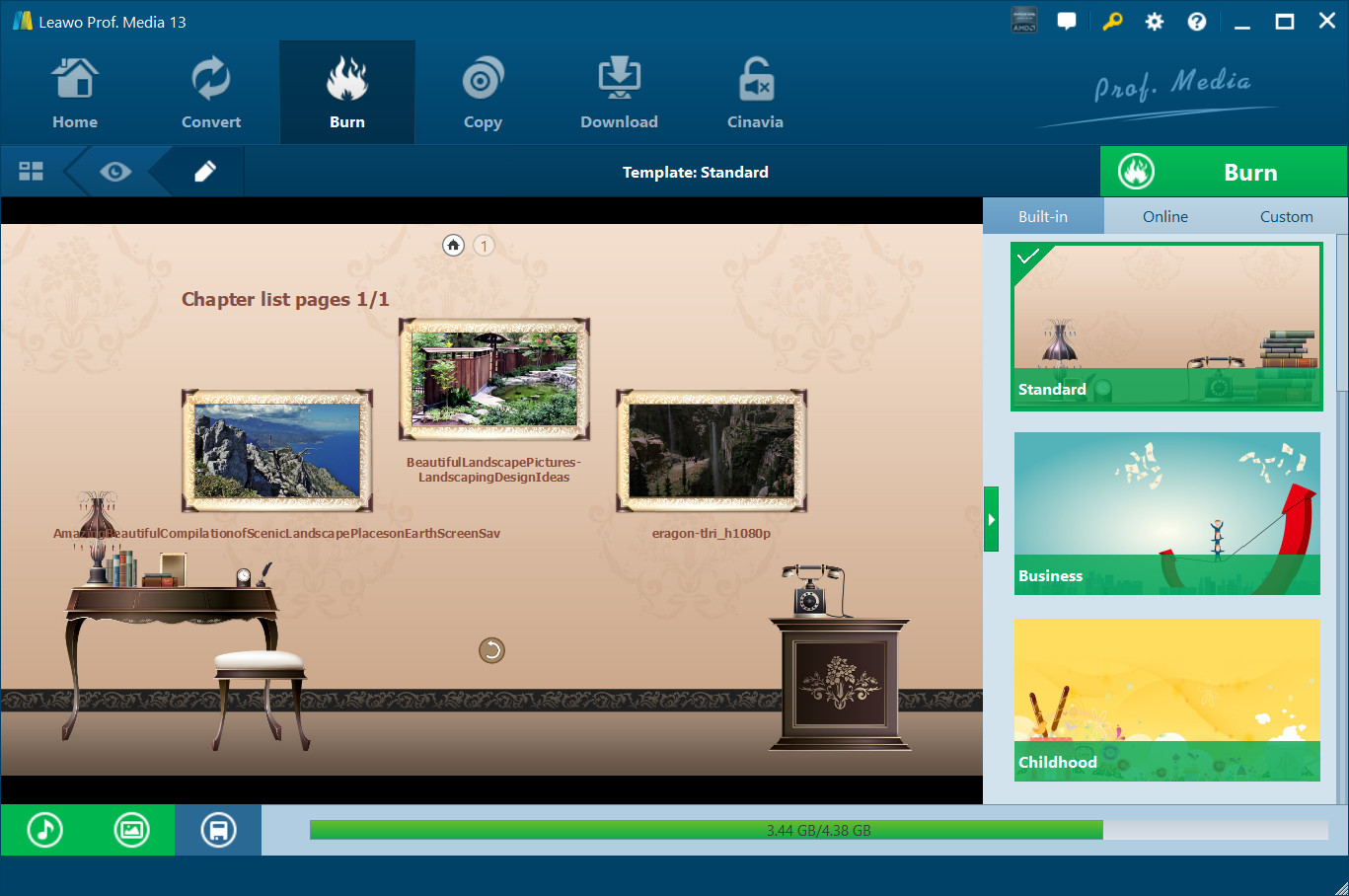
On the top of disc menu editing panel, you could see a home icon followed by several serial numbers  , which is a catalogue of main disc menu and scenes. You could directly click one icon to enter corresponding part for editing. Any title (including My DVD, Play and Scene, and the thumbnail of video) could be repositioned via direct drag-and-drop. You could double click titles (My DVD, Play and Scene) to change the title content. After double-clicking a title, you could then right click the title to call out the text editing panel
 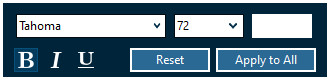 to edit text, including: text font, size, color, type, etc. You could apply the text changes to all by clicking the Apply to All button.
At the bottom, you could click the  button to add background music. After clicking it, you will see the Background Music interface as below:

Slide the Background Music to green and then open the Source from box to browse and load local music as background music. You could also set the Duration and other audio effects like Fade in, Fade out and Loop Play.
Also, you could add background image by clicking  at the bottom. Then you will see:
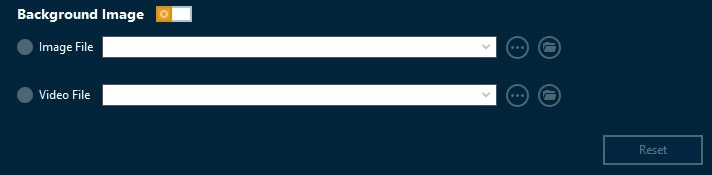
Slide the Background Image box to green and then load either Image File or Video File as background.
After editing disc menu, click the Save template icon  at the bottom to save edited template into Custom group for future use.
Step 4. Burning settings
After setting the disc menu, click the big green "Burn" button to invoke the burning settings sidebar. On the invoked sidebar, you need to set the Burn to, Disc Label and Save to boxes.
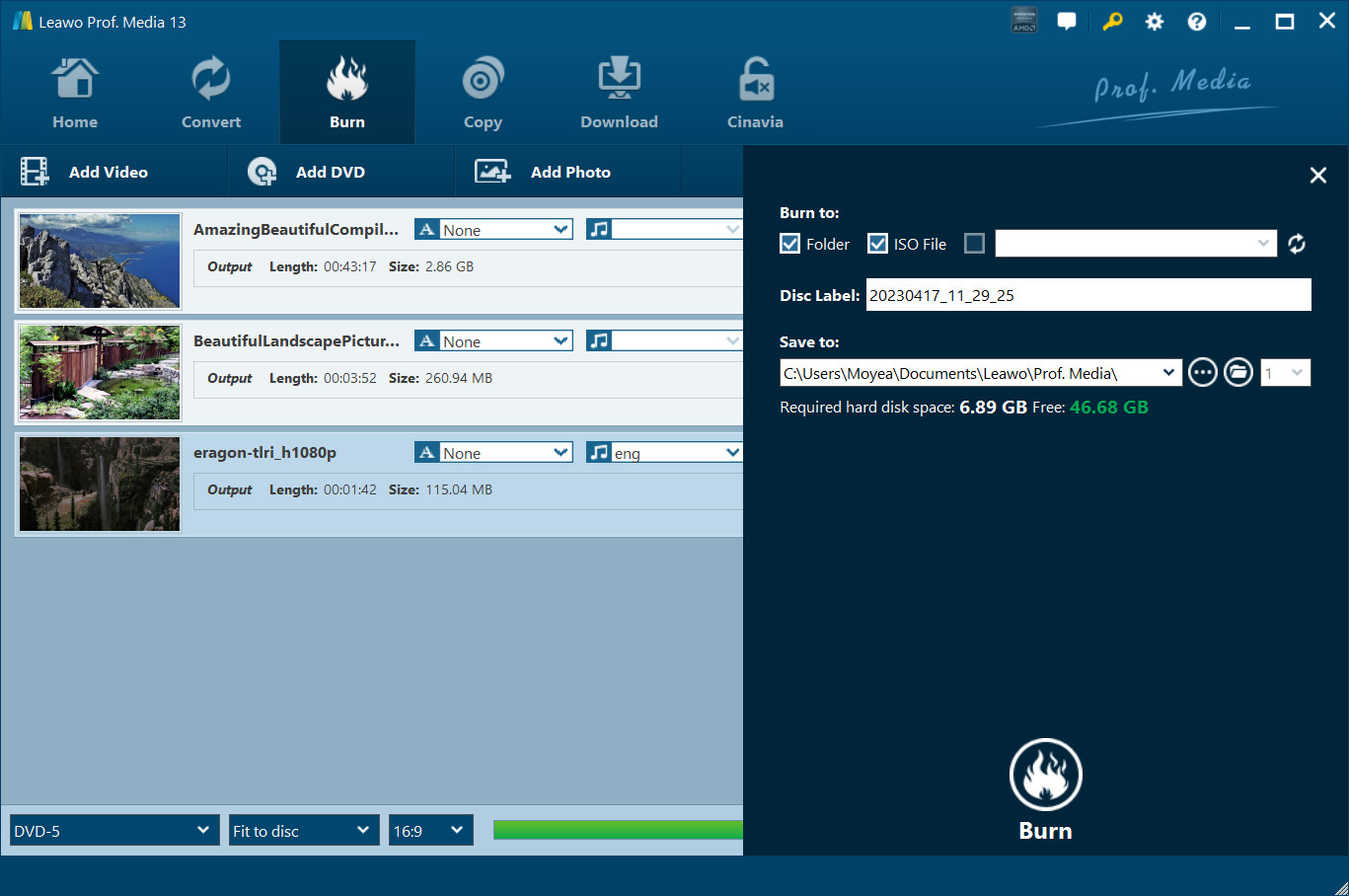
The Burn to option allows multiple choices. If you want to burn video to DVD/Blu-ray disc, insert a blank writable disc into the disc recorder drive and then select it as target under the Burn to option.
Required hard disk space is listed as well to indicate you whether your computer hard drive gets enough space to save output file.
Step 5. Burn video to DVD/Blu-ray
After burning settings, on the burning setting panel, click the bottom right "Burn" button  to start burning video to Blu-ray/DVD.

On the Burning interface, you could stop burning by clicking the Cancel button  anytime, and click the When All Tasks End button
  for after-done settings.
Section 2. Burn ISO file to 4K Blu-ray/Blu-ray/DVD disc
Featuring an ISO burner inside the Burner module, Leawo Prof. Media 13 could also help you directly burn ISO image file to DVD/Blu-ray disc in one click. This section of Leawo Prof. Media 13 user guide would show you how to burn ISO to DVD/Blu-ray disc.
Step 1. Import ISO file
Beforehand, insert a blank writable disc into the disc drive. It's up to your ISO image file type for whether you should insert a DVD disc or Blu-ray disc (Blu-ray ISO image file could be burned to Blu-ray disc only, while DVD ISO image file could be burned to both DVD and Blu-ray disc). Then, launch Leawo Prof. Media 13. Under the "Burn" tab, click the "Add Video" button and then you could see a drop-down panel . Click the "Add iso file" option on this drop-down list to browse and add source ISO image file from your computer into this ISO file burner.
Step 2. Burn ISO to disc settings
After importing ISO file, the program would pop up an "Add iso file" window as below:
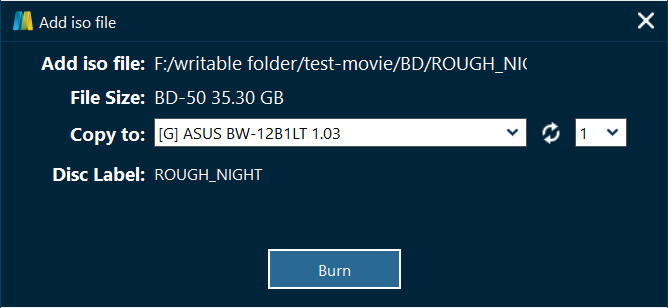
On the Add iso file window, you need to set Copy to and Disc Label options. If Copy to option is empty, click the refresh button  to refresh. If it is still empty, check whether your inserted disc is writable or not, and make sure your drive works well. If the Copy to option shows multiple options, you could click the drop-down box to select the right one.
Step 3. Burn ISO to disc
After setting Copy to and Disc Label options, click the "Burn" button  on the Add iso file window to start burning ISO file to DVD/Blu-ray disc. If your inserted disc is not blank, Leawo Prof. Media 13 would prompt a notice to ask you whether to erase it for burning or not, showed as below:
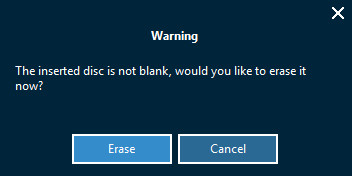
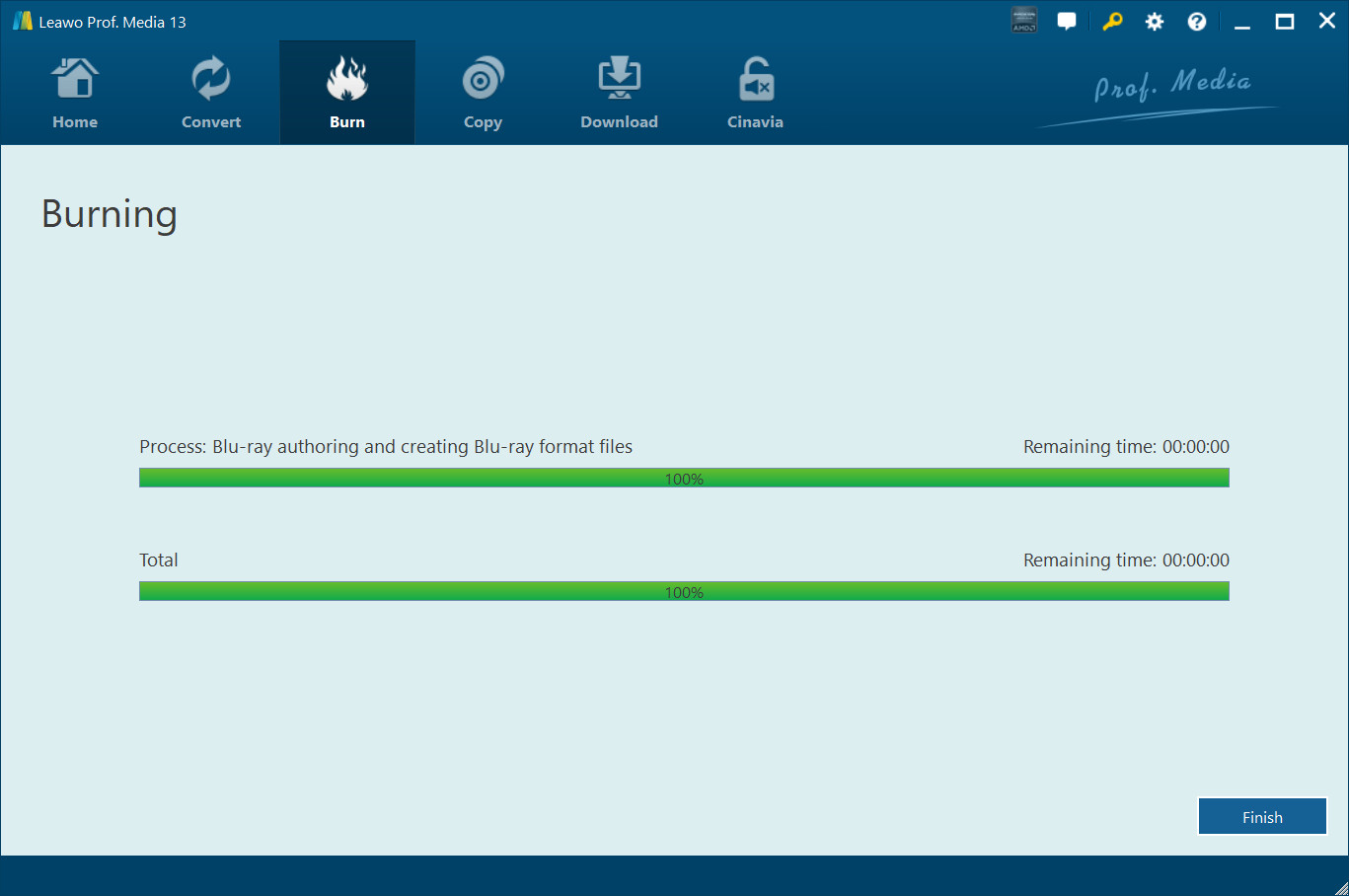
If you click the Erase button  , Leawo Prof. Media 13 would immediately erase the inserted disc and then start burning ISO file to DVD disc. You could also do after-done settings here by clicking the at the bottom right corner.
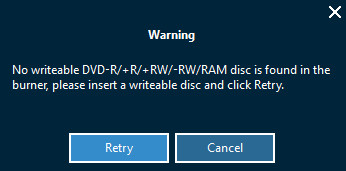
If you click Cancel button on the Warning window that shows you the inserted disc is not empty, Leawo Prof. Media 13 would automatically eject your inserted disc and show you a warning windows that advises you to insert a writable disc and click "Retry" button.
After burning ISO file to DVD/Blu-ray disc, Leawo Prof. Media 13 would automatically eject burned disc for you. You can then click the Finish button  at the bottom right corner of Leawo Prof. Media 13 to return to Burn module interface.
Note: To burn NTSC or PAL DVD disc or set output Blu-ray disc region, you need to open the settings wheel icon  on the top-right corner and then open the "Copy & Burn" tab to set Default Video Mode.