



 Try for Free
 Try for Free


If you prefer watching anime on a larger screen, try installing Crunchyroll on your Samsung TV and find the content you want to watch. Even if your TV model does not currently support direct download of Crunchyroll, other ways exist to cast anime content onto the TV. Although you know exactly how to do it, you may encounter various problems that prevent your Crunchyroll from working properly on your computer. Why is Crunchyroll not working? In this article, we will try to analyze the reasons for this situation and provide several solutions. You can first determine which type of problem you are experiencing and then decide how to treat it. If you don't want to always spend a lot of data to watch anime online, you can also choose a professional downloader to download the videos to your device and watch them offline anytime. A professional assistant will also be recommended, and we will provide the most detailed user guide.
Outline
Part 1: Why Is Crunchyroll Not Working on Samsung Smart TV?
To solve a problem, we must first find the source. Why is Crunchyroll not working on Samsung TV? After discovering that you cannot watch Crunchyroll videos on your Samsung TV, we need to first troubleshoot the cause of this problem. In the following, we will briefly analyze several common factors for you. You can check your device and apps in order to confirm whether the problem is here.
1. The Internet Is Unstable
In order to view content on the platform, we must ensure that our Samsung TV is connected to a stable network. If you are connected to an unstable network or the network speed is too slow, it will prevent you from opening the Crunchyroll website normally or loading the video resources. When you find that Crunchyroll cannot be used normally, first check whether your TV is connected to the network and whether the connected network has a stable speed. This is often the most direct cause.
2. The Crunchyroll App Is Outdated
If you have an older version of the Crunchyroll app installed on your Samsung TV, there is a risk that it will not open properly. And for some unknown reason, sometimes our app may crash, so that we cannot use it normally at all. After you have noticed that Crunchyroll is not working properly, if you are sure that the device is connected to the network without problems, you should check the version of the app again to see if it is the latest version.
3. The Samsung TV Is Crashed or Outdated
If you find that there is nothing wrong with the network or the app itself, we need to consider whether there is a problem with the TV itself. If the TV system crashes or freezes, we won't be able to watch any videos normally. Apart from not being connected to the network and system crashes, the reason why the TV is not working properly may also be that your device system has not been updated to the latest version. If you are sure that there is something wrong with the TV itself, you need to take some measures to fix it.
In this section, we analyze the possible causes of Crunchyroll not working from the perspectives of the network, the Crunchyroll app, and the Samsung TV. We hope that after reading this, you will be able to quickly locate the source of the problem. In the next section, we will provide corresponding solutions for these common causes. You are welcome to follow our instructions.
Part 2: How to Fix "Crunchyroll Not Working" Issue on Samsung Smart TV
After analyzing why my Crunchyro is not working, we are going to start looking for corresponding solutions. Here are a few solutions you can try to get started quickly.
1. Check Your Internet Connection
First, you need to check whether your Samsung TV is connected to the network. If not, connect the device to a stable WiFi.
Here is what you should do to check your internet connection.
Step 1: Go to Settings on your Samsung TV, and choose General.
Step 2: Select Network > Network Status. If the internet is not connected successfully, choose Retry.
2. Update the Crunchyroll App
If you are connected to the Internet and the Crunchyro app is not working properly, it may be because the app version is too old. In this case, you can go to the app store and find your Crunchyroll app to see if there is an updated version. If there is an updated version, please update it in time. If you simply experience application lag, please consider restarting it or uninstalling the original app and downloading it again.
Here is what you need to do to uninstall the Crunchyroll app on your Samsung TV.
Step 1: Tap the Home button and go to Apps on your TV.
Step 2: Then, choose Settings and select the Crunchyroll app. Click on Delete.
Step 3: Return to the Home page and choose Search.
Step 4: Search for the Crunchyroll app and install it on your Samsung TV again.
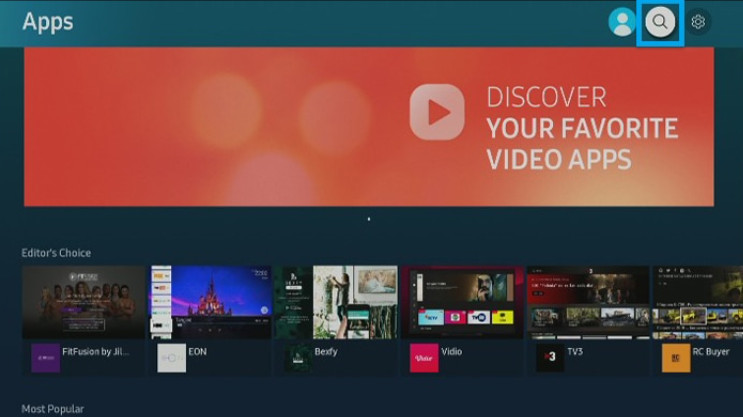
3. Clear the Cache
Another factor that may cause the Crunchyroll app to not work properly is that it has too much-cached junk inside, causing it to run very slowly. You can try clearing the cache in the app and then reopening it to see if the problem is resolved.
If you want to clear the app cache, follow the steps below.
Step 1: Press the Home button and choose Settings.
Step 2: Choose All Settings and go to Support.
Step 3: Select Device Care > Manage Storage.
Step 4: Choose the Crunchyroll app in the list and select View Details.
Step 5: Now, you can try to clear the cache by choosing Clear Data or Clear Cache.
4. Restart Your TV
If there is a problem with your TV system or it is stuck, you can try restarting your device. This operation does not require much technical skill. You just need to unplug the power plug, then plug it in again and turn on the TV. You can restart Crunchyroll after the restart and see if it is working properly. If the problem persists after restarting the TV, reset the Smart Hub on your Samsung TV.
Here are the steps you can follow to reset the Smart Hub.
Step 1: Open Settings on your Samsung TV. Choose Support.
Step 2: Go to Self Diagnosis > Restart Smart Hub.
After doing so, all apps installed on your TV will be removed and all login information will no longer exist. You will then need to reinstall and log in with your account.
5. Update Your Samsung TV
If your TV system has not been updated to the latest version, it may also not work properly. You can check the version of your device in Settings to see if it needs to be updated.
Follow the guide below to check the update on your Samsung TV.
Step 1: Press Home and go to Settings on your device.
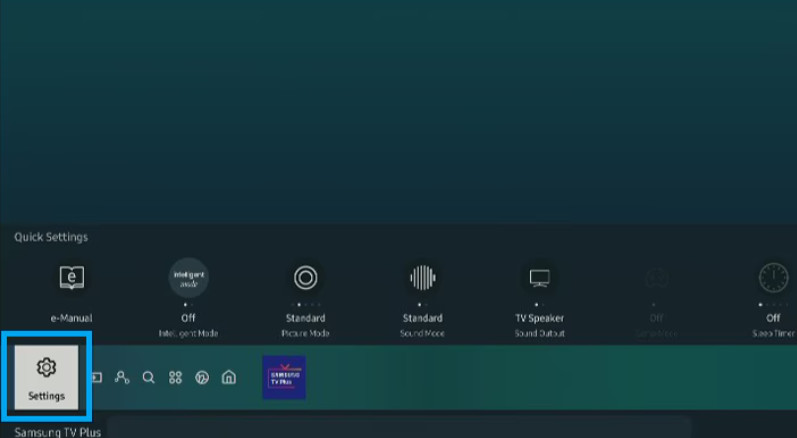
Step 2: Choose Support > Software Update.
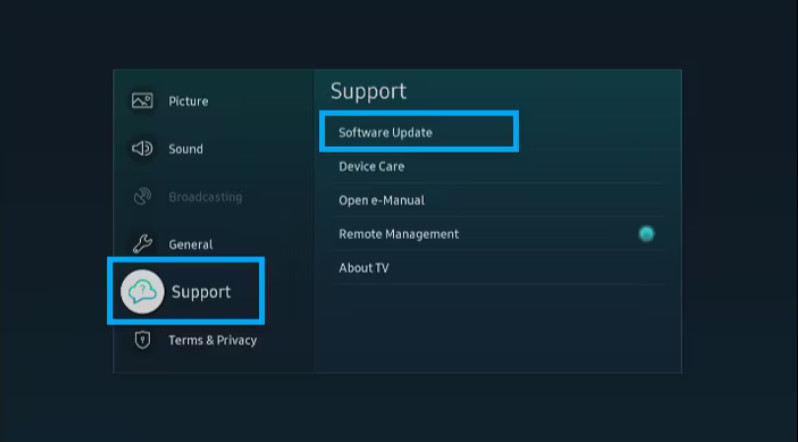
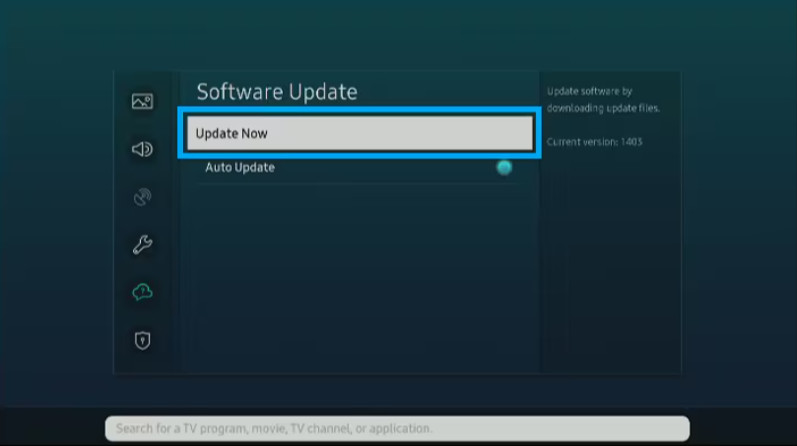
Step 3: Click on Update Now.
Part 3: How to Download Crunchyroll Anime
When you watch Crunchyroll anime online, you may find that a lot of data is consumed. If you are on the go or don't have stable WiFi around you, it is not very convenient to watch videos. At this time, it is best to download your favorite anime to your device in advance and watch it offline. However, if you choose the download method provided by the Crunchyroll platform, you may face regional restrictions, download quantity restrictions, and device restrictions. Generally speaking, users can only download on mobile devices, and the computer web version does not support offline viewing. So, it's best to let a professional anime downloader help us. Among all the downloaders, we recommend CleverGet Crunchyroll downloader. You can choose the resolution up to 1080p, and it also supports MKV and MP4. If you need to download an entire season of anime, you can also let its batch download function help you. If you want to download subtitle files in different languages, you can also choose to save them separately in SRT or SUF format.
Here is what you need to do to download Crunchyroll episodes with CleverGet Crunchyroll downloader.
Step 1: Download and install CleverGet Crunchyroll downloader on your device.

-
CleverGet Crunchyroll Downloader
- Allows users to download individual anime episodes or entire series from Crunchyroll.
- Offers options to download anime episodes in high quality to ensure clear video playback.
- Enables users to download multiple episodes or series simultaneously.
- Provides features to select audio tracks and subtitles of downloaded anime episodes.
- Supports converting videos to MP4 or MKV formats to suit the requirements of different platforms.

Step 2: Enter the Crunchyroll website through the program. Then you need to log in with your account.
Step 3: Search for the anime you want to download. Play it on the webpage.
Step 4: Let CleverGet Crunchyroll downloader parse the video. You will see a blue arrow-down button. Click it.
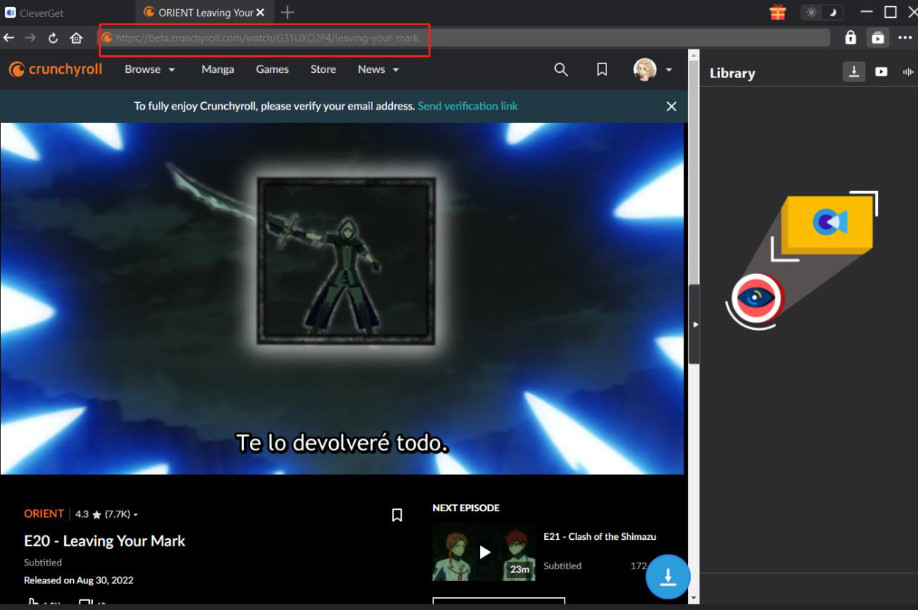
Step 5: Select the output resolution and format. Finally, click Download.

Part 4: Conclusion
In this article, we have analyzed in detail several possible computer reasons that may cause Crunchyroll to not work properly on Samsung. In general, these reasons are concentrated in the network, the Crunchyroll app, and the TV settings. You can see the solutions for each of these reasons. If you want to download anime for offline viewing, we also recommend the best tools and the most detailed usage plans for you.
-
Best Ways to Watch YouTube Without AdsSunny Wen/2026-04-02
-
How to Cancel Your YouTube TV SubscriptionSunny Wen/2026-03-27
-
YouTube TV vs Fubo for Sports Fans: Which One Wins?Sunny Wen/2026-03-27
-
Is Movavi Screen Recorder Worth It? Full Review and AlternativesSunny Wen/2026-03-26
-
Netflix vs HBO Max: Which Should You Choose?Cassie J./2026-03-11
-
How to DVR on YouTube TV and Fix Recording IssuesSunny Wen/2026-03-11
-
Loom Screen Recorder Guide: How It Works + Free Alternative ToolsSunny Wen/2026-03-26
-
Locoloader OnlyFans Downloader Review: Is It Really Working?Patrick Murray/2026-03-26
-
How to Download YouTube 8K Video Without Quality LossCassie J./2026-03-09
-
Disney Plus 8-Digit Code: How to Activate Your Account on Any DeviceLeia Liu/2026-03-06






-
12 Best Sites Like BestGore for Shocking VideosAugust/2025-03-17
-
12 Best Sites Like BestGore for Shocking VideosAugust/2024-02-22
-
12 Best Free Web Series Download Websites 2026August/2025-02-05
-
Top 10 Sites to Download Anime FreeAugust/2024-12-27
-
Top 5 OnlyFans Viewer Tools to View OnlyFans FreeAugust/2024-04-29
-
Top 10 Websites to Watch Uncensored AnimeAugust/2024-02-21
-
[2026] AudioBookBay Proxy Sites & Alternatives for Free AudiobooksCassie J./2026-01-06
-
How to download videos from MissAV? – Ways to download MissAV JavPatrick Murray/2025-02-08
-
Top 10 OnlyFans Search to Find Someone on OnlyFansAugust/2024-02-29
-
7 Best Free Sites for Pinoy Movies Download in 2026August/2024-10-31


Leave a Reply
You must be logged in to post a comment.