
How to use Leawo DVD Creator
A detailed guide on how to convert and burn video to DVD disc, folder and/or ISO image file with Leawo DVD Creator.


- Home
- /
- Leawo DVD Creator
- /
- User Guide
How to Burn Video to DVD File
Step 1: Enter DVD Creator module
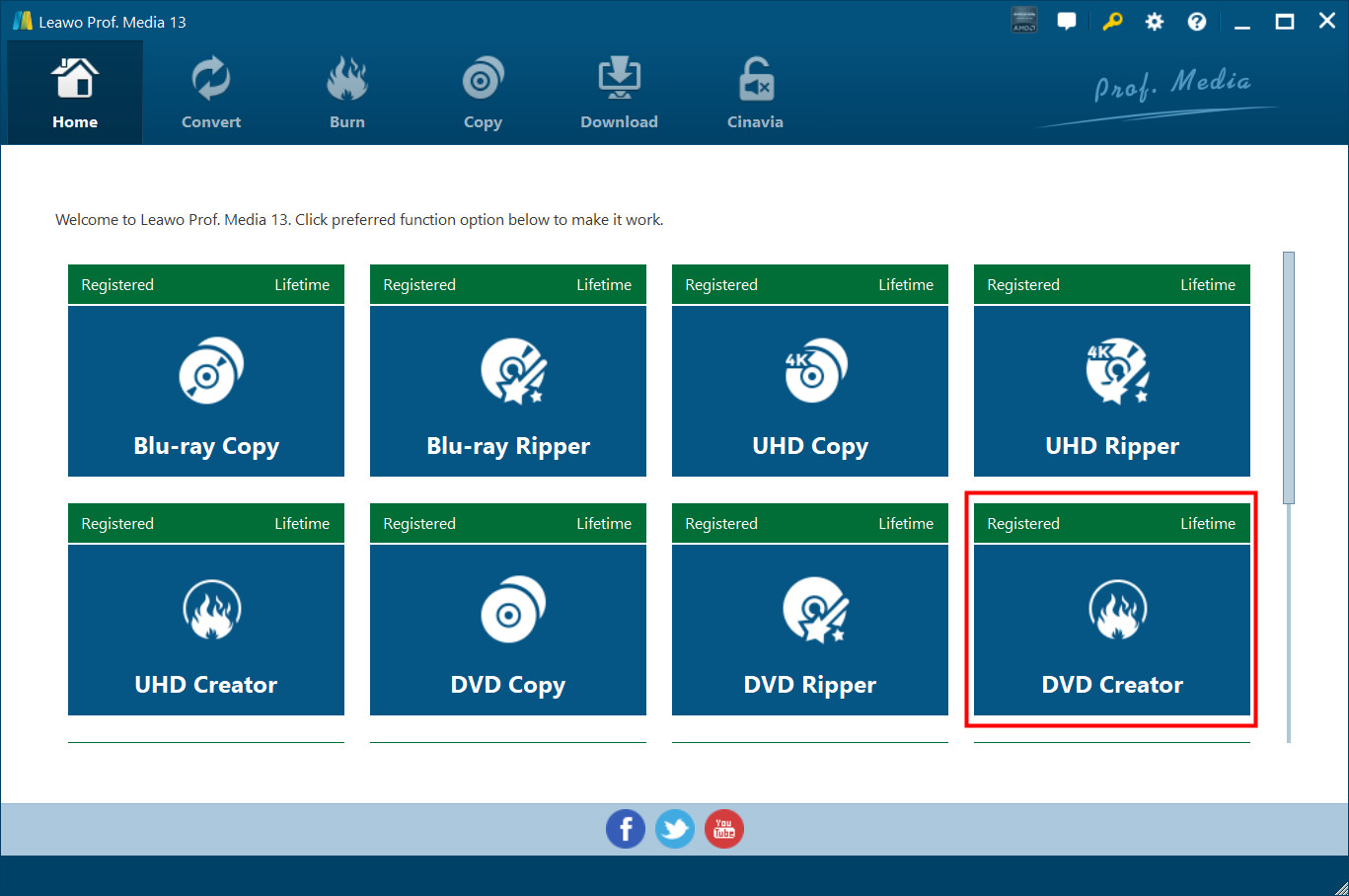
Open Prof. Media, and then click the Blu-ray/DVD Creator to enter the DVD Creator module.
Step 2: Add Source File
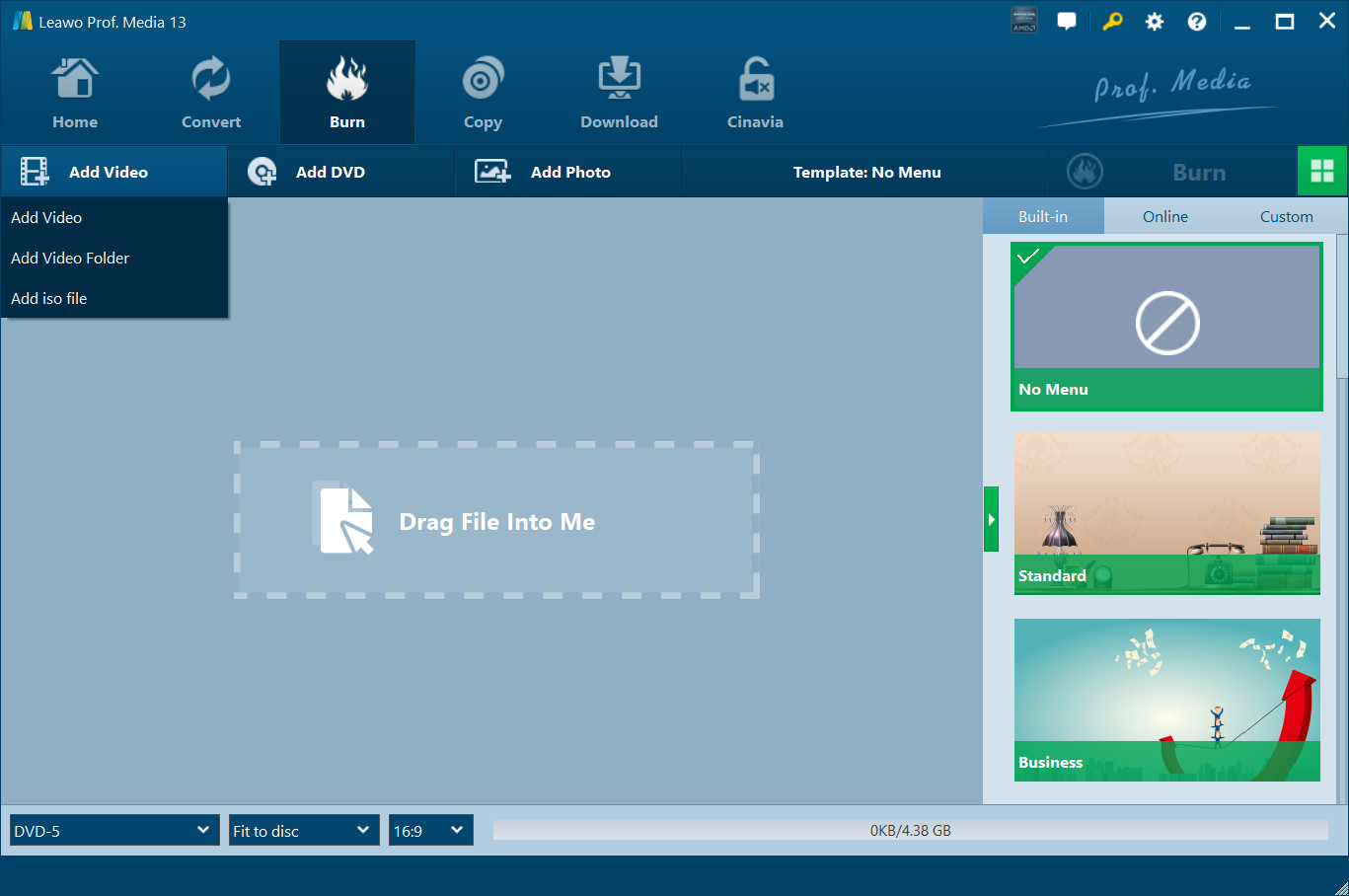
To add source video to the Creator, directly drag and drop the source video file to the interface or select Add Video>Add Video/Add Video Folder to select a single video or multiple videos or even a video folder from your computer.
Step 3: Output Settings
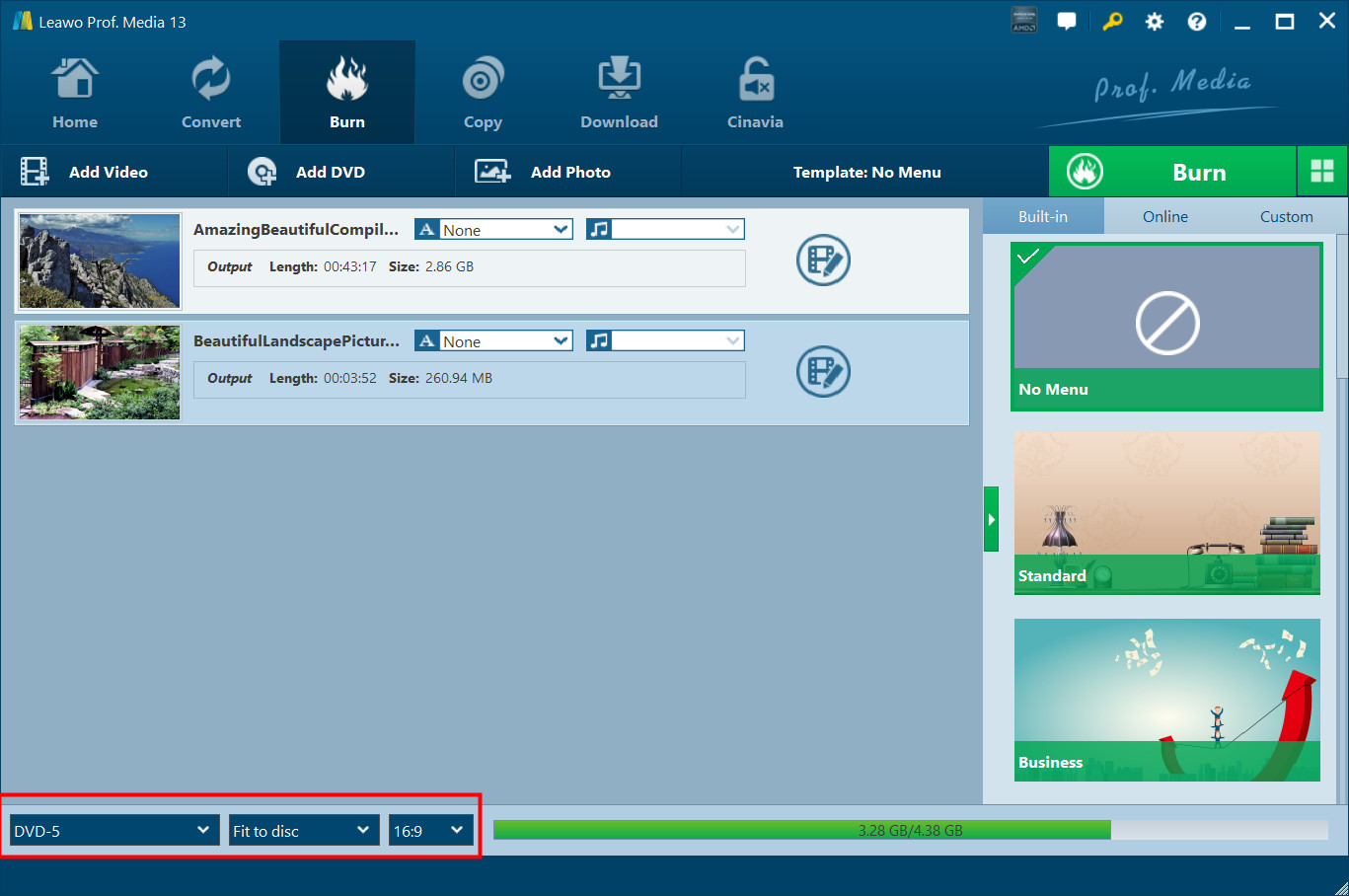
Choose disc type between DVD-9, DVD-5 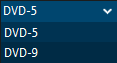 and choose the video aspect ratio between 4:3 and 16:9. Set quality to "Fit to disc" to best fit the video. The size of the output file will be shown on this indicator.

Before you get to the next phase, you can edit the video and the disc menu, to see more details please check Part 6 video editing and Part 5 Disc Menu Customization. And you are free to choose the subtitles and sound tracks you like. Click  to choose the subtitles you want, you can also import subtitles from your computer. Click
  to choose a sound track in the file. (Note: You can only choose one set of subtitles and one sound track for the output file.)
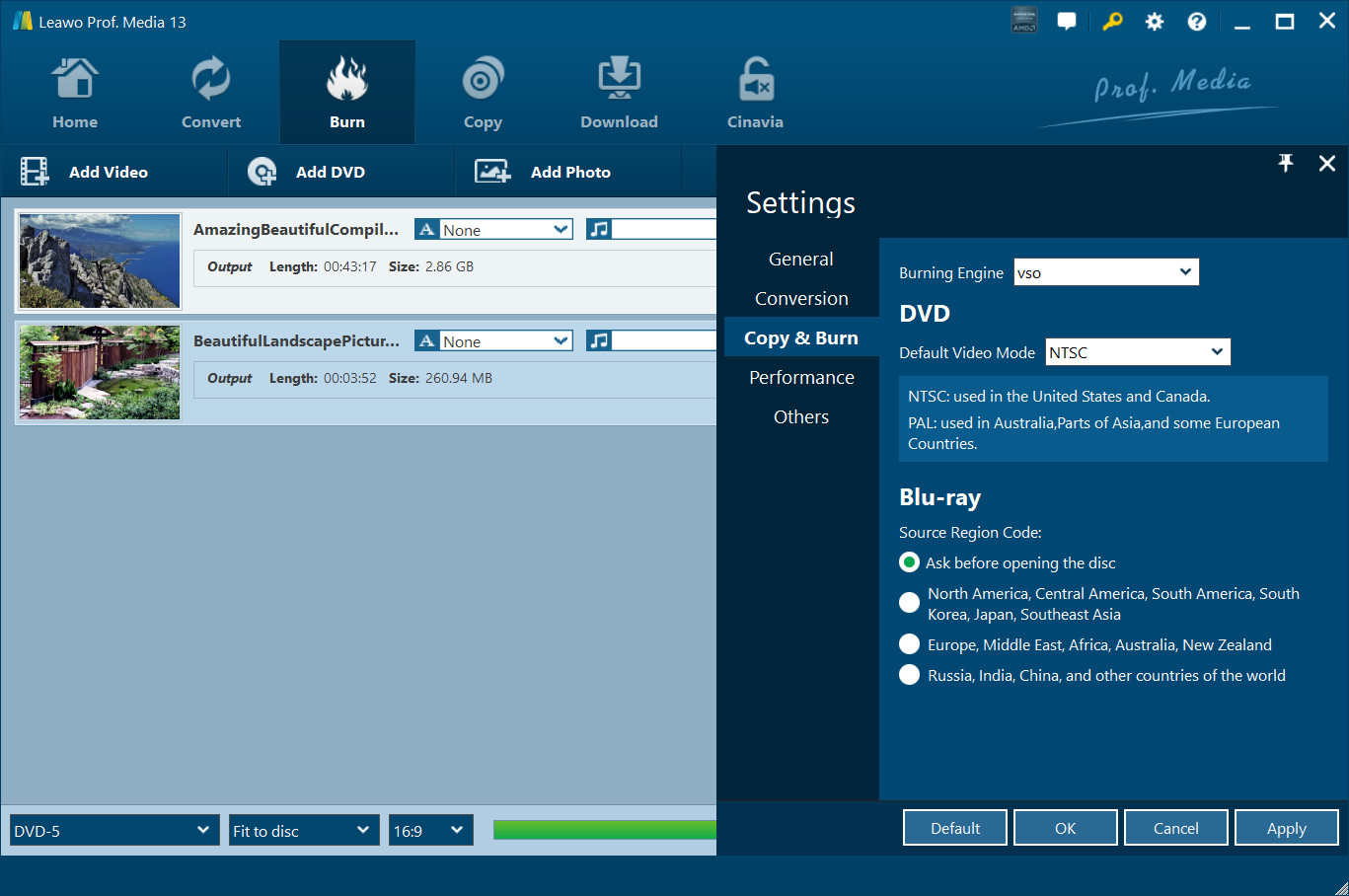
And you can go to Settings to choose the Burning Engine and Default video mode. Click Settings  button, and then click Copy & Burn.
Step 4: Burning Settings
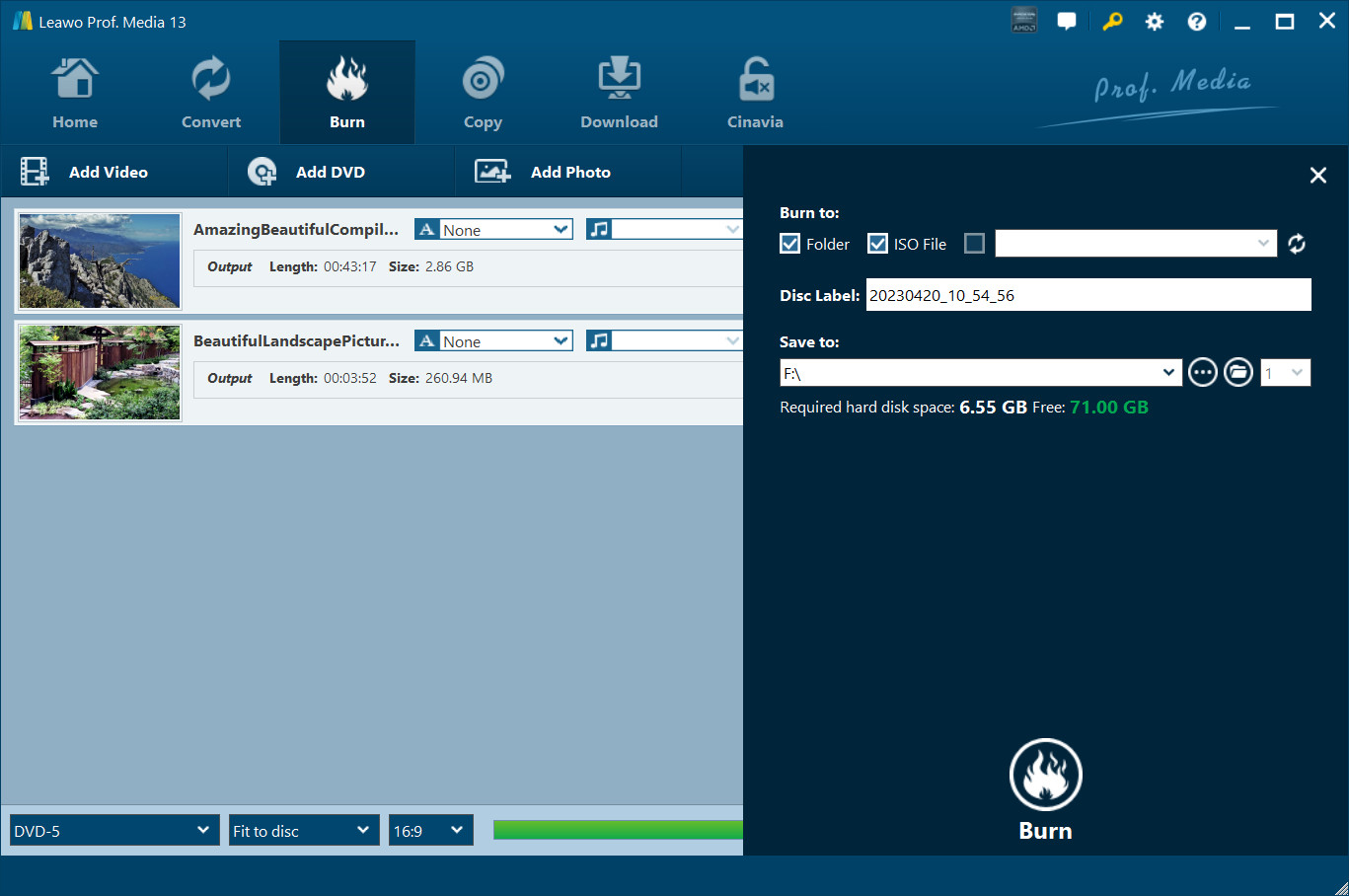
Click on the green Burn button  on the main interface to call out a sidebar. Rename the label of the output file on the Disc Label box.
To convert the video into a DVD folder, check the Folder option  .
.
To convert the video into an ISO file, check ISO File option  .
.
Set the directory for the output file under Save to Option by clicking Browse button  . And then click the Burn button at the bottom to start converting video to DVD folder or ISO file. (Note: You are allowed to check both Folder and ISO File to create a DVD folder and an ISO file at the same time.)
To burn video or ISO file to a blank disc, put a writable disc in your CD-ROM and then check the third option under "Copy to" to choose the blank disc in your CD-ROM as the target.

Click the Burn button at the bottom of the sidebar to start burning video to the blank disc.