
How to use Leawo DVD Creator
How to customize disc menu within Leawo DVD Creator? This page shows you detailed steps to edit disc menu.


- Home
- /
- Leawo DVD Creator
- /
- User Guide
How to customize disc menu
The program allows you to make your own disc menu. You can make customization to the disc menu before the burning process.
Step 1:
There's a sidebar on the right side of the burner with the disc menu template on it when you open the program, if not, click the green button in the middle of the scroll bar with a leftwards triangle on it to call it out.
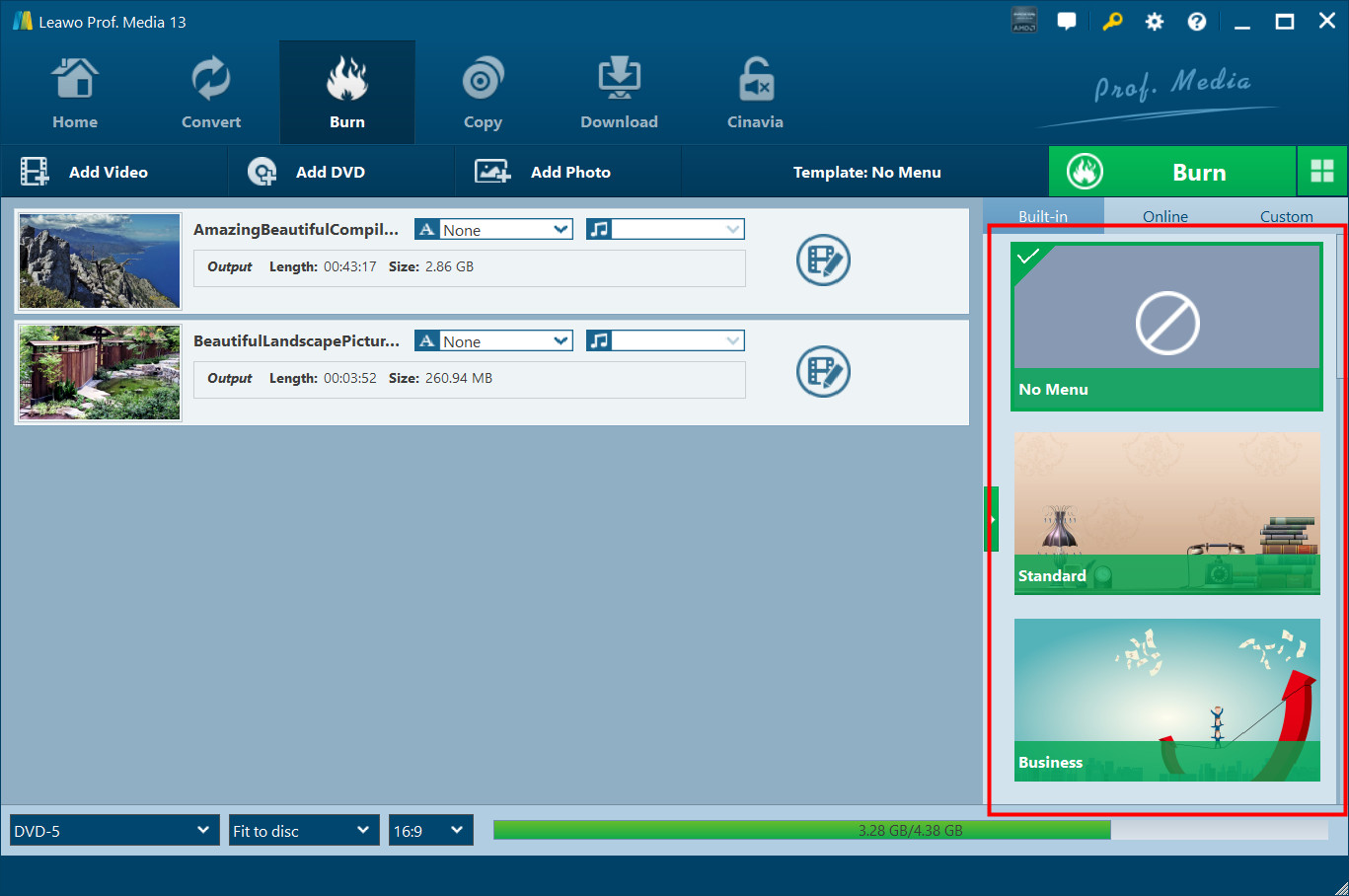
Step 2: Choose a disc menu template to edit.

There are some built-in menu templates under Built-in tab for you to choose. For more templates, click Online tab to see more templates online. If you find templates you like, click Download  button to download it. The Custom tab is for templates that you've edited before and saved to Custom.
Step 3: How to preview and edit disc menu template
3.1. Move your mouse onto one of the templates and there would be a Preview button in the middle  . Click on it to go to the preview window.
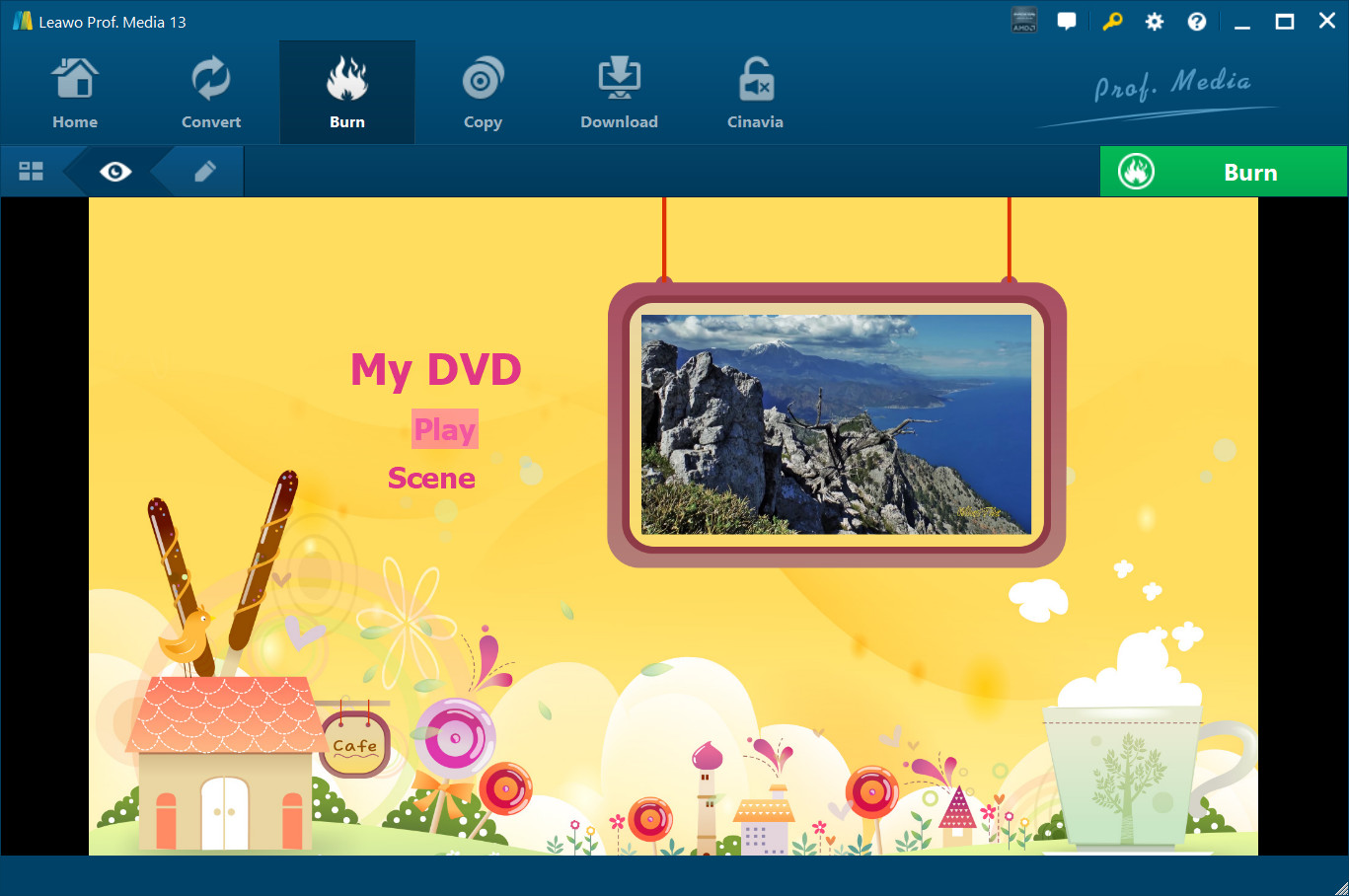
3.2. Click the Edit button on the sub-menu bar to open the editing panel.
a. Double click the title or text to rename them. To further change the color and size of the font, right-click the title while you are editing the text and there would be more options on the pop-up window for you to adjust. You are able to change the size and color of the font, and set the font to be bold, italic or underlined.
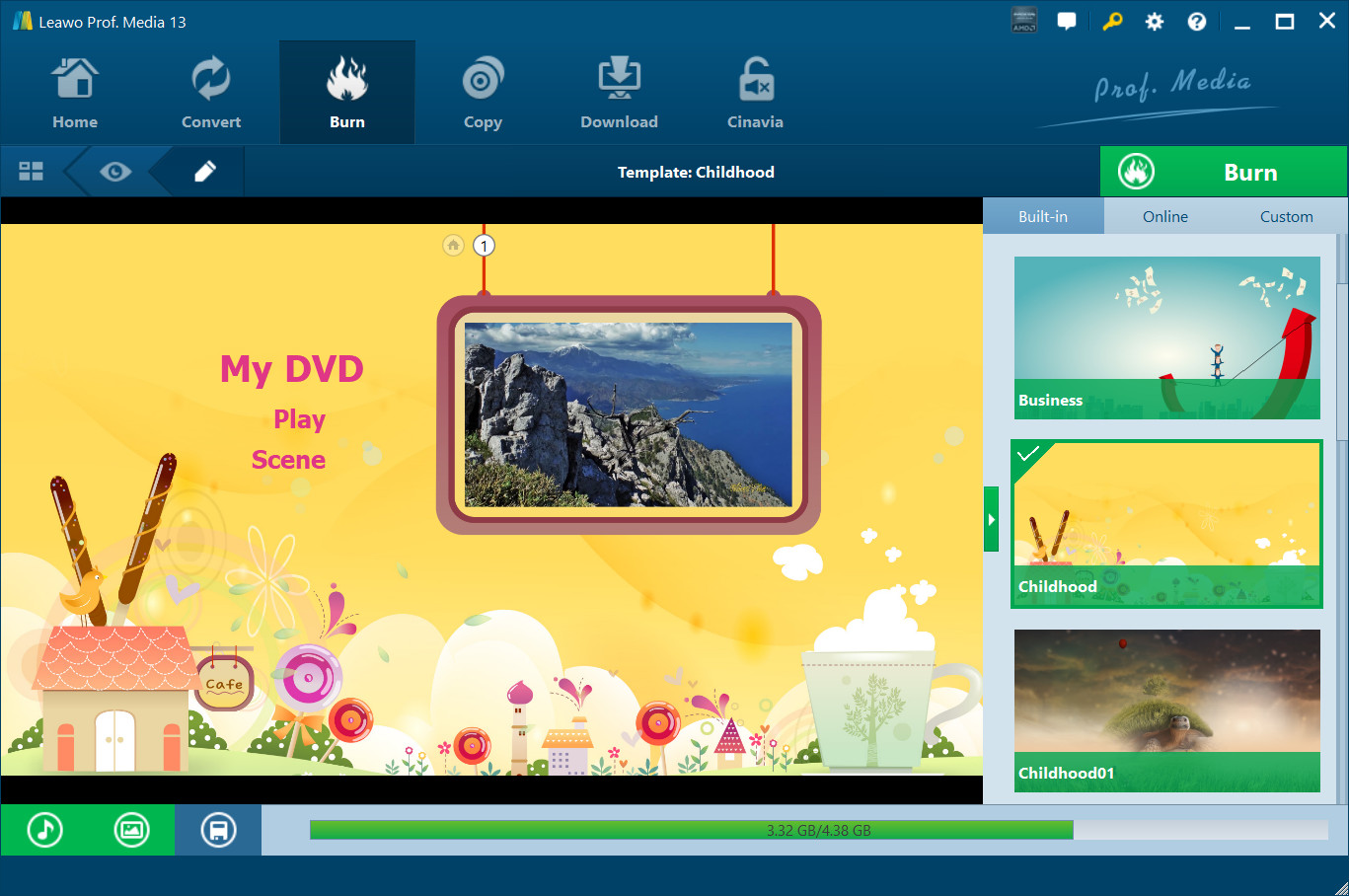
b. Click the second button at the bottom left  , and on the following menu, click the Background Image button to enable image and video background. To change the background to a new picture, click the Image File button
  and click the Browse button
  to choose an image file from your computer. Also you can open the image folder by clicking the folder button
  . And to set a video as the background, click Video File option
  and choose a video file. If you don’t like what you’ve changed, click Reset button to undo all the changes.
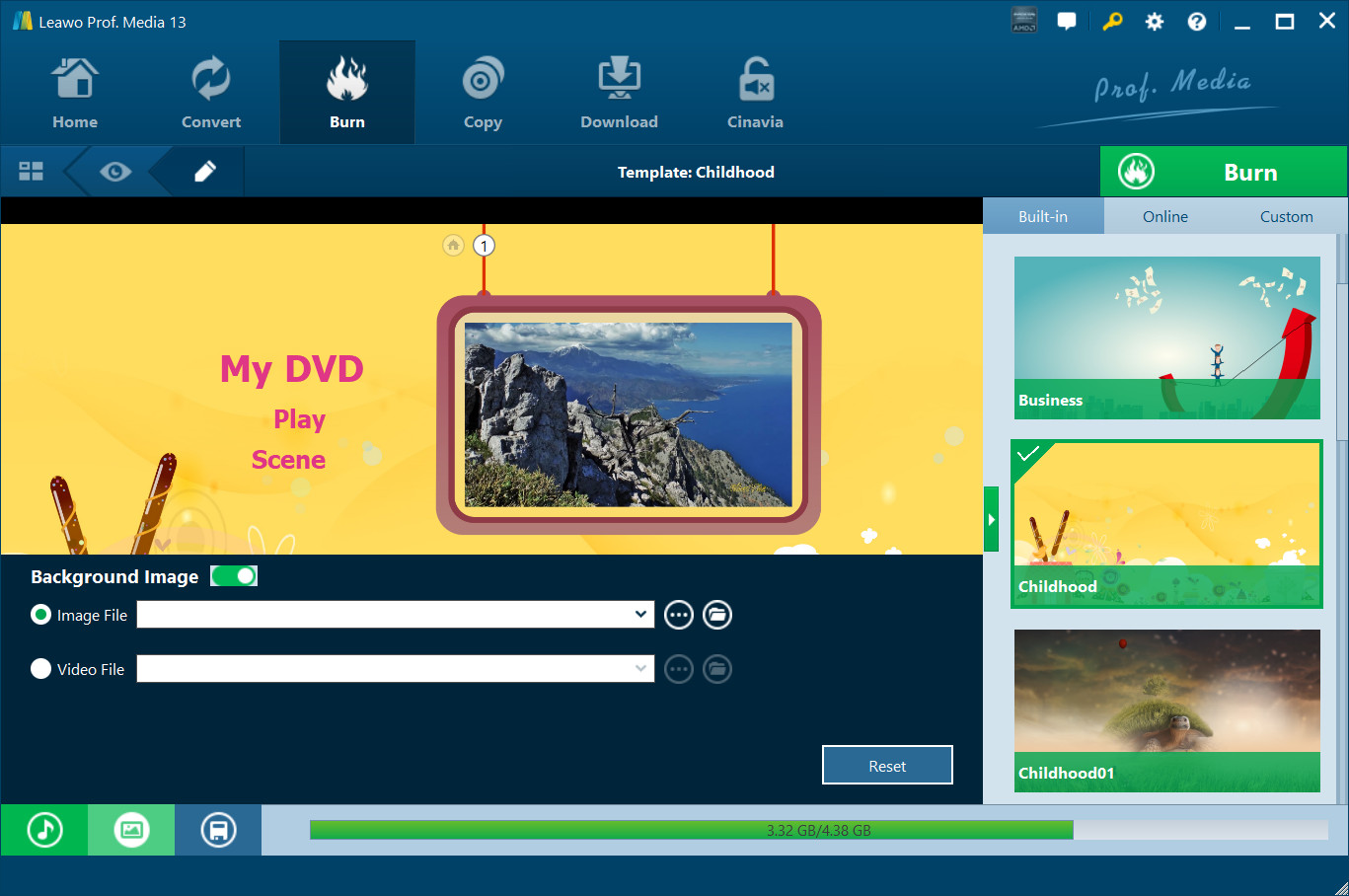
c. Click the first button at the bottom left  to call out the Background Music setting panel. Choose the source music file from your computer by clicking Browse button . And then set the music playback duration from 1 second to 60 seconds. There are other music background playback effects like Fade in, Fade out and Loop Play. Also you can cancel all the changes by clicking Reset button.
When you are done setting up the background, click the third button on the bottom left which is the Save button to save all the settings.