How to Set Leawo Prof. Media 13
All program settings upon Leawo Prof. Media 13 are described in detail on this page, so as to let you get better understanding upon this 10-in-1 media converter suite.


- Home
- /
- Leawo Prof. Media 13
- /
- User Guide
How to set Leawo Prof. Media 13
By clicking the Settings button  , you could call out the program Settings panel, where you could carry out multiple settings upon Leawo Prof. Media 13. On each settings tab, click the Apply button
  to apply setting changes, click the OK button
  to confirm and quit Settings panel, click the Cancel button
  to cancel and quit Settings panel, or click Default button
  to restore default settings.
1. General settings
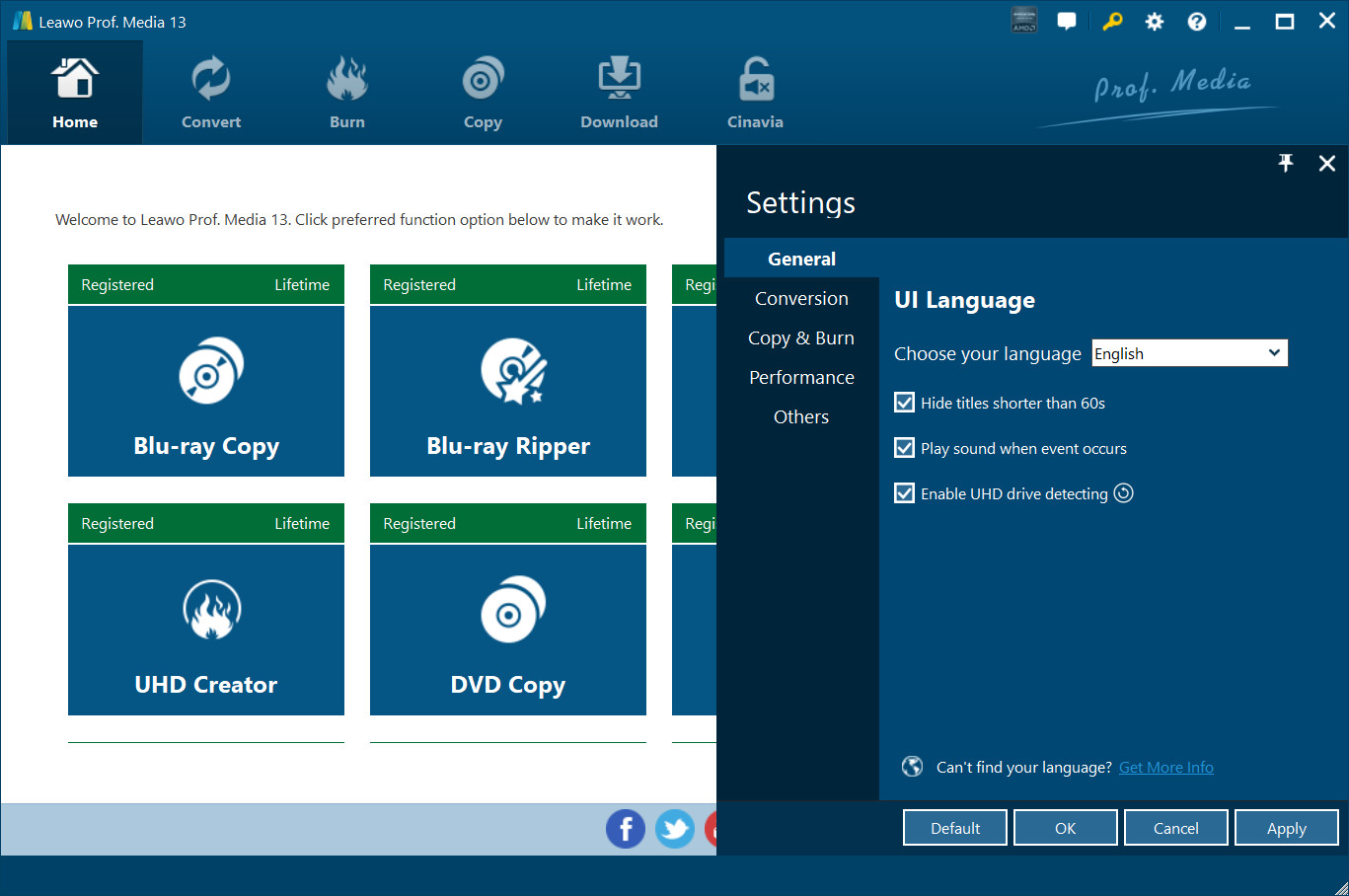
After entering the Settings panel, in the General tab, you could select program interface language. Click the drop-down box to display all UI languages provided by Leawo Software, and then select the one you need.
2. Conversion settings
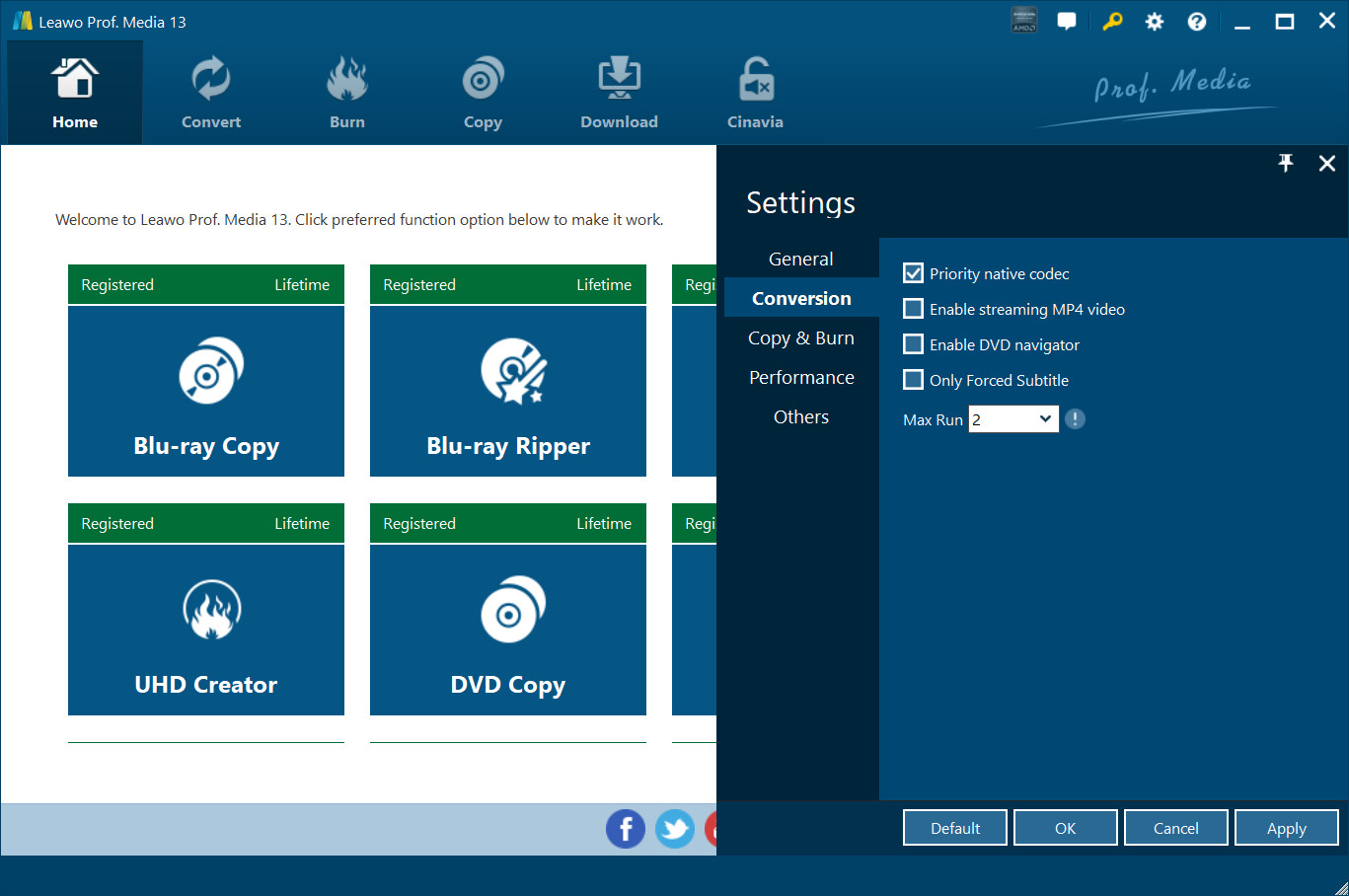
Open the Conversion tab to enter the conversion settings panel, where you could determine whether to make use of Priority native codec, Enable streaming MP4 video, Enable DVD navigator or not. Meanwhile, you could open the Max Run drop-down box to determine how many tasks Leawo Prof. Media 13 could process at a time. Note that when converting BD/DVD/video with forced subtitle, you can output the content with only forced subtitle in most formats, but for lossless MKV and MP4 formats, the software only output the ordinary subtitle instead of forced subtitle.
3. Copy & Burn settings
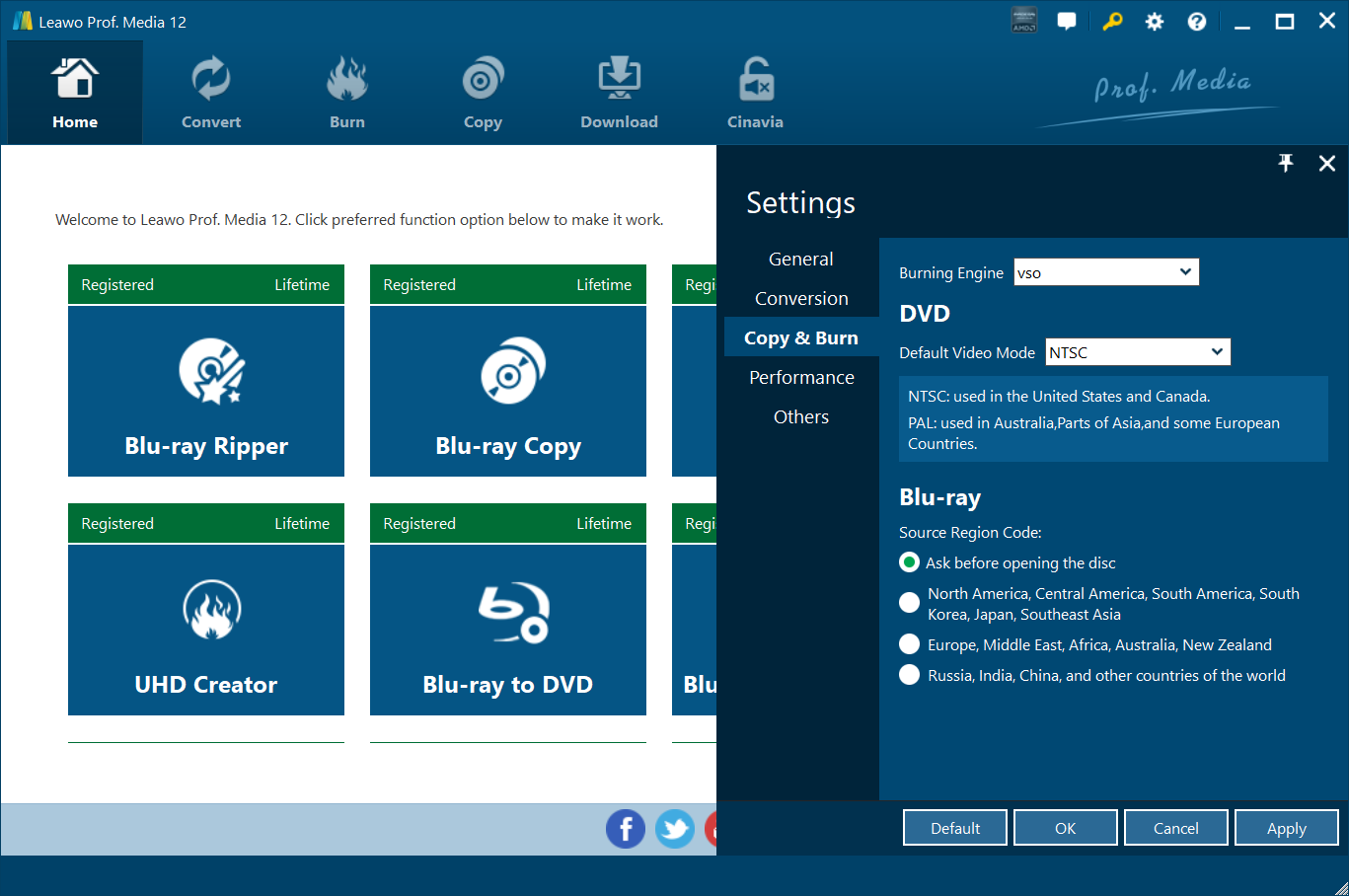
Open the "Copy & Burn" tab to do settings upon copy and burn modules. You can choose VSO or ImgBurn for engine burning. Also you could choose DVD video mode from NTSC and PAL by clicking the Default Video Mode drop-down box, and set Blu-ray region code for burning Blu-ray content by choosing one from the options provided below Source Region Code.
4. Performance settings
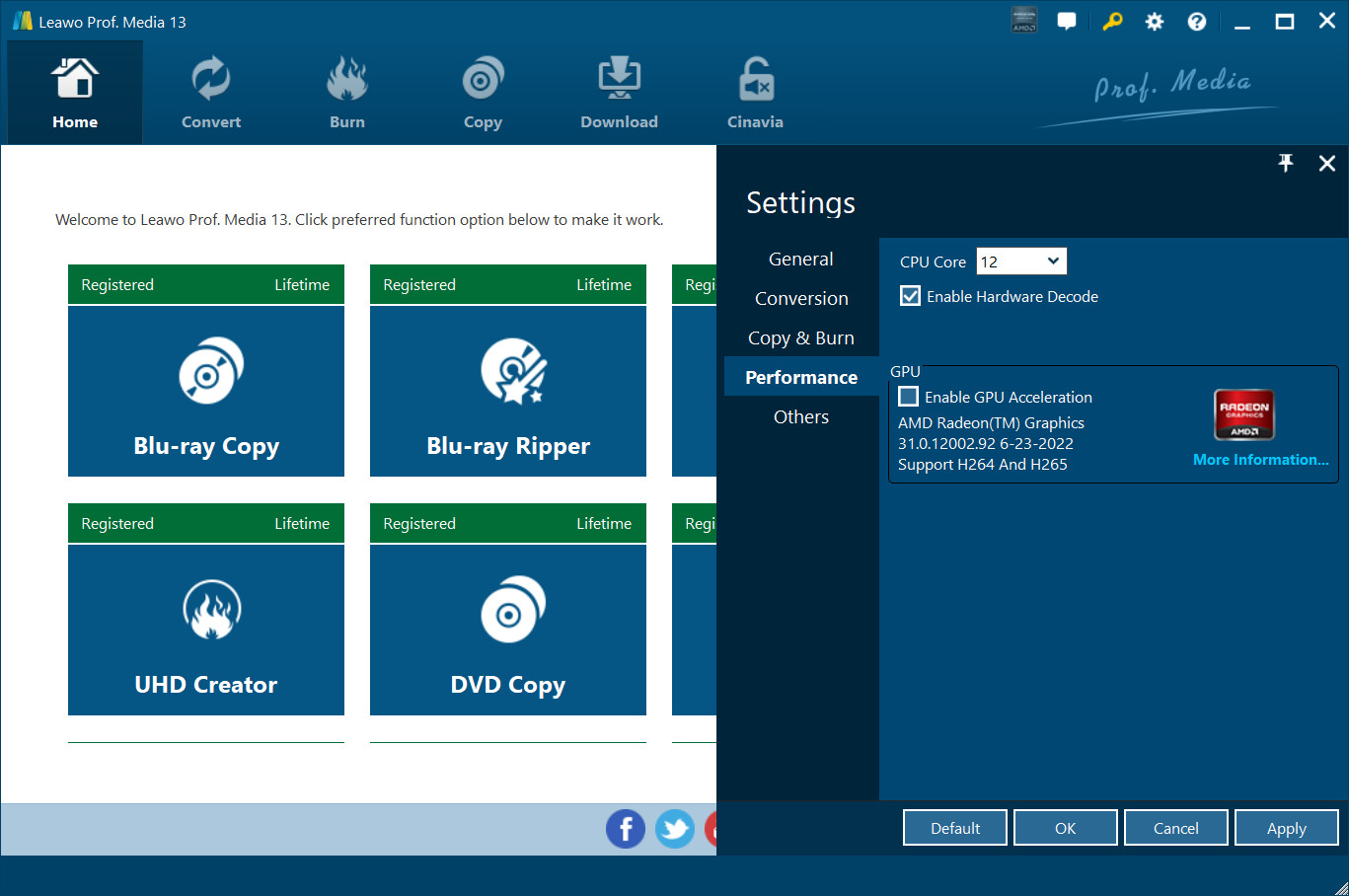
Open the Performance tab to decide CPU Core that Leawo Prof. Media 13 could occupy. And in this tab, you can check Enable GPU Acceleration option to accelerate converting speed once you have popular graphics card on your computer and it’s supported by Prof. Media 13.
5. Other settings
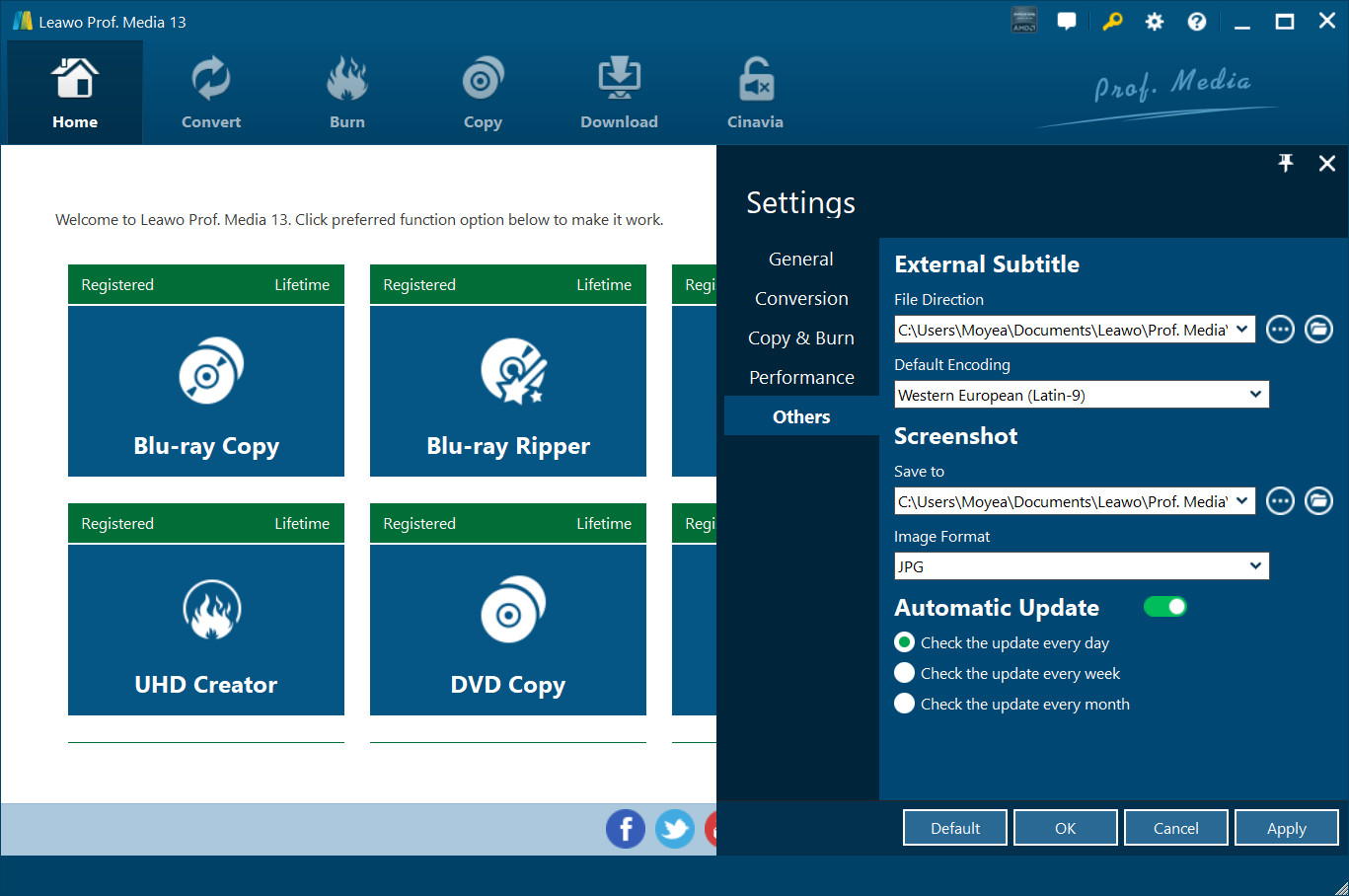
Open the Others tab on the Settings panel to do settings on External Subtitle and Screenshot, including File Direction, Default Encoding, screenshot saving directory (Save to) and Image Format for screenshots.