
How to Purchase and Register Leawo Photo Enlarge
Detailed information on differences of trial and Pro versions, and steps on how to purchase and register Leawo Photo Enlarge.


How to Register Leawo Photo Enlarger
Leawo Photo Enlarger is available in both free trial and registration versions, both of which are free to download, install and experience, free of malware and spyware. However, there are some differences between free trial version, registered version, and expired version.
1. Differences Between Free Trial and Registration Versions
Check the below table for differences between free trial version, registered version and expired version:
| Free trial | Registered version | Expired version | |
|---|---|---|---|
| Enlarge single photo | Yes | Yes | Yes |
| Batch enlarge photos | Yes | Yes | Yes |
| Output photos in batch | No. Output only 1 picture per time. | Yes | No. Output only 1 picture per time. |
| Watermark | Yes | No | Yes |
| Advertising | Yes | No | Yes |
| Free upgrade | Yes | Yes | Yes |
Note:The difference between the free trial version and the expired version is the price. The price from the free trial to the registered version is much higher than the renewal price of the expired version.
2. How To Purchase Registration License of Leawo Photo Enlarger
There are 2 paths for you to purchase registration license/activation code of Leawo Photo Enlarger for registering, through official website and program interface respectively.
2.1 Purchase license from website
- Go to the official website of Leawo Photo Enlarger:https://www.leawo.org/photo-enlarger/.
- Click the “Buy Now” button.
- Select the desired license type, and then proceed to complete the payment.
- License will be emailed to you.
2.2 Purchase license from program interface
- Kick off Leawo PhotoIns on your computer.
- Click the shopping cart icon
![]() in the top-right corner, and you will be led to the official purchase page.
in the top-right corner, and you will be led to the official purchase page. - Select the desired license type, and then proceed to complete the payment.
- License will be emailed to you.
 in the top-right corner, and you will be led to the official purchase page.
3. How to Register Leawo Photo Enlarger
With registration license, now you can register Leawo Photo Enlarger to fully experience its magic and power. Follow the below guide to register Leawo Photo Enlarger:
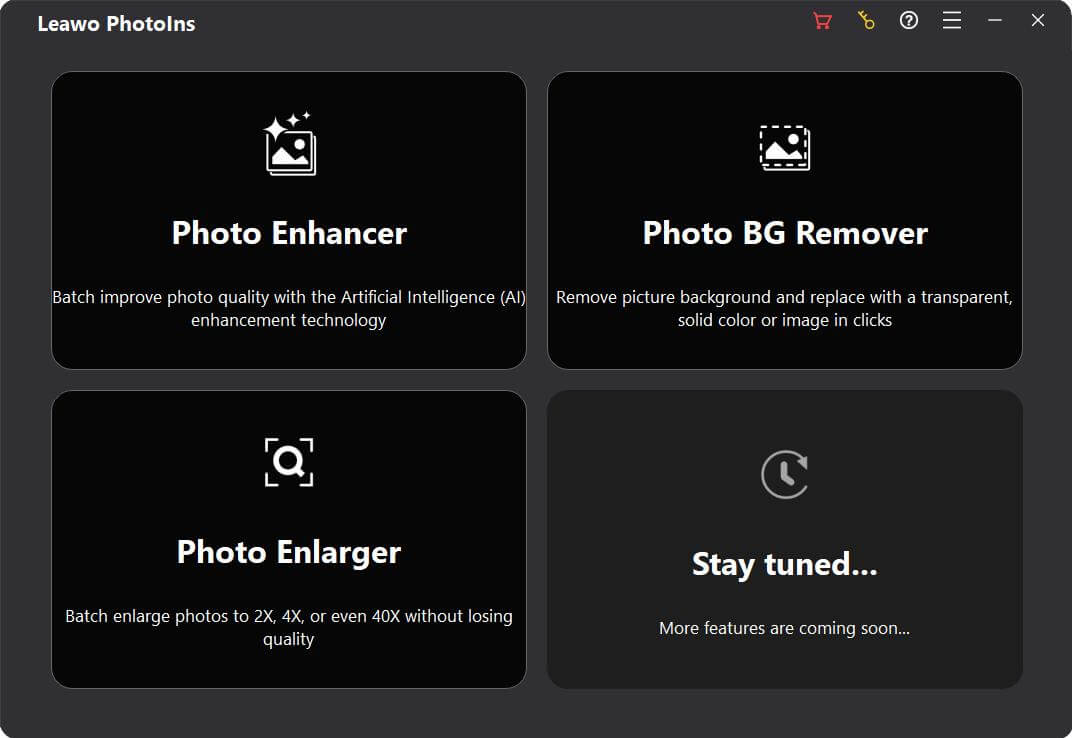
Step 1: Fire up Leawo PhotoIns
Kick off Leawo PhotoIns on your computer after installation completes.
Step 2: Enter Register interface
Leawo Photo Enlarger offers 2 entries for you to enter the Register interface:
- You can click the key icon
![]() in the top-right corner on the main interface of Leawo PhotoIns.
in the top-right corner on the main interface of Leawo PhotoIns. - Alternatively, you can enter Photo Enlarger module, and click the key
icon
![]() in the top-right corner. Then, on the “Get Pro” panel, click the “Register” button to
enter the “Register” interface.
in the top-right corner. Then, on the “Get Pro” panel, click the “Register” button to
enter the “Register” interface.
 in the top-right corner on the main interface of Leawo PhotoIns.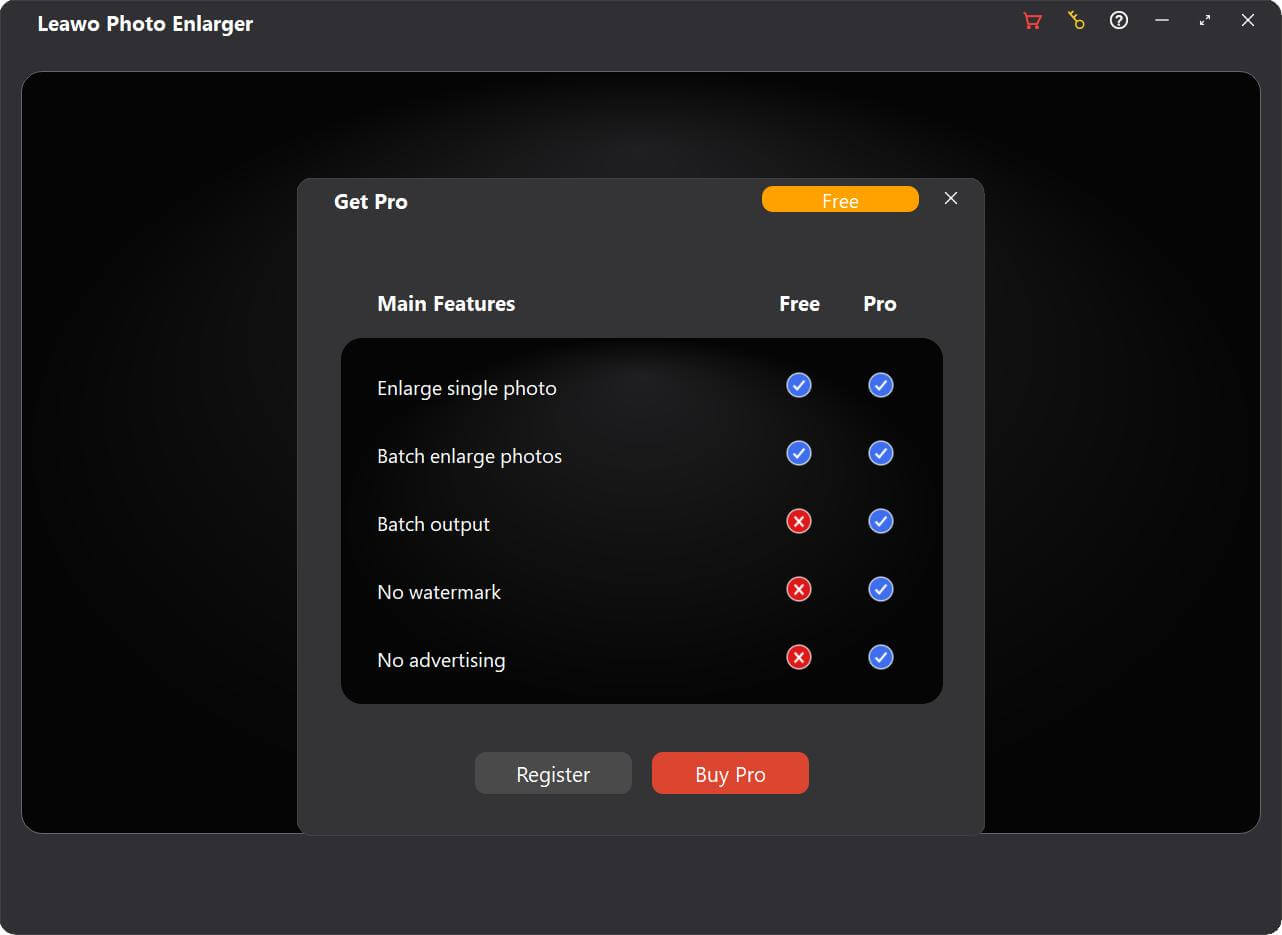
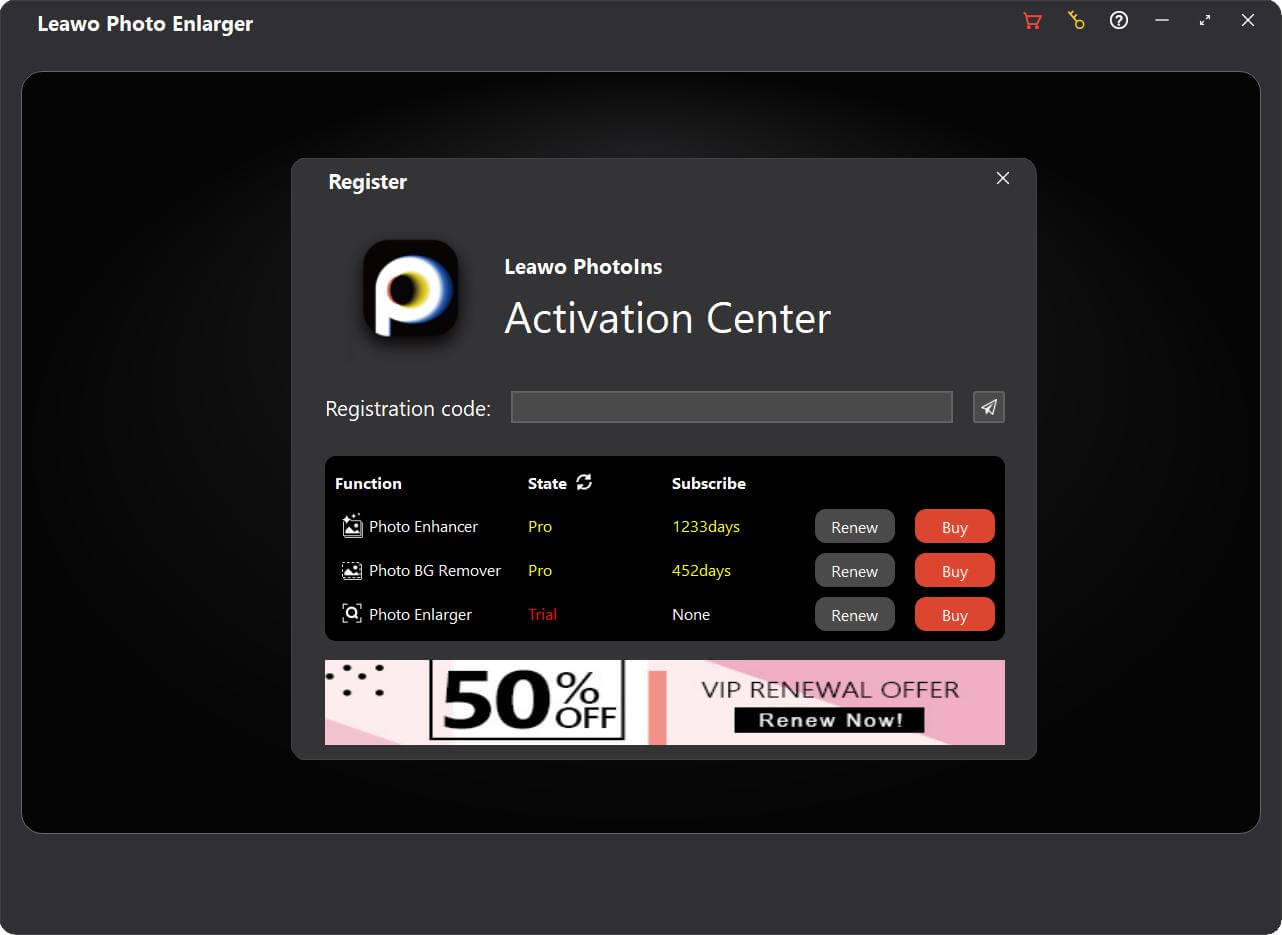
Step 3: Register Leawo Photo Enlarger with license
On the “Register” interface, simply copy and paste the license you received via email into the “Registration code” box. Then, press Enter key on your keyboard or click the paper airplane icon  , and Leawo Photo Enlarger will be activated successfully.