



 Try for Free
 Try for Free


How to Screenshot on Lenovo Laptop: ThinkPad, ThinkBook, etc
Taking screenshots on your Lenovo laptop screen is super useful. It lets you easily share photos, instructions or other info with others.
No matter if your laptop is a Lenovo or an HP brand doesn't matter, they all allow screenshots. Knowing how is an important skill that can help you get more done.
In this guide, I will show you some easy methods for capturing screenshots on Lenovo. These techniques can be used to take screenshots on Lenovo ThinkBook and ThinkPad laptops with simple steps. It will soon be effortless to clip anything on your screen with just a few clicks or keypresses. The steps are straightforward and quick to learn.

Outline
Part 1: How to Take a Screenshot on Lenovo Laptop?
In this part of our article, I will show you some quick ways to take screenshots on your laptop. No matter if you are planning to take a screenshot of one window, part of the screen or the whole display. Here I'll cover simple steps that you can take.
1)Take Screenshots Using Keyboard Shortcuts
Keyboard shortcuts provide a quick and straightforward way to take screenshots whenever you need them.
Keyboard shortcut For Full-Screen Screenshot on Lenovo Laptop
The Windows key + Shift + S combination is very handy for full-screen captures. Pressing those keys immediately opens the screenshot tool so you can select which area to snip.

The toolbar at the top shows’ different options like a freeform or rectangular selection if you only want part of the screen. But for a full screenshot of everything, the default choice works great. It's so fast to press those three keys and have your image copied automatically for editing or saving.
Once you take the screenshot, it will automatically copy to the Snip & Sketch window. Furthermore, you can also edit the screenshot by highlighting areas or adding text annotations.
Next, to save the screenshot, you can use the keyboard shortcut Ctrl + S. Remember, the Windows key + Shift + S shortcut opens the screenshot tool directly without other programs. Your screenshot is copied immediately for editing in Snip & Sketch. And Ctrl + S makes it easy to save in the location of your choice.
Take a Screenshot in Lenovo Using the Print Screen Key

Many Lenovo laptop users will be familiar with the Print Screen key found along the top row of their keyboard. It provides an old-school yet still effective method for snipping images when needed.
- To use it, start by pulling up the window or program you want included in your screenshot. Make sure it's the active window at the front and visible on the display. Then locate the Print Screen key, usually marked with "Prt Scr" or "Print Screen" between the F12 and Scroll Lock buttons.
- Go ahead and give it a press. Instantly the entire contents of your screen at that moment will be copied over to your clipboard's storage.
- Open an image editing program like Paint.
- Paste the screenshot by pressing Ctrl + V.
- You can then edit the screenshot using tools in the software if desired.
- Finally, save the image by pressing Ctrl + S.
Using this method requires manually pasting and saving the screenshot. It may feel like extra steps compared to automatic options. If you prefer not to copy and paste screenshots between programs, there are alternate methods that directly save screenshots on your Lenovo laptop.
Take a Screenshot in Lenovo Using the Window key + Print Screen for the Entire Screen

Using the Windows + Print Screen keys allow you to capture your full screen with screenshots automatically saving to your laptop.
- Make sure the screen you want to capture a screenshot of is visible.
- Press the Windows logo key and the Print Screen key simultaneously.
- Your screenshot will automatically save without additional steps.
- Go to C:\Users [Your Name] \Pictures\Screenshots to find the saved file
This method saves any full-screen capture directly to your laptop's Pictures/Screenshots folder. The only limitation is it always takes the entire screen rather than a single active window. However, if you need to screenshot a specific window only, there is another shortcut you can use for that as explained in the following section.
Take Screenshots in Lenovo Using Print Screen for Active Window

If you have several programs or browser tabs open simultaneously, follow these steps to screenshot a single active window:
- Click inside the window you want to capture. This selects it as the active window.
- Press and hold the Alt key, then also press the Print Screen key.
- Releasing the keys automatically copies the active window to your clipboard.
- Open an image editor such as Paint.
- Paste the screenshot by pressing Ctrl + V.
- You can edit the screenshot within the program before saving it.
- Finally, press Ctrl + S to save the edited screenshot.
Using Alt + Print Screen allows you to quickly screenshot just one window rather than the whole screen. It's helpful when you need to capture a specific program or browser tab.
2) Take a Screenshot on Lenovo using the Snipping tool
The Snipping Tool provides an easy way to capture screenshots without additional software downloads. To use it:
- Like the built-in screenshot option, Windows also provides a handy Snipping Tool app that makes capturing regions of the screen simple. First, locate the tool by typing its name into the Start menu search bar.
- Once open, you'll find toolbar options on top, click "New" to get the crosshairs cursor ready. From there it's easy to drag and select any on-screen area for a snip. Choose a window, menu, portion of the desktop or whatever you need to be captured.
- As soon as you release the mouse, your selection will automatically copy itself into the tool window for saves and exports. To stick the image file somewhere, hit Ctrl + S to save with options for naming and destination folder.


The tool provides options to draw, take free-form screenshots or full screen. And it conveniently copies screenshots directly without the extra steps of pasting and saving. For quick snips of parts of your screen, the built-in Snipping Tool is a simple solution.
3)Take Screenshots Using Snip & Sketch
This handy screenshot tool gives users options beyond basic snips. Access it right from your Windows search bar for ease.
- Open it by searching for "Snip & Sketch" in the Windows search bar.
- Click "New" at the top of the window to open the capture options.
- Select the type of screenshot you want - full screen, rectangular selection, freeform, or window only.
- The screenshot will be copied to the Snip & Sketch window.
- You can use the editing tools to mark up or highlight areas of the image.
- When finished, save the screenshot by pressing Ctrl + S.


Snip & Sketch offers different screenshot shapes as well as editing tools. It's a helpful alternative to other screenshot methods. The screenshots are saved directly in the program so no extra steps are needed. This makes Snip & Sketch a convenient choice for capturing and annotating screenshots on a Lenovo laptop.
Part 2: Best Software for Screenshot on Lenovo Laptop
Leawo Screen Recorder is a great screenshotting and screen casting program to have on your Lenovo laptop. With its intuitive interface, you can quickly and easily take full or partial screenshots of your screen. It also allows you to record high-quality screencasts in HD video format. Now, let me quickly show you how you can use this software to record your Lenovo laptop screen;

-
Leawo Screen Recorder
- Support Windows 7/8/8.1/10/11.
- Provide various doodle and annotation tools.
- Support to record online class, PowerPoint presentation, and zoom meeting.
- Smoothly record gameplay in high quality, including large 3D games.
- Add background music or voiceover to video.
- Integrate more advanced functions like real-time drawing, scheduled recording, shortcut controls, etc.
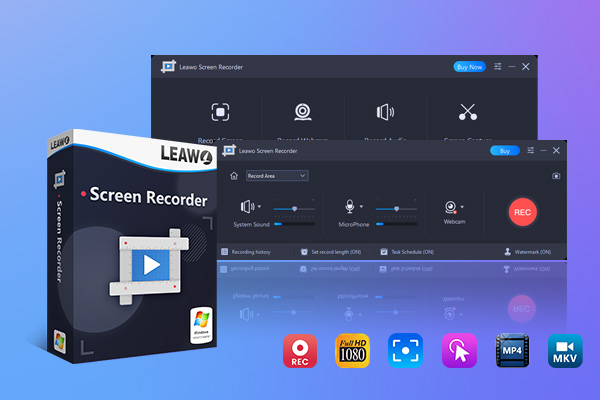
Here are the detailed steps of how to take a screenshot on Lenovo laptop with Leawo Screen Recorder, check it out!
Step 1: Launch Leawo Screen Recorder:
Open the program. Launch Leawo Screen Recorder on your computer to get started.

Step 2: Select Recording Region:
Click "Record Screen" and select whether to capture your full display or a specific portion.

Step 3: Configure Settings Before Recording:
Tweak things like system volume, microphone, and webcam sources under the options menu.

Step 4: Start Recording:
When ready, hit the big red "Record" button to capture your screen in real time.

Step 5: Manage Recordings:
After finishing, press "Stop" and then view, rename, share or delete clips from the history panel.

Leawo Screen Recorder simplifies the entire process with its clear, user-friendly design. Just follow these easy steps to screen record on your Lenovo laptop with no hassles.
Part 3: Conclusion
This article provided a helpful overview of the different methods for taking screenshots on Lenovo laptops, whether you have a ThinkPad, ThinkBook or other models. From keyboard shortcuts to screen recording software, there are simple options available no matter your specific needs.
Capturing images and video directly from your computer screen has many uses, from documenting steps to creating tutorials. Leawo Screen Recorder stands out as a versatile screenshotting and screen casting program. Its intuitive interface allows quick and easy screenshots with customization options. The built-in screen recording also produces high-quality clips that are simple to share. Overall, it streamlines the process of capturing anything shown on your Lenovo display.
-
Is Movavi Screen Recorder Worth It? Full Review and AlternativesSunny Wen/2026-03-24
-
Netflix vs HBO Max: Which Should You Choose?Cassie J./2026-03-11
-
How to DVR on YouTube TV and Fix Recording IssuesSunny Wen/2026-03-11
-
Loom Screen Recorder Guide: How It Works + Free Alternative ToolsSunny Wen/2026-03-10
-
Locoloader OnlyFans Downloader Review: Is It Really Working?Patrick Murray/2026-03-09
-
How to Download YouTube 8K Video Without Quality LossCassie J./2026-03-09
-
Disney Plus 8-Digit Code: How to Activate Your Account on Any DeviceLeia Liu/2026-03-06
-
Wondershare DVD Creator Review: Features, Test & PriceCassie J./2026-03-06
-
HiDIVE Downloads: Do They Expire? How to Keep Them Forever?Patrick Murray/2026-03-03
-
Paramount Plus Error Code 3205 Explained: Causes & Proven FixesLeia Liu/2026-02-27



-
12 Best Sites Like BestGore for Shocking VideosAugust/2025-03-17
-
12 Best Sites Like BestGore for Shocking VideosAugust/2024-02-22
-
12 Best Free Web Series Download Websites 2026August/2025-02-05
-
Top 10 Sites to Download Anime FreeAugust/2024-12-27
-
Top 5 OnlyFans Viewer Tools to View OnlyFans FreeAugust/2024-04-29
-
Top 10 Websites to Watch Uncensored AnimeAugust/2024-02-21
-
[2026] AudioBookBay Proxy Sites & Alternatives for Free AudiobooksCassie J./2026-01-06
-
How to download videos from MissAV? – Ways to download MissAV JavPatrick Murray/2025-02-08
-
Top 10 OnlyFans Search to Find Someone on OnlyFansAugust/2024-02-29
-
7 Best Free Sites for Pinoy Movies Download in 2026August/2024-10-31


Comments are closed.