
Leawo UHD Creator User Guide - How to Burn 4K Blu-ray
Official user guide of Leawo UHD Creator - How to purchase, activate and use Leawo UHD Creator


- Home
- /
- Leawo UHD Creator
- /
- User Guide
How to Set Leawo UHD Creator
If you have any problem in using Leawo UHD Creator or any other module of Leawo Prof. Media, you could directly contact us or send a bug report, and get quick help from the program.

On the top-right corner of Leawo Prof. Media, you could see a few icons, which are described in detail below:
- Feedback: Click the "feedback" icon
![]() to send feedback of using Leawo Prof. Media, like advice, review, function need, etc.
to send feedback of using Leawo Prof. Media, like advice, review, function need, etc. - Activation center: Click the "Activation center" icon
![]() to enter the Activation Center interface for registering and activating Leawo Prof. Media modules.
to enter the Activation Center interface for registering and activating Leawo Prof. Media modules. - Settings: Click the "Settings" icon
![]() to set Leawo Prof. Media, which will be described below in detail.
to set Leawo Prof. Media, which will be described below in detail. - Help center: Click the "Help center" icon
![]() to get more help from Leawo, like visiting Home page and Tutorial page, sending Bug Report, checking for update, purchasing, registering, rating, etc.
to get more help from Leawo, like visiting Home page and Tutorial page, sending Bug Report, checking for update, purchasing, registering, rating, etc.
 to send feedback of using Leawo Prof. Media, like advice, review, function need, etc.
 to enter the Activation Center interface for registering and activating Leawo Prof. Media modules.
 to get more help from Leawo, like visiting Home page and Tutorial page, sending Bug Report, checking for update, purchasing, registering, rating, etc.
Leawo Prof. Media provides multiple program settings for you to better use this program. You could click the "Settings" icon  to set Leawo Prof. Media, including:
1. General settings
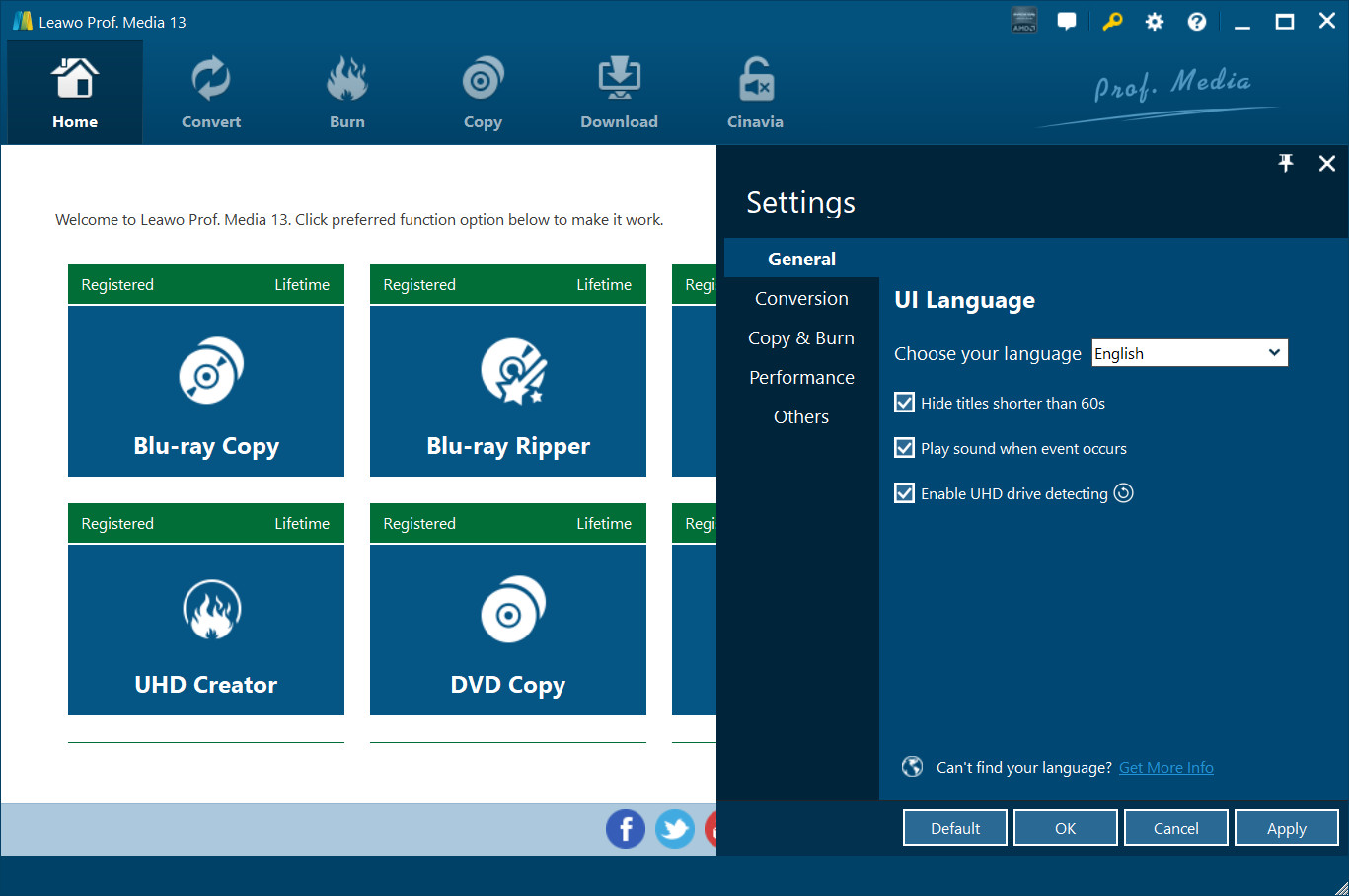
On the "General" tab, you could set program UI language and other settings.
2. Conversion settings
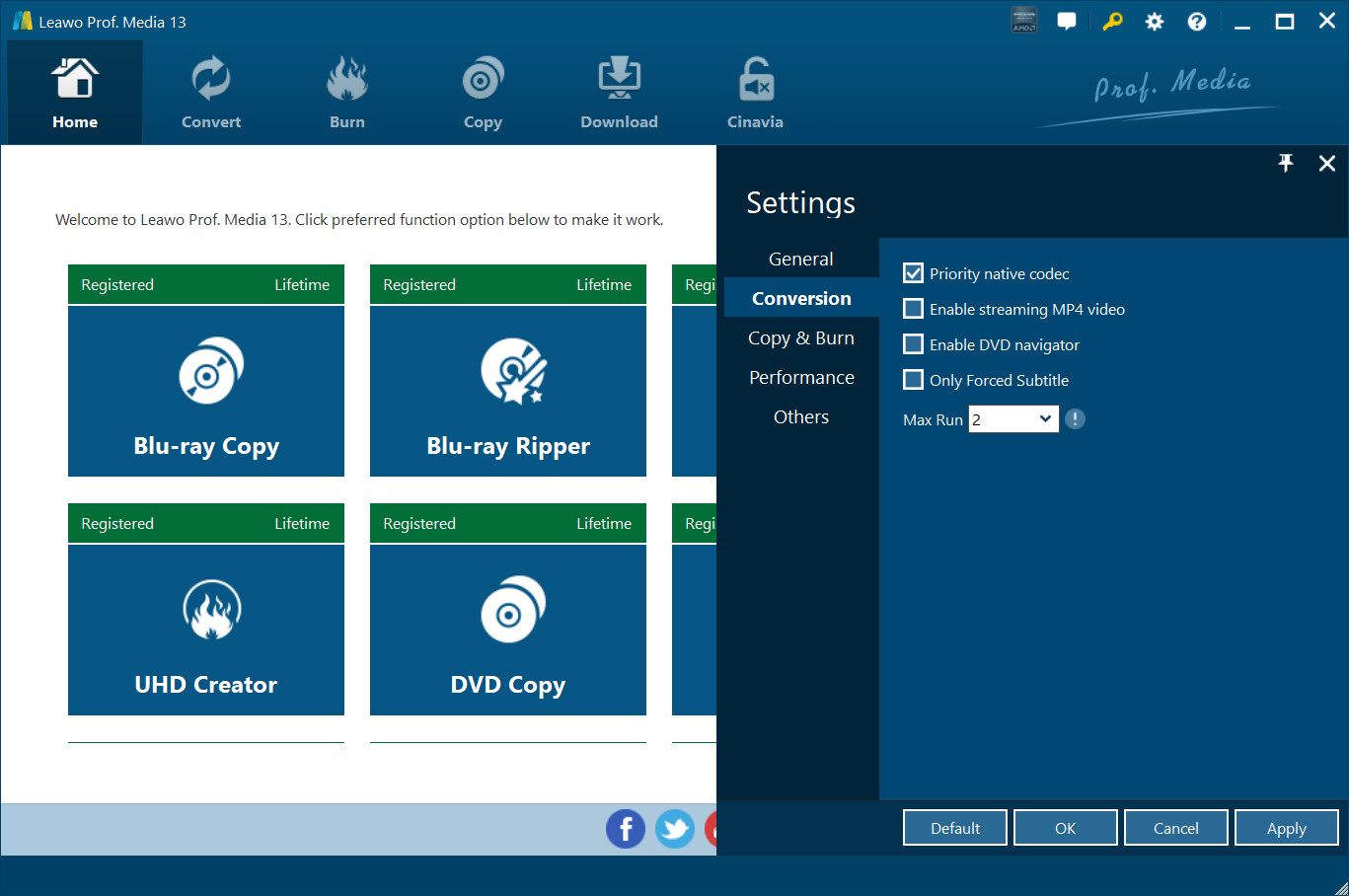
On the "Conversion" tab, choose to enable Priority native codec, streaming MP4 video, DVD navigator, max run, etc.
3. Copy & Burn settings
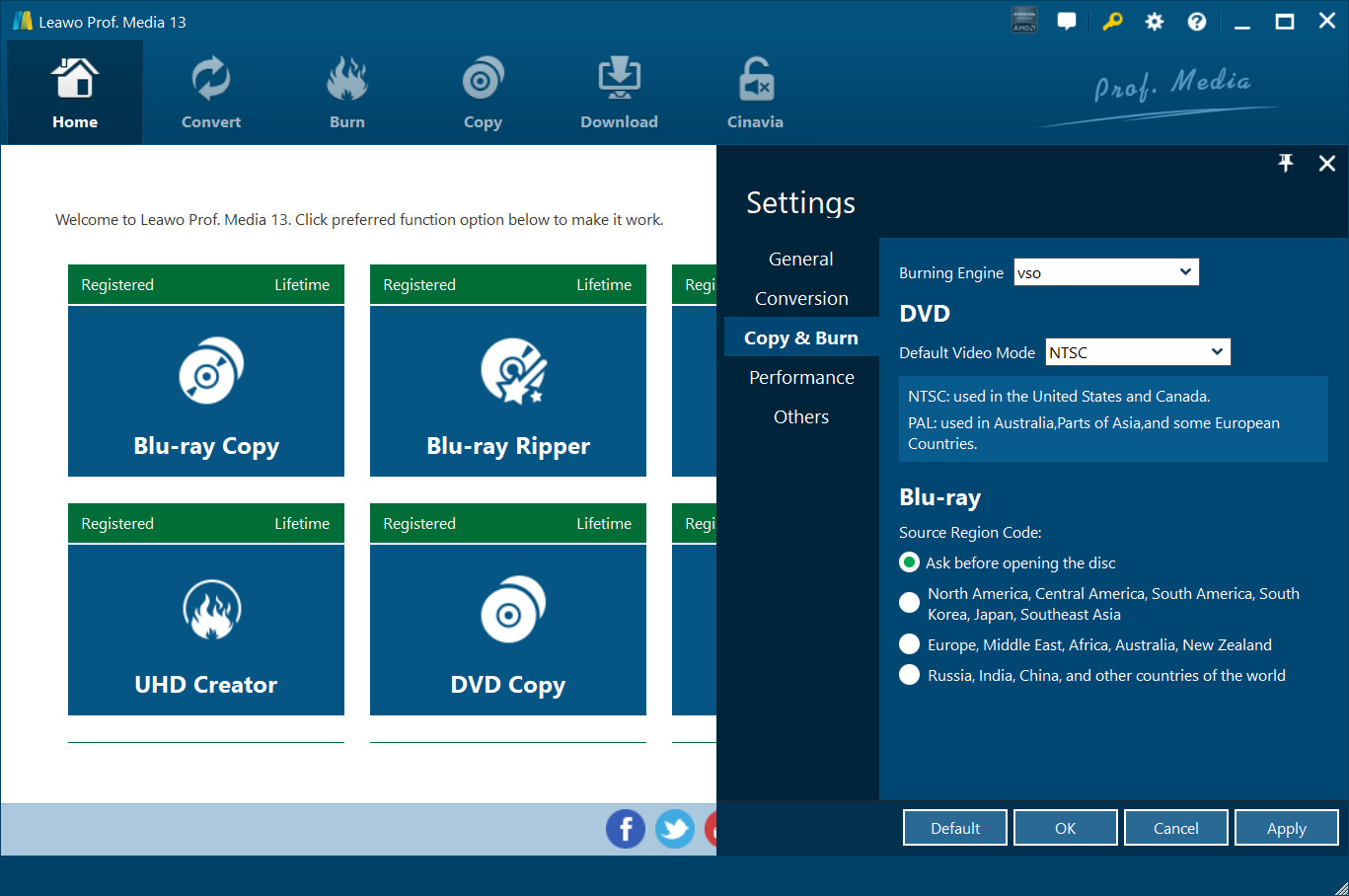
On "Copy & Burn" tab, set Burning Engine, default video mode for DVD, source Blu-ray region code, etc.
4. Performance settings
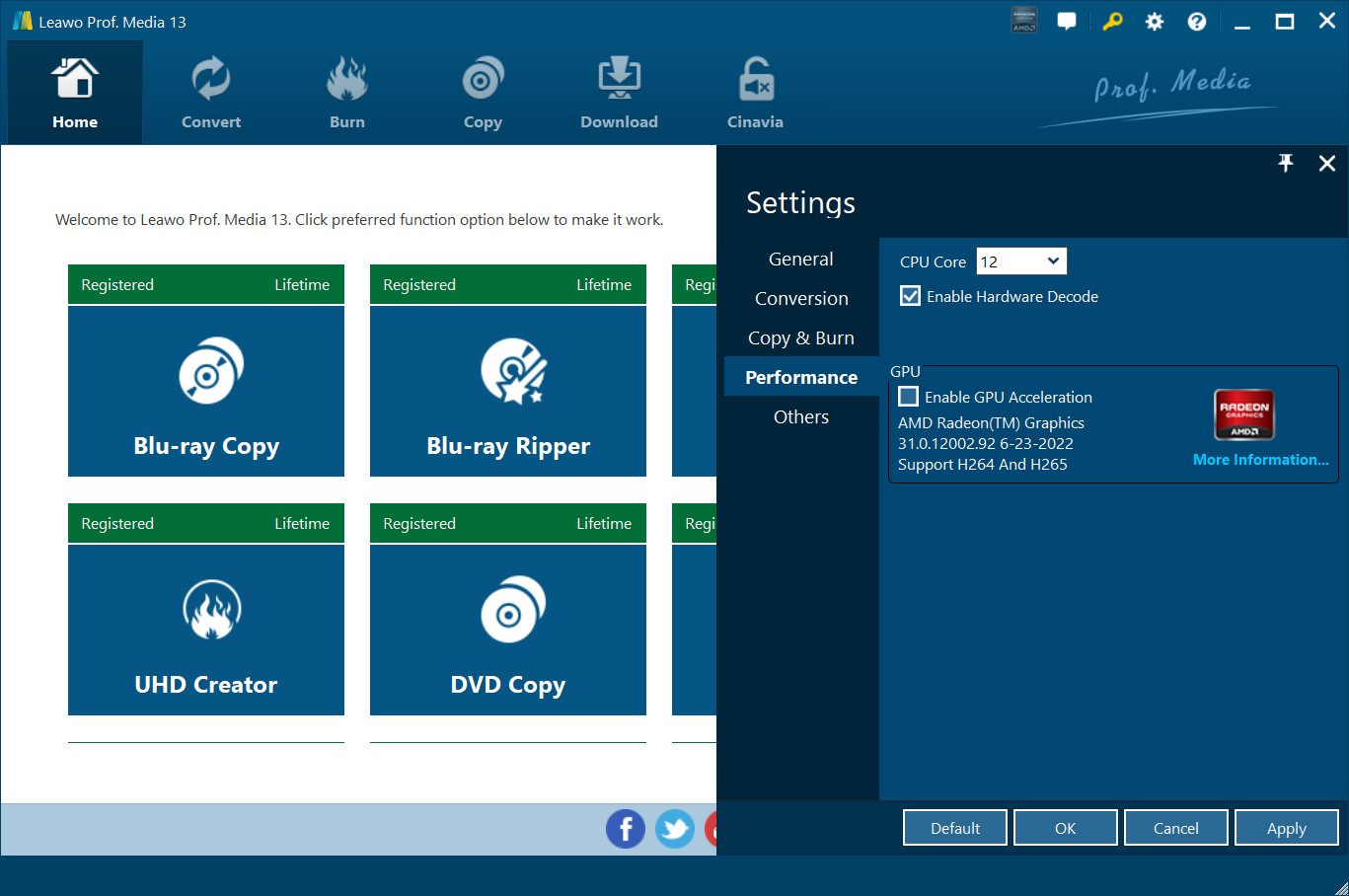
On "Performance" tab, set CPU core, choose to enable hardware decode, and choose GPU acceleration.
5. Others settings
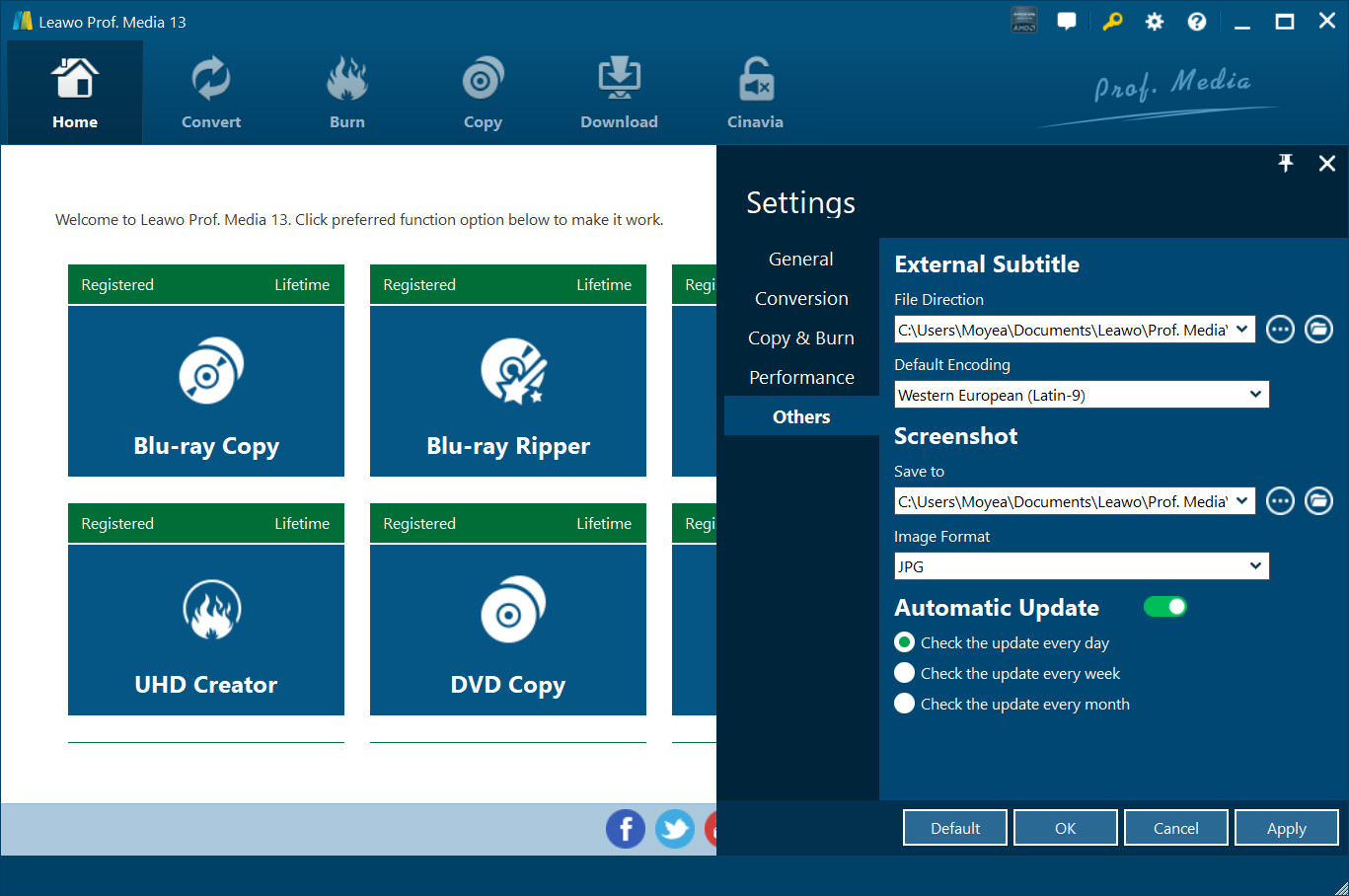
On "Others" tab, set external subtitle position, default encoding, screenshot saving directory and format, automatic update, etc.