This online video downloading page shows you how to use Leawo Video Downloader to download online videos in detail.
Step 1: Run Video downloader
Go to Leawo Video Downloader’s official website. Click Free Trial to download the installation package. Install it and you’ll see it’s inside a software package named Leawo Prof. Media. Open Prof. Media and you can see several different software modules.
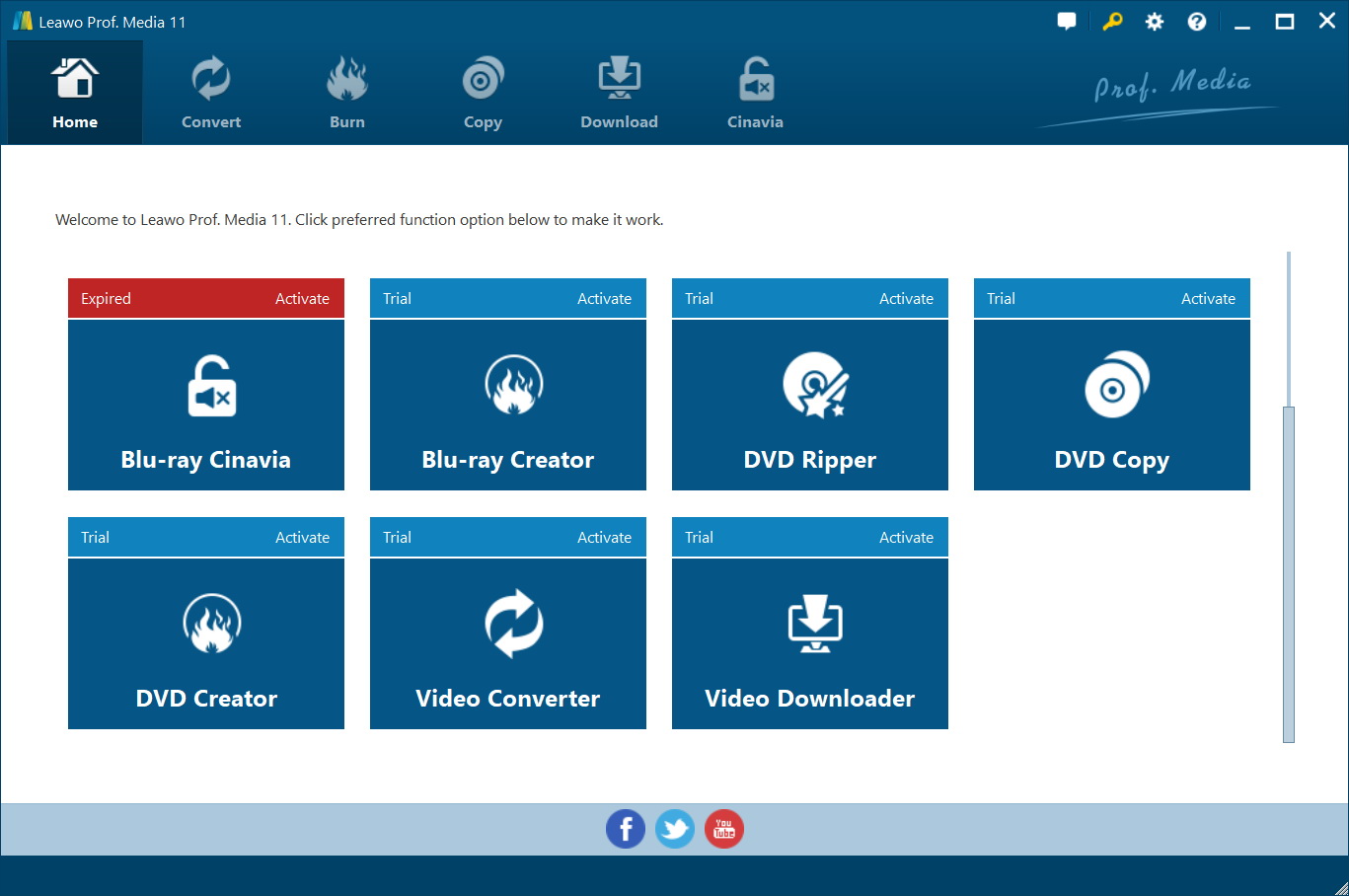
Click on Video Downloader and the built-in web browser would be activated and take you to YouTube.com, which can be changed to other website in the settings.
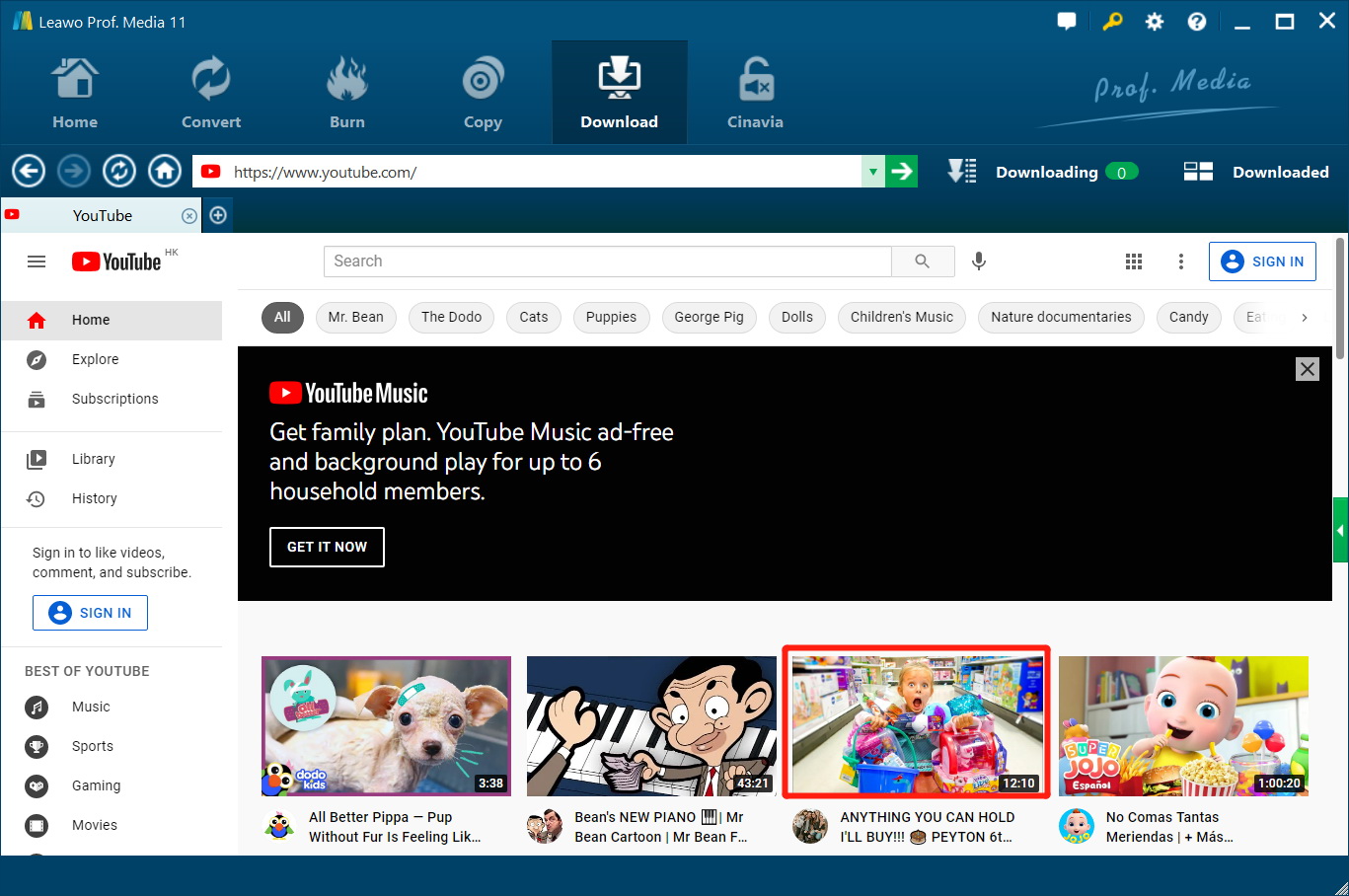
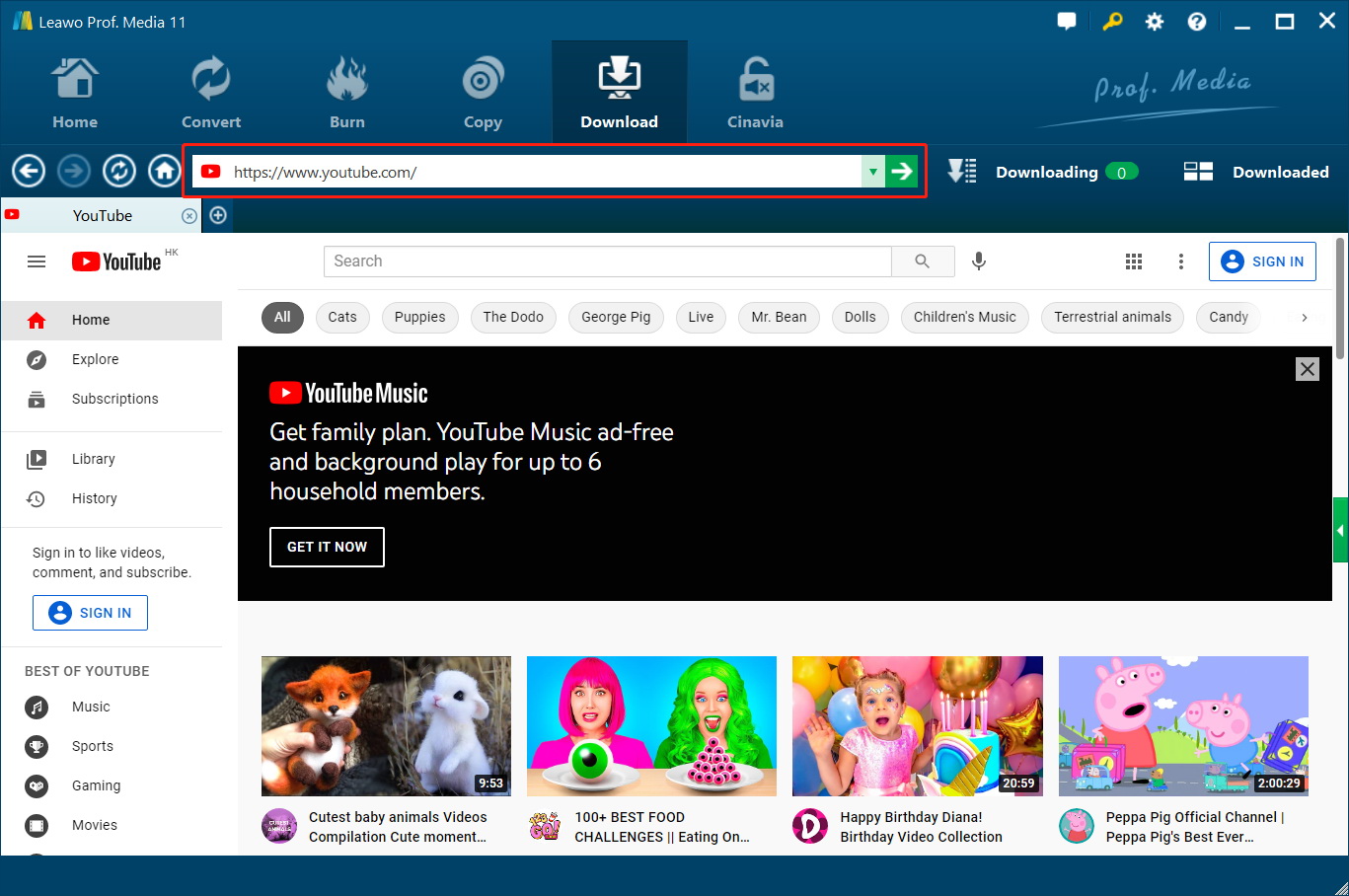
If your target website isn’t YouTube, you can input the address of the webpage in the location bar.
If you want to change the Home Page to other website, click Settings button at the top right, and then click Downloader. You can choose to open a blank page or set a specific website as home page. Also you can set the Max download tasks from 1 to 5, the default file location and whether you want to delete the browsing history every time you exit the browser.
Step 2: Set Output Directory
Click the gear icon  to pop up detailed settings panel. Under “Downloader” tab, you could set a directory for downloading video/audio files in the "Save videos to" box.

Step 3: Download YouTube video
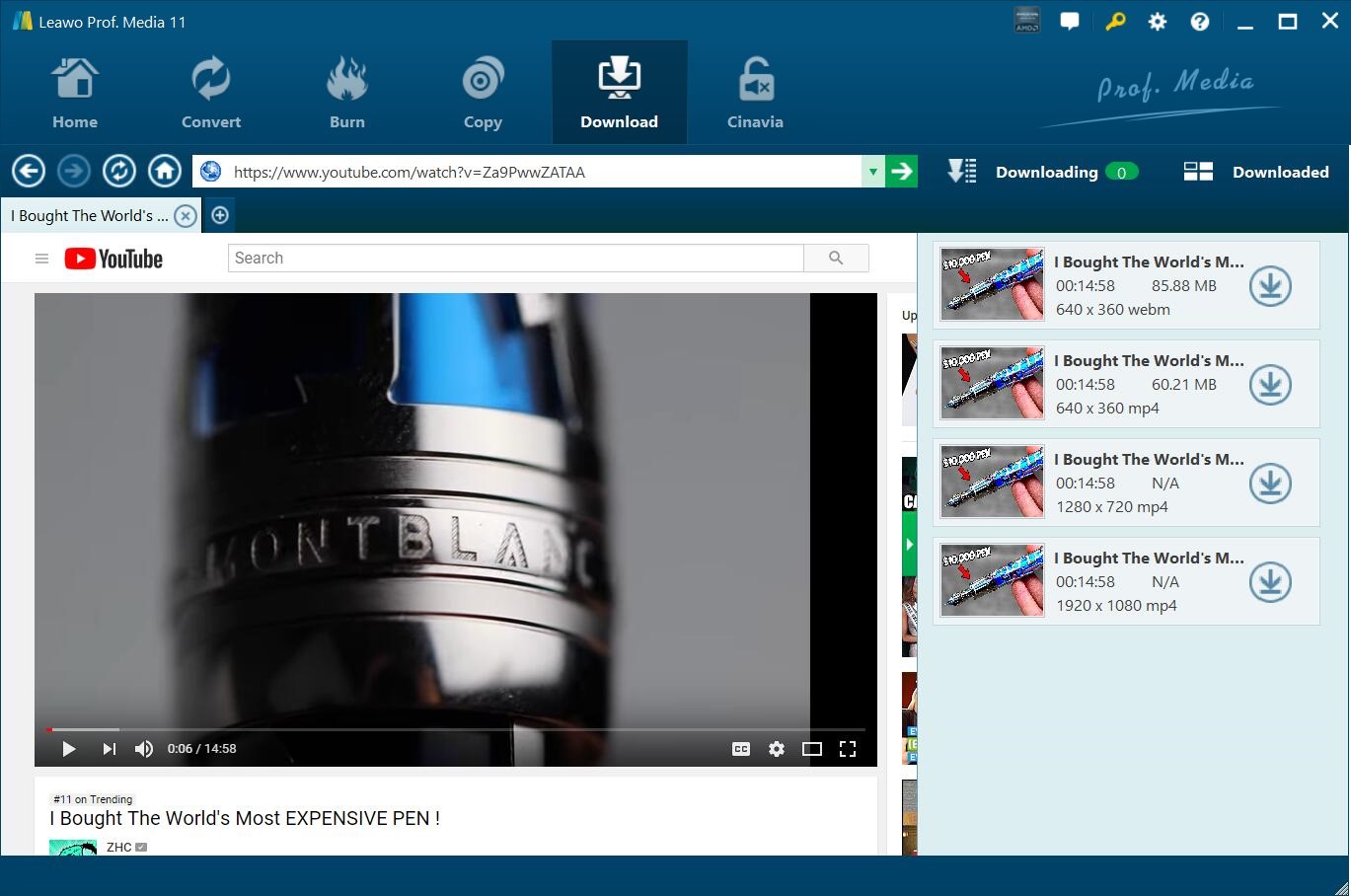
After you open a video link the Video Downloader will detect the downloadable sources of that video in different formats and resolutions. Click the Download button  to download the video.
Step 4: Check out downloading process
Click Downloading  tab next to the location bar to check out the video you are currently downloading.
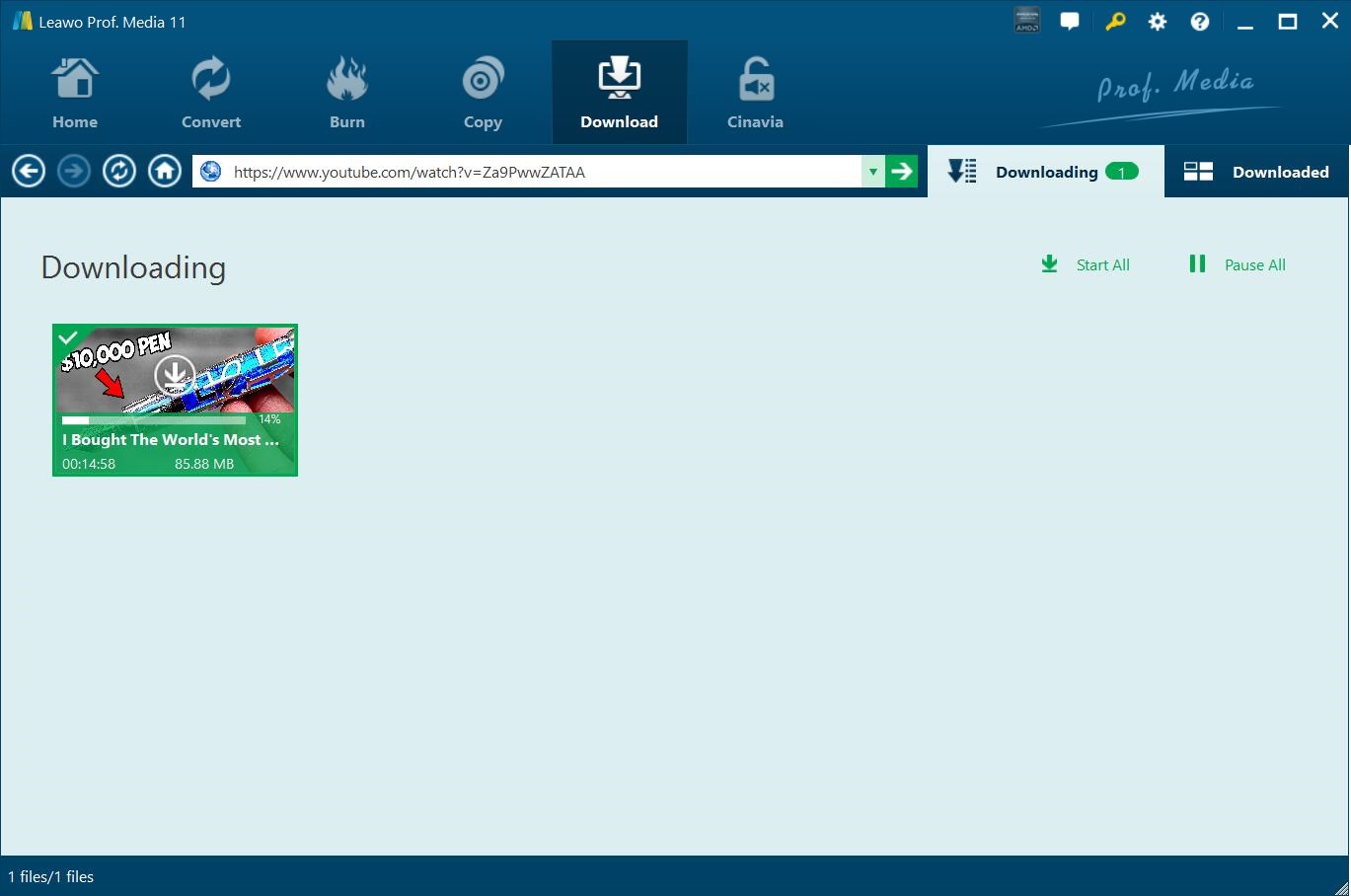
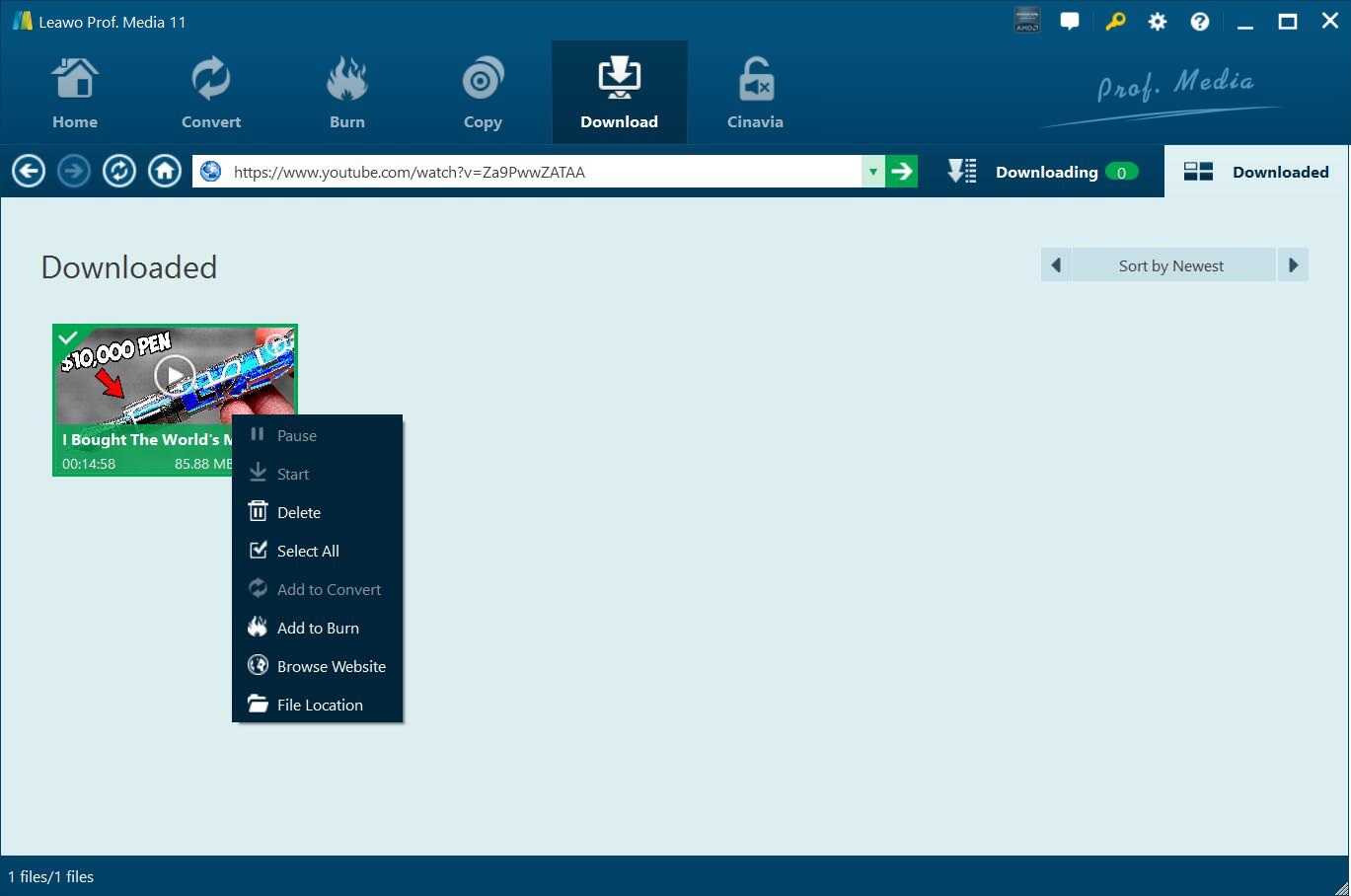
If you right click the downloading file, you'll see several options available. Click "Select All"  to choose all the downloading tasks. Click "Pause"
  button to temporally stop the task in progress. Click "Start"
  to start the paused task again and click "Delete"
  to delete an ongoing task. Click "Browse Website"
  to open the video link with your default web browser. If you have several downloads in progress at the same time, you can click "Start All"
  to start all downloads and "Pause All"
  button to pause all downloads.
If you want to go back to the video page you downloaded the video on, click the Address Bar. Or if you want to go back to the home page which is YouTube, click the "Home"  button. "Refresh"
  button is for refreshing the page you are currently browsing.
Step 5: Download finished
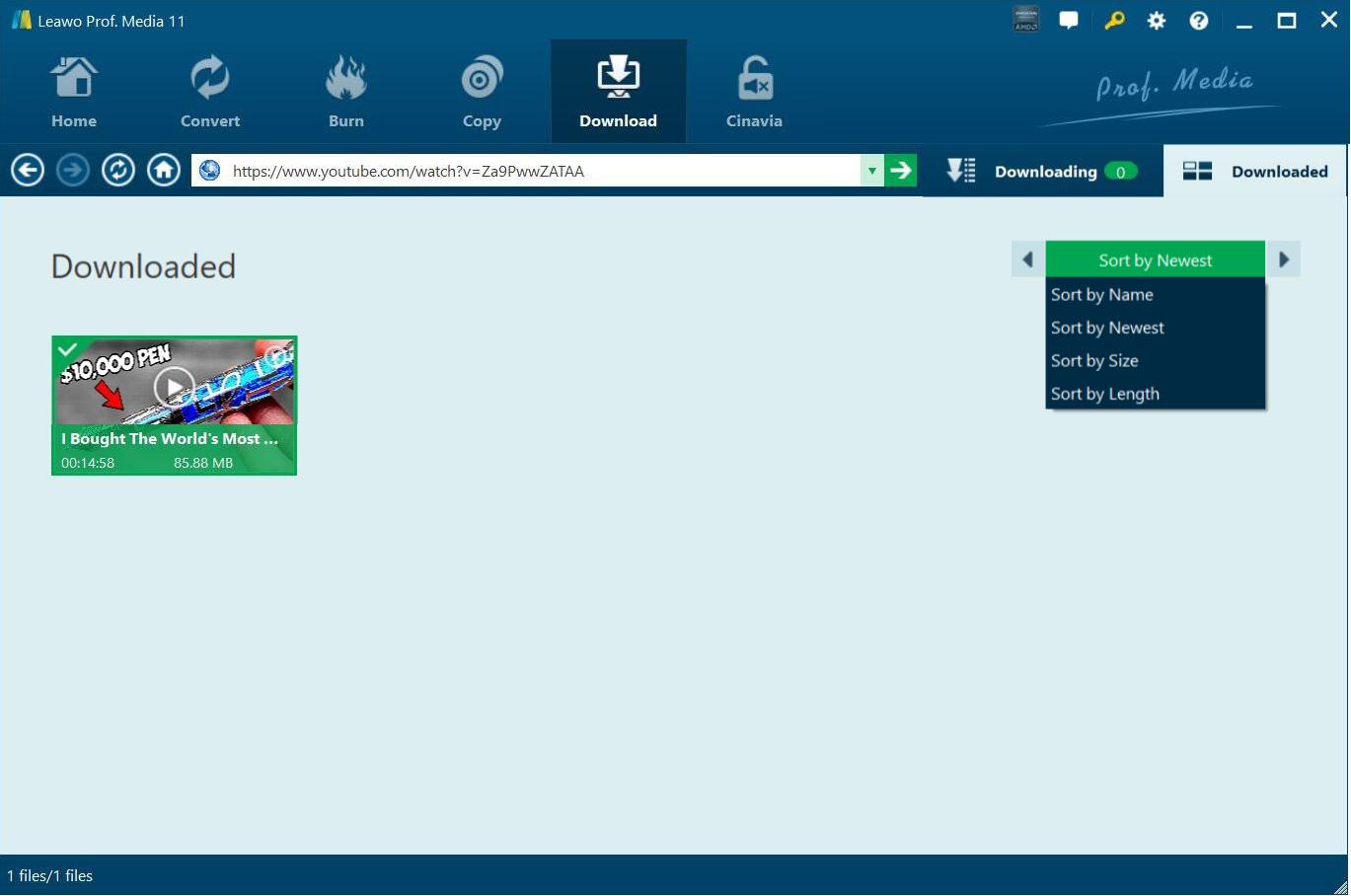
When you finish downloading the video, click on Downloaded button to go to the list of the downloaded video, you can sort them by Name, Newest, Size and Length.
Right-click one of the downloaded files, on the right-click menu you can see several options. Click Select All to select all the files. Click Delete to delete the chosen files. Click Add to Convert  to add the file to the Video Converter module assuming that you have this module registered. Click Add to Burn
  to add the file to the Blu-ray Creator module provided that you’ve activated this module. Click "Browse Website" to open the video link using the default Web Browser on your computer. Click "File Location"
  to open the file with Windows Explorer.