How to Use Leawo Video Converter Ultimate
Leawo Video Converter Ultimate offers you comprehensive solutions to convert DVD, video and audio files. This page shows you how to use the converter module of Leawo Video Converter Ultimate.


- Home
- /
- Leawo Video Converter Ultimate
- /
- User Guide
Convert DVD/Video/Audio
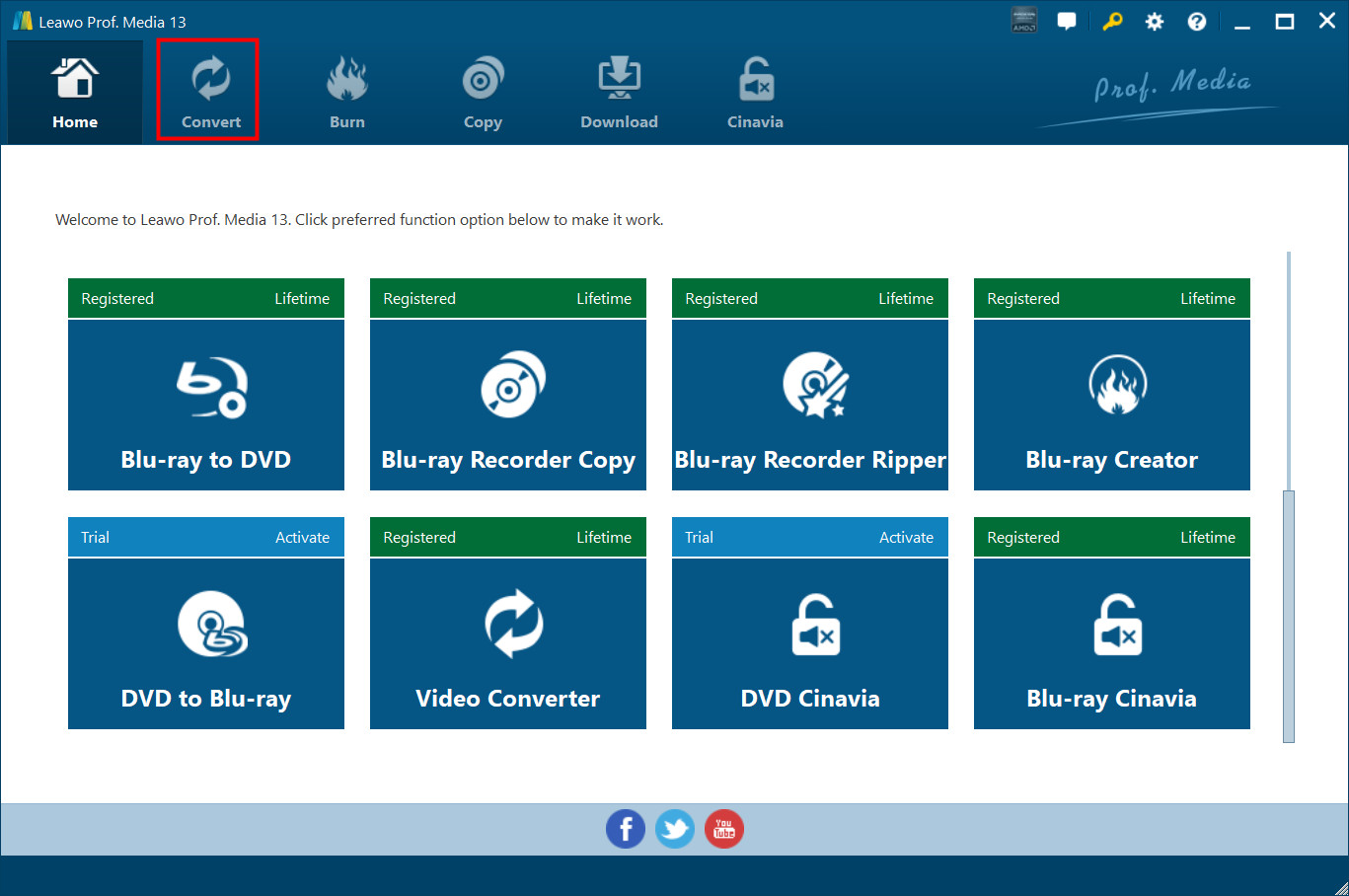
Kick off Leawo Video Converter Ultimate to enter the home page, where you need to click “Convert” button on the sub-menu to enter the converting interface.
Step 1: Import Source Files into Program
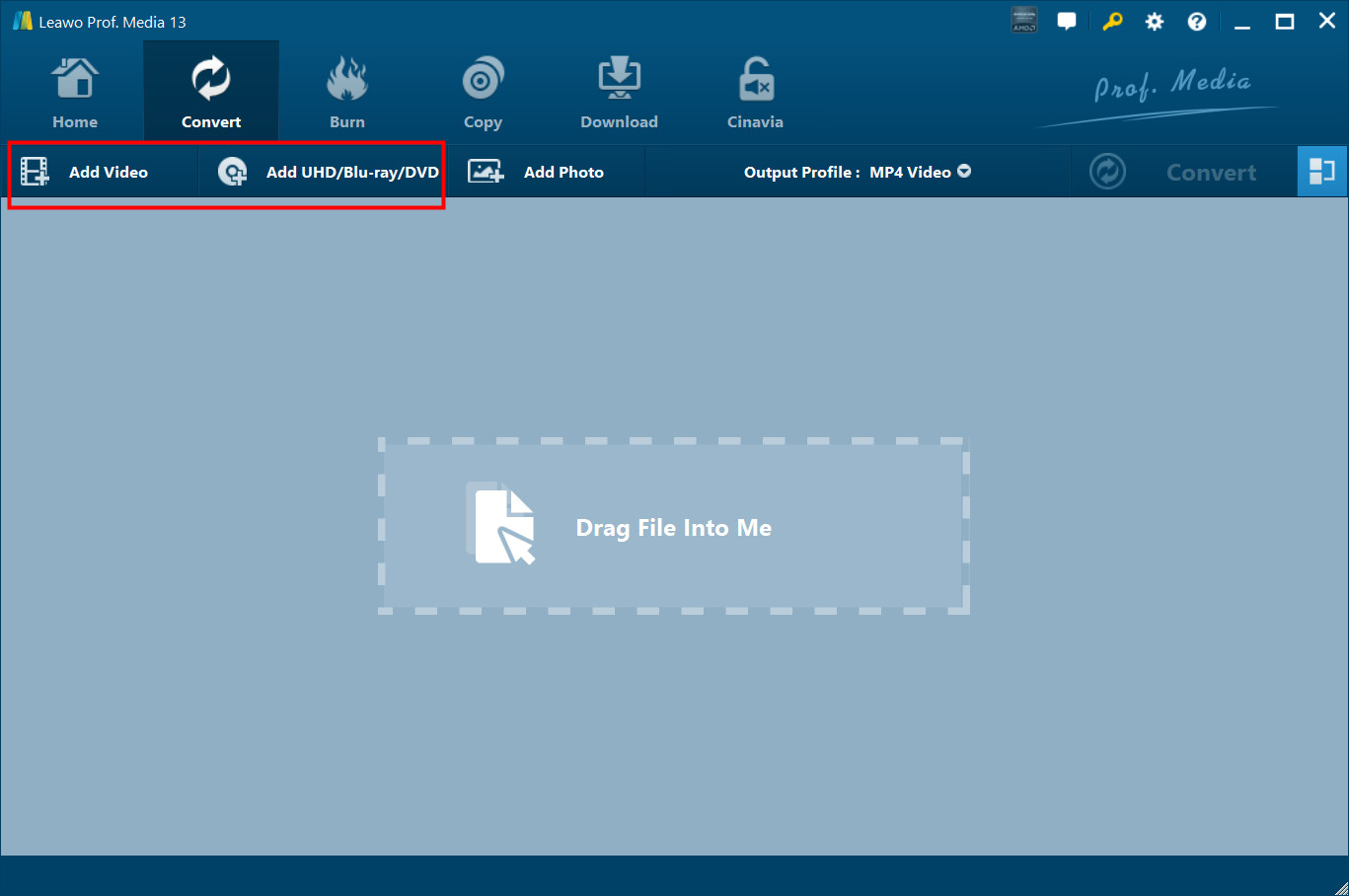
On the converting interface, click "Add Video" button to import source video or audio file, or click "Add UHD/Blu-ray/DVD" to import DVD disc, folder, or ISO image file. Alternatively, you can directly drag and drop source DVD/Video/Audio file into the converting panel. Once source files are imported, you can preview source files via the inbuilt media player, select subtitles and audio tracks, edit source files, etc.
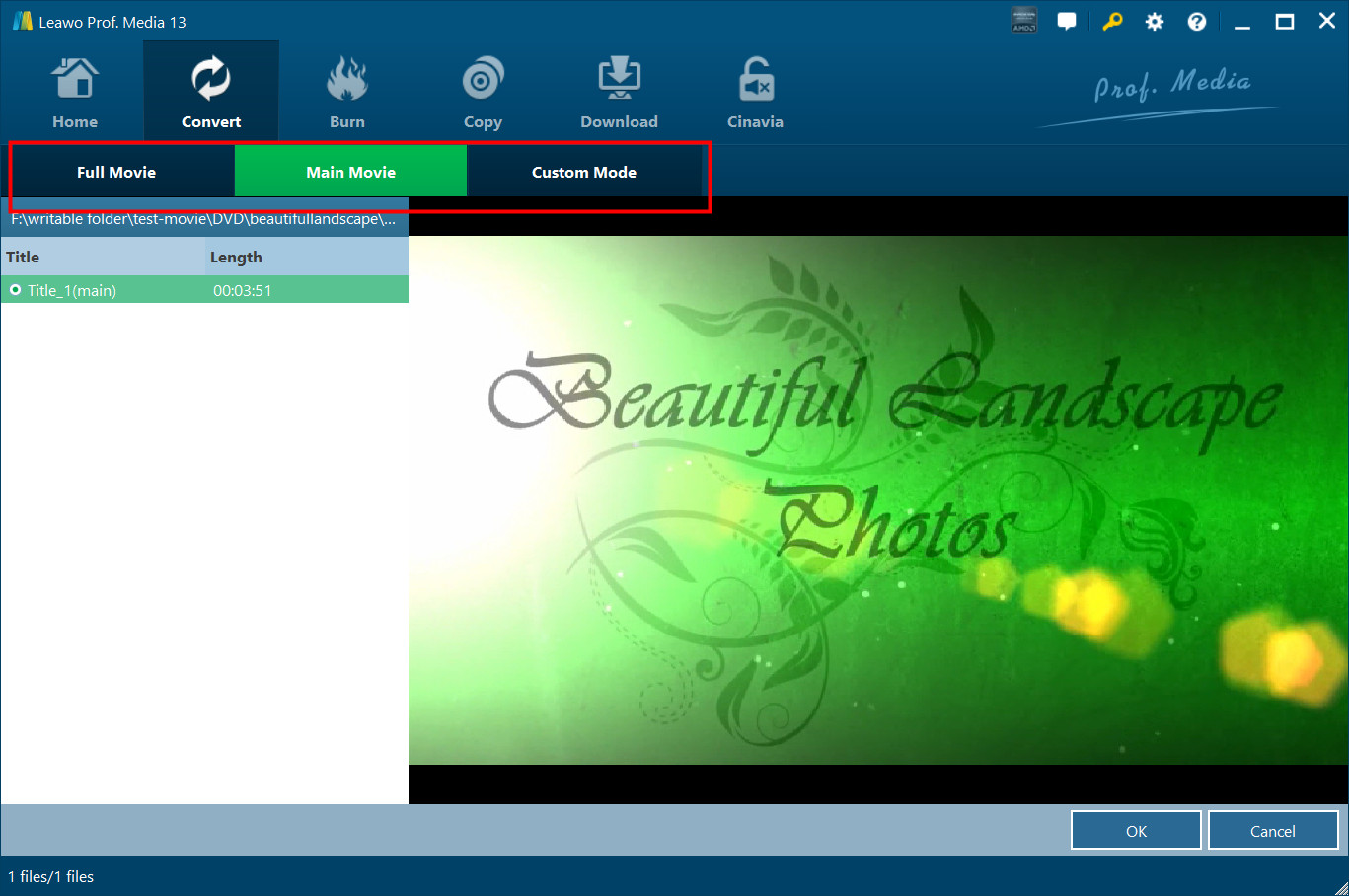
If you import source DVD content, you will be provided three options for you to select: Full Movie, Main Movie and Custom Mode. Full Movie allows you to import all titles, and Main Movie only imports the longest title by default while you can freely choose titles for importing under Custom Mode.
Step 2: Choose output profile
There is a drop-down box named "MP4 Video" by default next to "Add Photo" button. Click the box to pop up a small panel, where you need to click "Change" 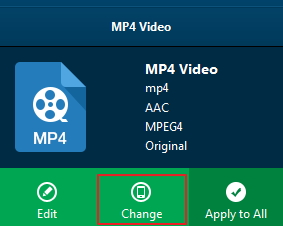 to enter the "Profile" panel. You can choose either video/audio format or mobile device as output profile under "Format" or "Device" group. Various video/audio formats and device models are available for selection, like 4K MP4, 4K MKV, HD MP4, HD AVI, MOV, iPhone 6s, iPad Air, etc. You can also make good use of the quick searching box on the left to fast locate your desired profile.
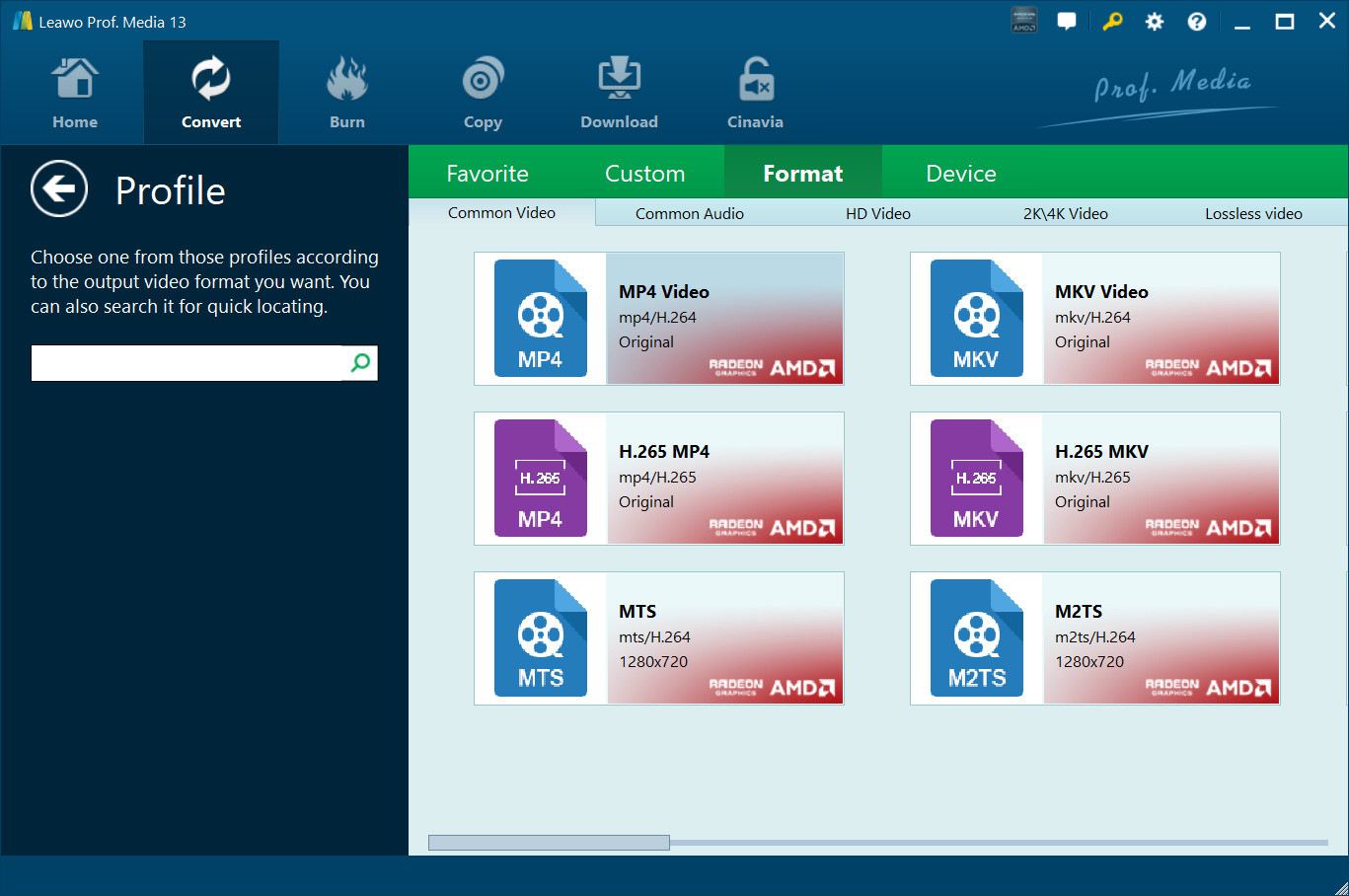
Step 3: Set video and audio parameters (optional)
Leawo Video Converter Ultimate allows you to change the video and audio parameters of selected profile like Video Codec, Bit Rate, Resolution, Frame Rate, Aspect Ratio, Audio Codec, Channel, Sample Rate, etc. You could enter the Profile Settings panel by clicking the same drop-down box and then clicking "Edit" option instead of "Change" option 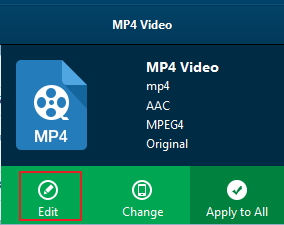 . After setting parameters, you could click "Save to Custom" option
  to add customized profile to "Custom" group.
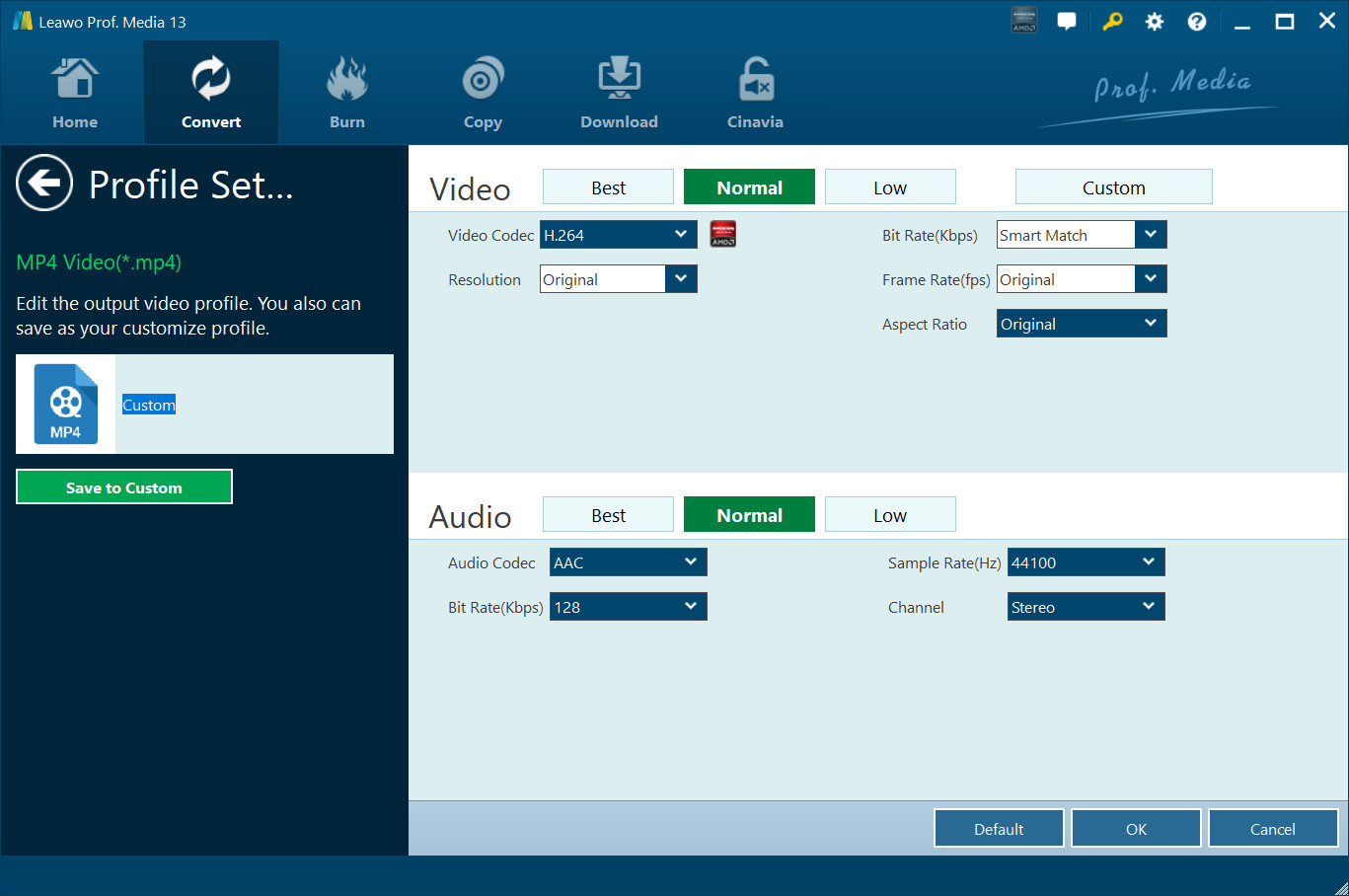
Step 4: Set output directory
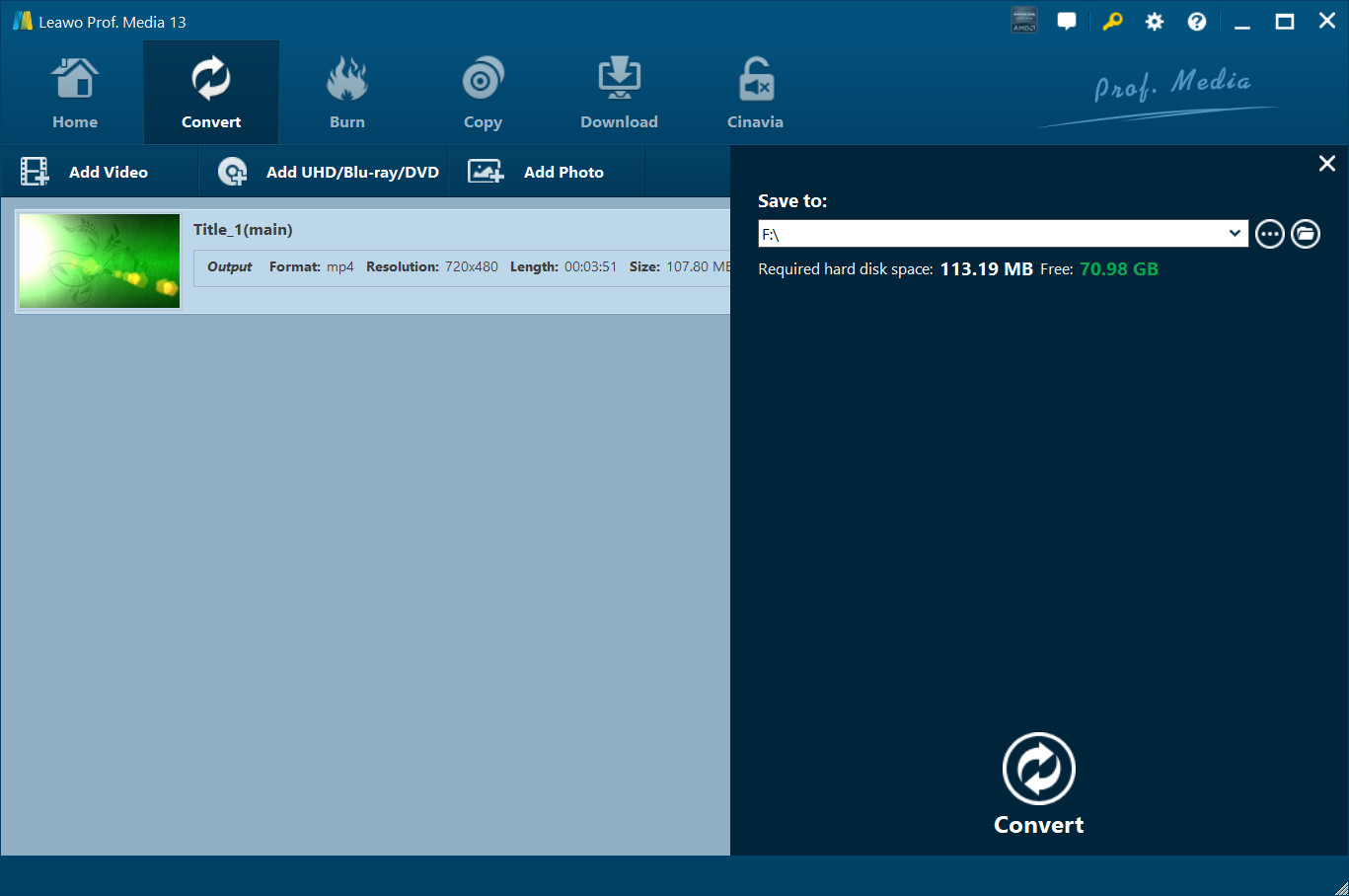
After profile settings, you will be returned to the converting panel, on which you need to click the green "Convert" button to set output directory for saving the output files. Once  is clicked, a small side bar will pop up, and you need to set a directory under "Save to" box for containing the output files.
Step 5: Start conversion process
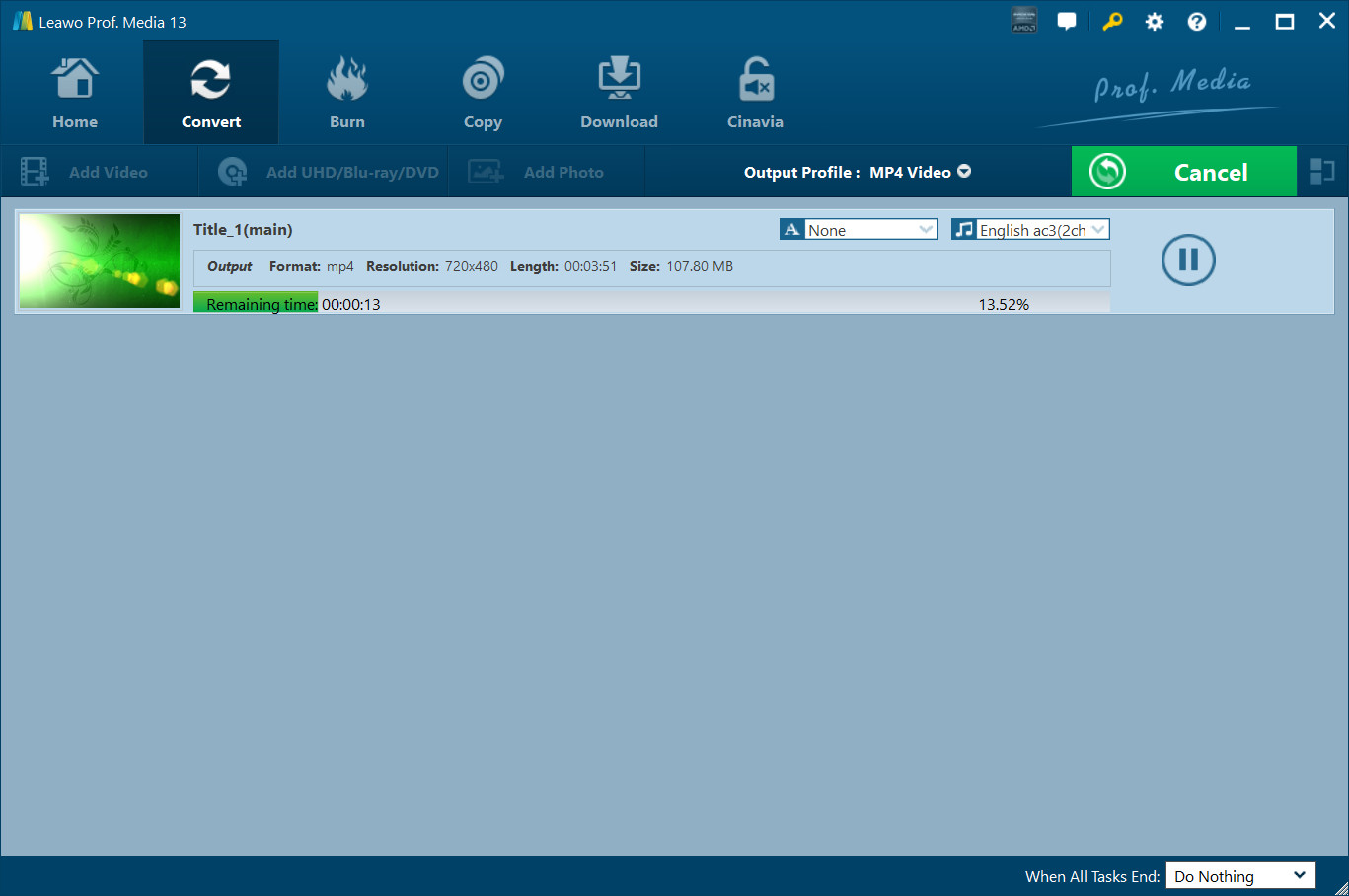
Click the "Convert" button  at the bottom of sidebar to start conversion process. During the conversion process, you could click "Cancel" button to call off the process.