
How to Use Leawo Prof. DRM
As a professional iTunes DRM removal program, Leawo Prof. DRM provides a comprehensive solution for you to remove DRM from iTunes M4V videos, and convert iTunes DRM M4V to DRM-free MP4.


- Home
- /
- Leawo Prof. DRM
- /
- User Guide
How to Remove DRM from iTunes M4V Videos and Convert M4V to MP4?
The built-in iTunes DRM Remover from Leawo Prof. DRM is designed to remove DRM from iTunes files. For thoes people who want to remove DRM from M4V video and then convert to DRM-free MP4 for freely playback on various video players and mobile devices, iTunes DRM Remover program perfectly solve the problem that users can’t play rent or purchased video on other devices. After converting process finished, audio tracks (Dolby 5.1 surround sound in video included) and subtitles all can be retained, and original quality will be 100% preserved. Moreover, the program is 50X faster in removing DRM from M4V and saving as MP4 than many other DRM media converter programs.
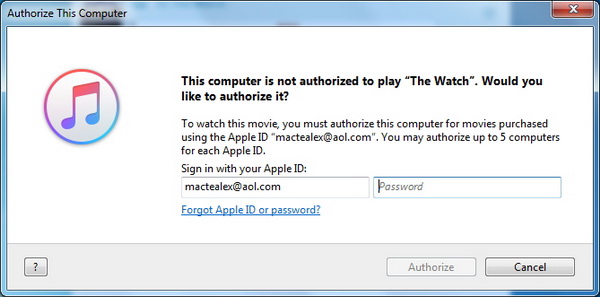
Note: You need to authorize the computer to play the M4V video file by signing in with your Apple ID that you used to purchase or rent the video file (movie and TV show). During the iTunes DRM removal process, you are not allowed to operate on iTunes.
Step 1: Add M4V File(s) from iTunes
After entering the main interface of iTunes DRM Removal, you can click “Add Files” button on the sub-menu bar  or “Drag iTunes Files Here” button in the middle of program interface
 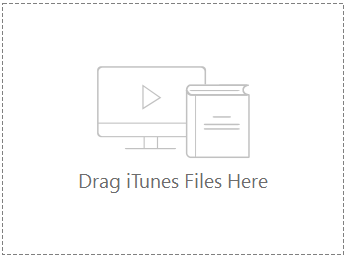 to browse and choose M4V rental or purchase in the pop-up “Add Files” panel. Choose at least one M4V file and click “Add” to begin importing M4V file from iTunes into Prof. DRM. Or you can directly drag and drop the target iTunes video files to the middle of program interface.
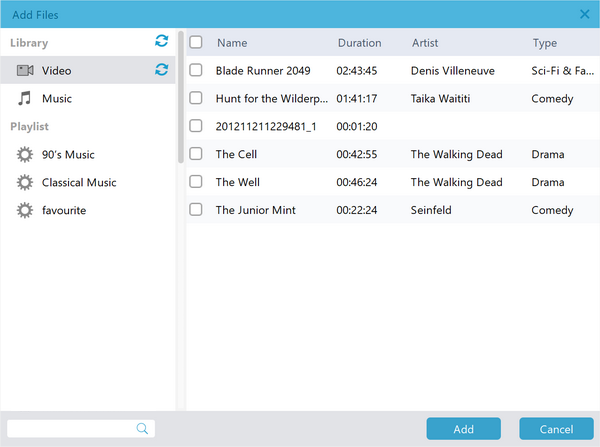
Step 2: Choose Audio Tracks and Subtitles
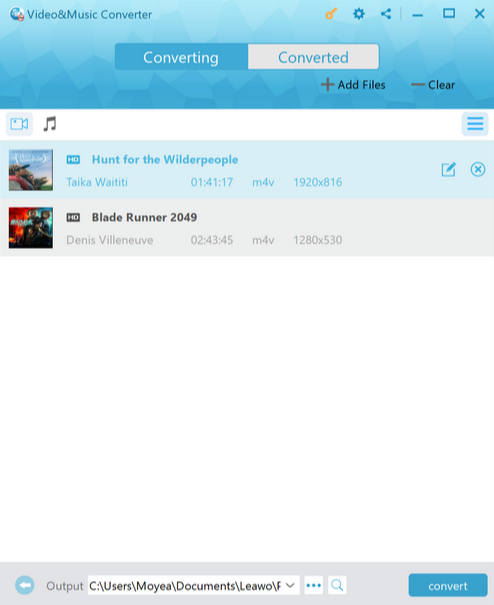
After importing M4V files into Prof. DRM, you can view the file list under the category “Video”  , you can also choose one file and click “Remove” button to remove the file from the list. The “Clear” button
  on the sub-menu bar is designed for removing all files in the list at one go. Before removing DRM from iTunes M4V, you can choose an M4V and click “Edit” button to freely choose audio tracks and subtitles
 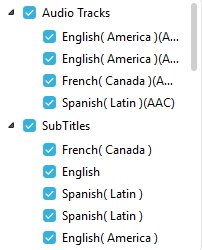 for keeping in the output MP4 video file.
Step 3: Set Output Directory
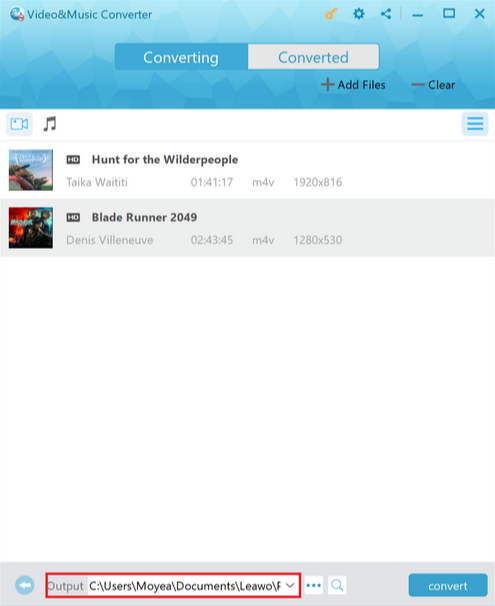
Click “…” button at the bottom of “Home” list  to set an output directory for containing output MP4 file.
Step 4: Start to Remove DRM from M4V and Convert M4V to MP4
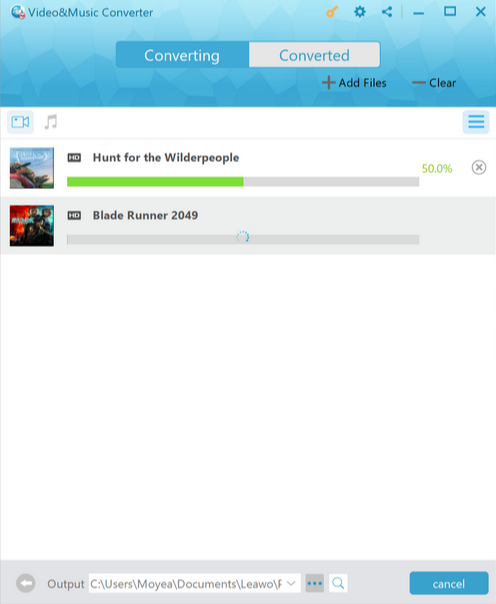
Click the blue “Convert” button  at the bottom for removing DRM from M4V and converting M4V to MP4. After a while, the iTunes DRM removal and conversion process will be completed.
Note: Before conversion process takes place, you will be asked to authorize the computer for playing the iTunes video if you have not yet authorized the computer.
Step 5: Locate Converted Video File
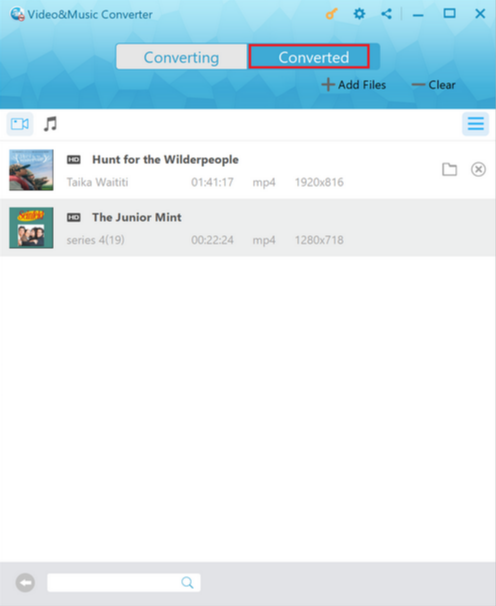
After conversion completes, you can find the converted iTunes video file now in MP4 video format under “Converted” section which will be marked with a red dot  . You can click the “Open file” option at the end of a target file to open the output MP4 file. Alternatively, you can fast locate the converted files via the quick searching bar at the bottom.