How to Use Leawo Music Recorder
This page of the powerful audio recorder would show users the main functions of the music recording software and how to record audio/music with Leawo Music Recorder.


- Home
- /
- Leawo Music Recorder
- /
- User Guide
Brief Introduction
Leawo Music Recorder allows you to easily record audio from any built-in input audio, computer stream audio and online music, and then save in MP3 or WAV format. It could help you get music for free, from any music source. It could record streaming audio and online audio like YouTube, AOL Music, Last.fm, etc.
Apart from recording music and audio without quality loss, this music recording software could also automatically download and add music tags like artist, album, album artwork, song title, etc. to your recordings. It even allows you to edit these music tags manually. Moreover, you could apply recorded music files to iTunes music library in only one click for further sharing and enjoying.
The following user manual of the powerful audio recorder would show you the main functions of the software and how to record audio with Leawo Music Recorder.
The software is mainly divided into Recording and Media. Below is the main interface of Leawo Music Recorder:
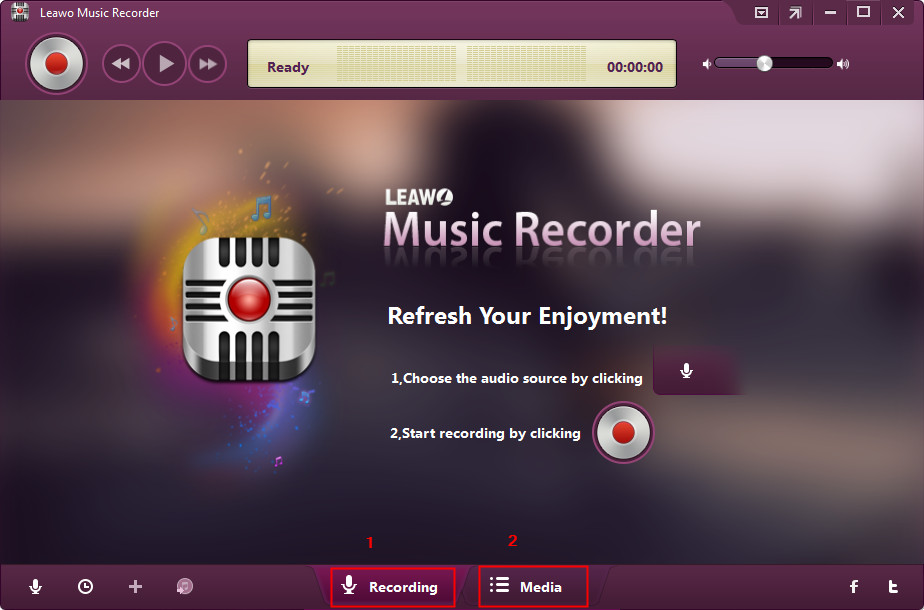
1. Recording
You could record audio and music from computer audio and online music sources like YouTube, AOL Music, Last.fm, Spotify, etc. and as well Mic or other built-in input audio stream like Realtek High Definition Audio, Realtek Digital Input, etc. You could easily click the red "Start"  button to start recording audio within one click.
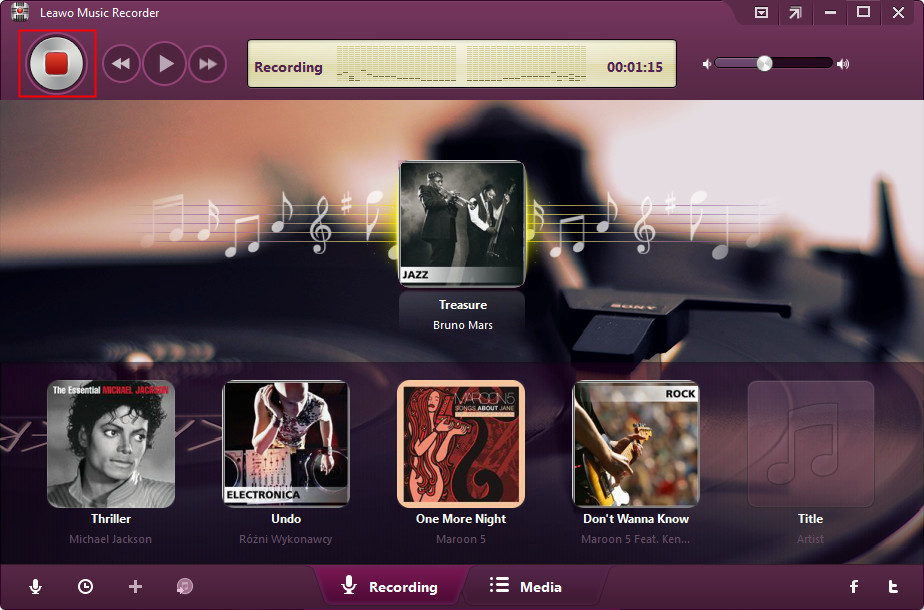
2. Media
You could check all your old recordings and newly recordings in "Media". You could freely manage recorded music files: play and preview recordings, add, edit or delete playlist for recordings.
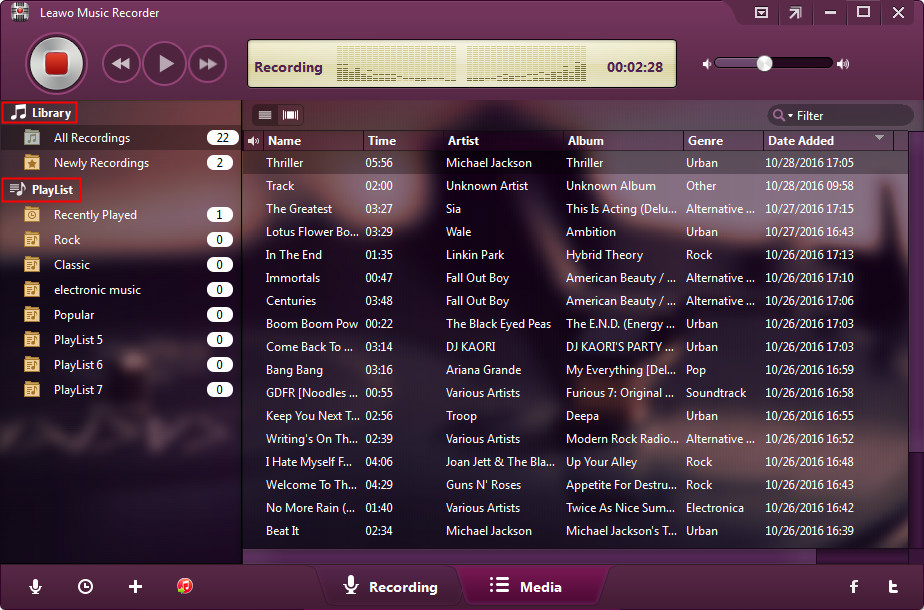
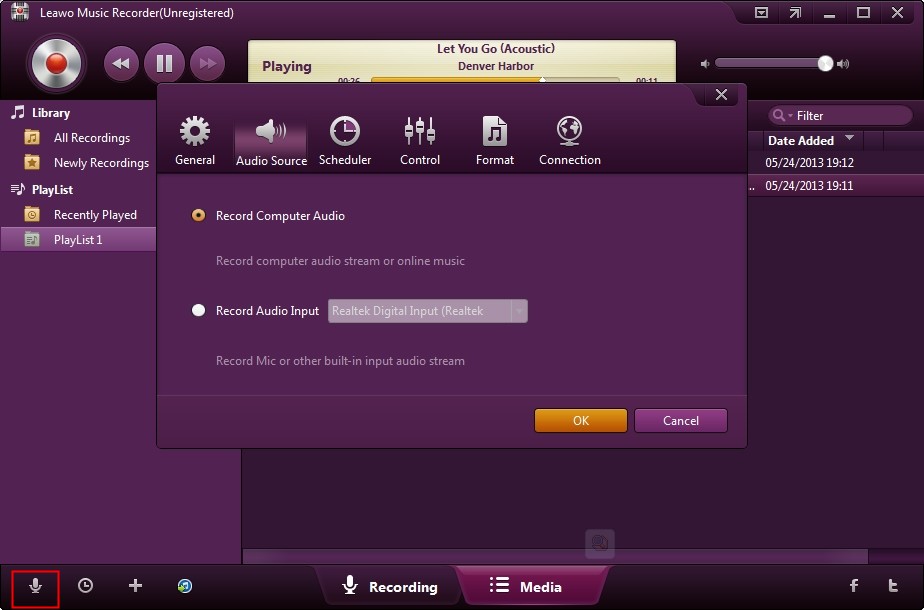
3. Audio Source
You could click the "Audio Source"  icon to set audio source firstly. To record online audio and record streaming audio, select "Record Computer Audio" option. To record audio from built-in input audio like Mic, click "Record Audio Input" option.
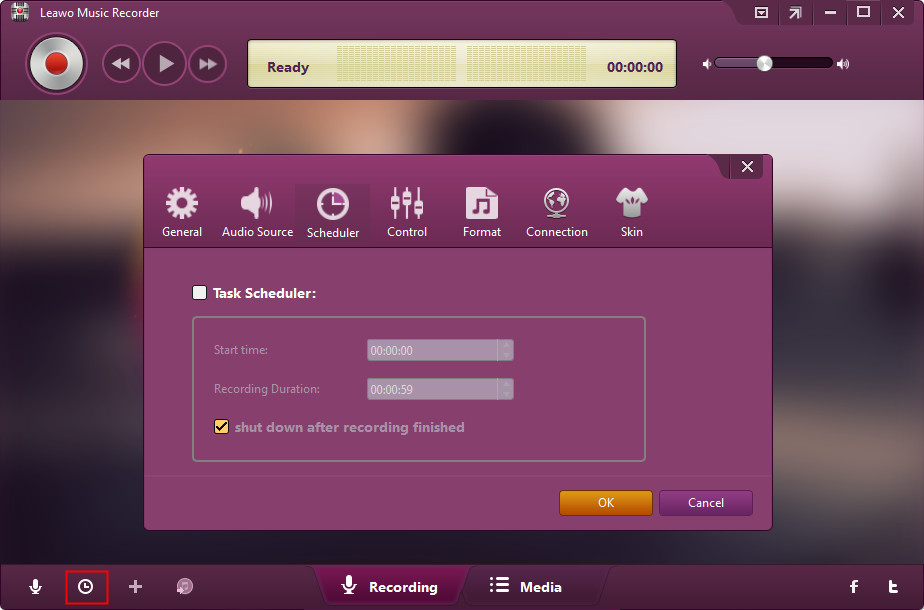
4. Task Scheduler
The built-in Recording Task Scheduler allows you to schedule music recording with this music recording software program by letting you set recording Start Time and Recording Duration.
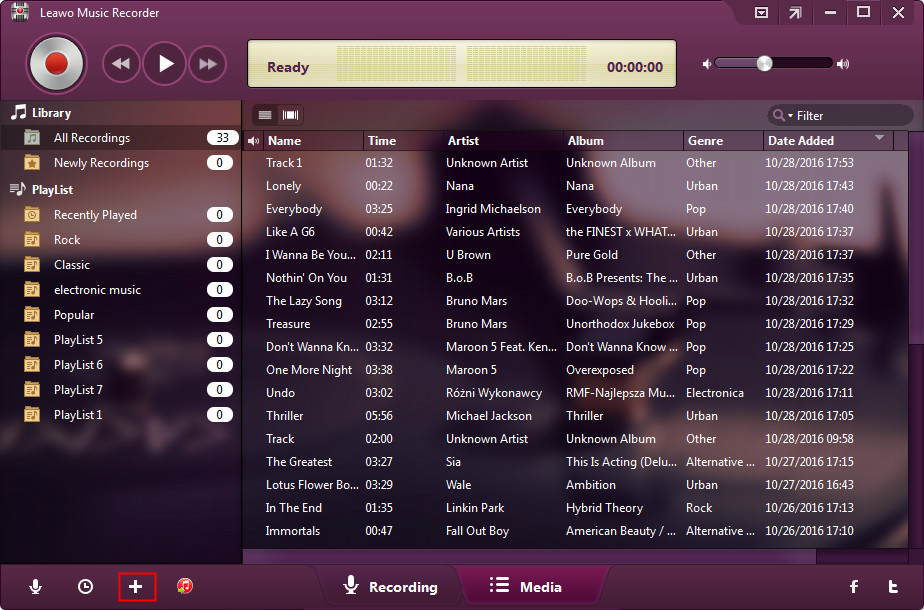
5. Add Playlist
If you want to add new playlists for your recordings, click the "Add Playlist"  icon to finish the task with ease.
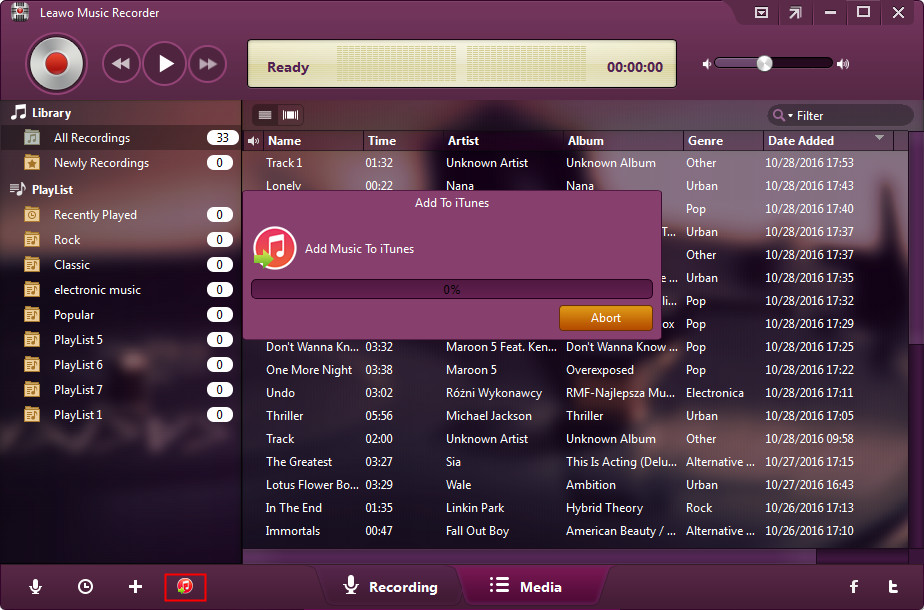
6. Add to iTunes
Leawo Music Recorder allows you to click  button and apply recorded music files to iTunes music library in only one click operation. People could freely enjoy and share music recordings via iTunes.
7. Options
There are 8 options available: Settings, Online Help, Home Page, Support, Check for Updates, Bug Report, About, Translate Music Recorder for us.
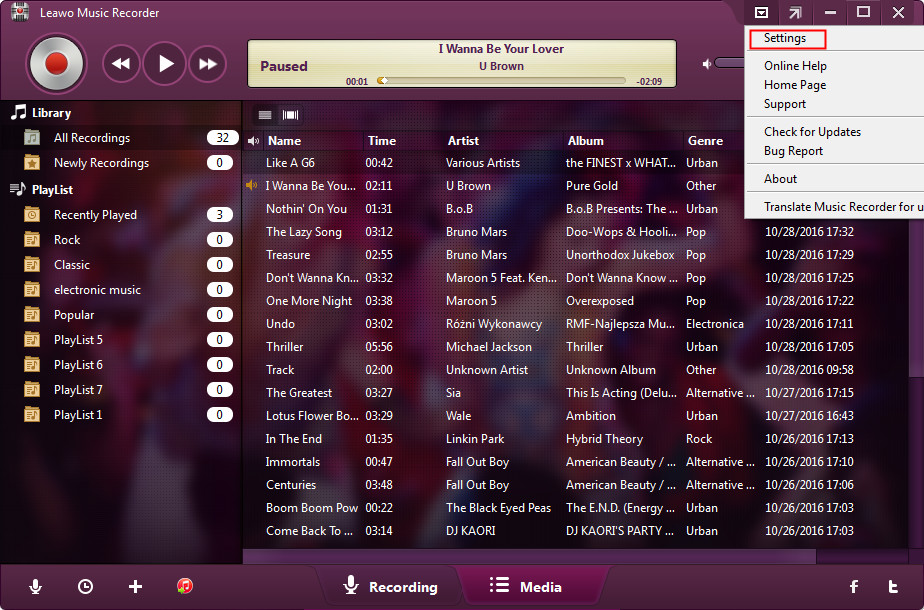
a. Settings: Click here to do some basic settings for Leawo Music Recorder.
b. Online Help: Link to the user guide page of Leawo Music Recorder.
c. Home Page: Link to the home page of Leawo Music Recorder.
d. Support: Link to the support page of Leawo Music Recorder.
e. Check for Updates: Check for the latest version of the software.
f. Bug Report: If users find bugs when using the software, they could send the bug report to Leawo Software.
g. About: Show the version and website of Leawo Music Recorder.
h. Translate Music Recorder for us: Link to the translation page of Leawo Software. We are looking forward that you are willing to help us translate our products’ UI language into your language.
8. Minimized Window
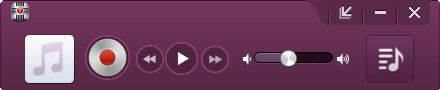
If you want to enjoy music freely, you could click the  icon to minimize the software’ main interface. You could also click the
  icon to recover it after minimizing.