
How to Record Audio on Computer with Leawo Music Recorder
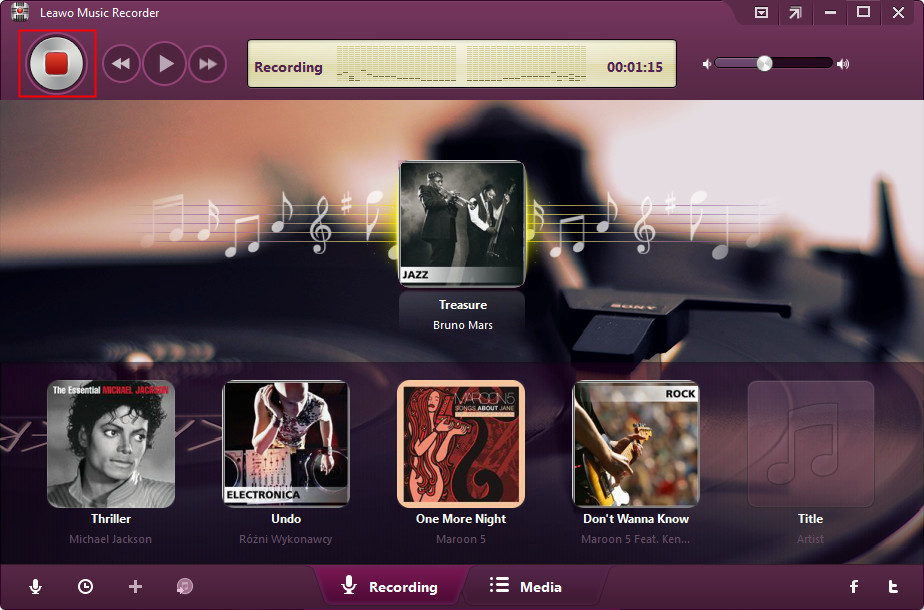
This guide is going to show users how to record audio on computer with Leawo Music Recorder. All kinds of music/audio files can be recorded without quality loss.


- Home
- /
- Leawo Music Recorder
- /
- User Guide
How to Record Audio on Your Computer
Launch Leawo Music Recorder on your PC and you will go to the recording main interface. To record audio on your computer, you can follow the below steps.
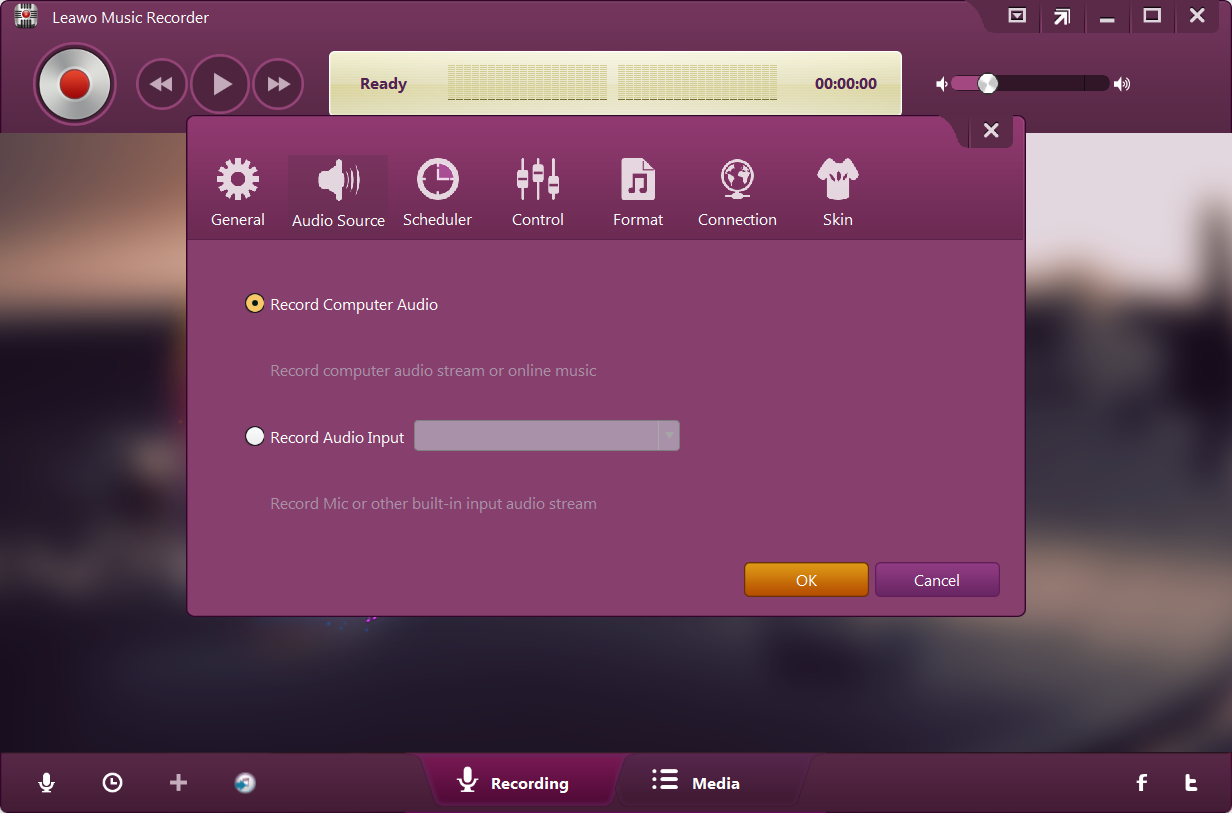
Step 1. Set Audio Source
Click the "Audio Source" icon on the main interface to set audio source firstly. To record online audio and record streaming audio, select "Record Computer Audio" option. To record audio from built-in input audio like Mic, click "Record Audio Input" option.
Step 2. Set Output Format
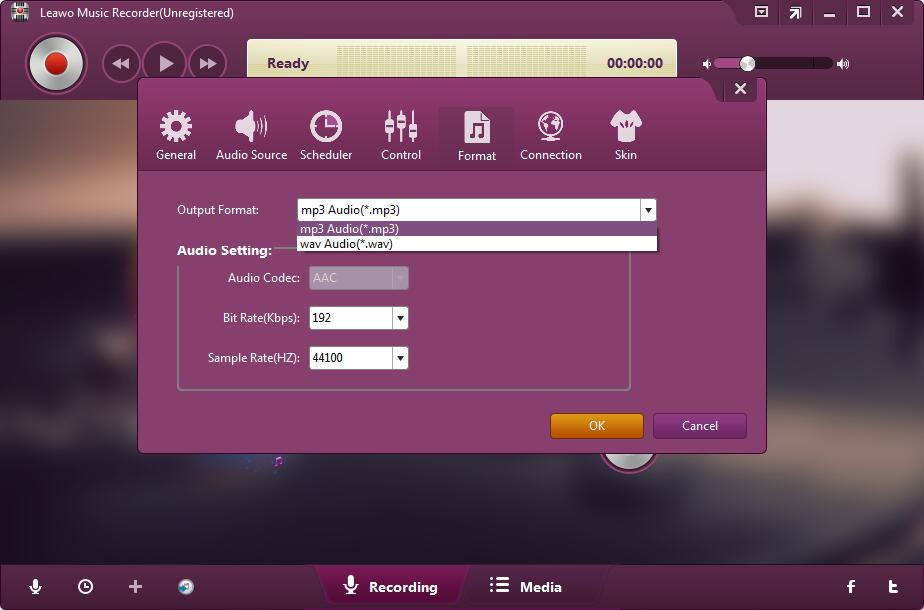
Switch to the “Format” tab, then click the format drop-down box beside “Output Format” label. There are 2 format options: mp3 Audio(*.mp3) and wav Audio(*.wav). In addition, you can adjust the audio parameters in the “Audio Setting” box, including bit rate and sample rate.
Step 3. Set Output Directory
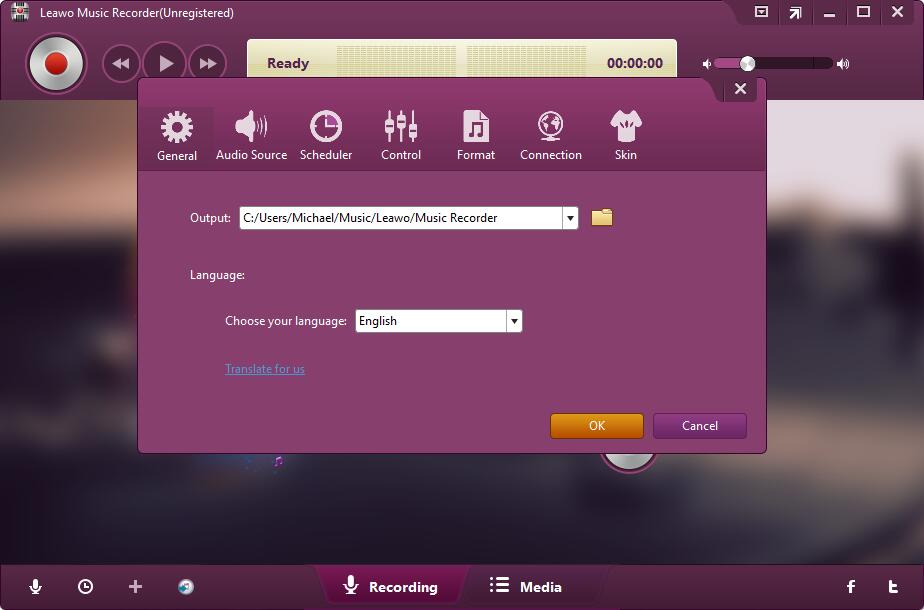
Switch to the “General” tab beside the “Audio Source” tab, then click the folder icon to browse and choose an output directory to save output recordings in the “Output” box. You could also set program interface language here.
Step 4. Start to Record
Click the red "Start"  button to let Leawo Music Recorder work. And then play source audio files. It should be noted that you first let this music recording software start recording and then play your source audio.
If you need, you could use the Task Scheduler for recording. Click the "Recording task scheduler" icon on the bottom-left corner to call out the Task Scheduler, where you could set the recording start time and duration. This is suitable especially to record FM radio audios.