

How to use CleverGet Recorder
CleverGet Recorder user guide on how to use CleverGet Recorder to record videos from various sites.


- Home
- /
- CleverGet Recorder
- /
- User Guide
How to Record Online Videos for Free with CleverGet Recorder?
CleverGet Recorder offers totally free solution to let you record online videos to MP4/MKV files in original/4K/2K/1080P/720P quality from 1000+ video sharing sites for totally free. It even comes with an ad filter feature to let you record online videos with ads skipped. The below steps show how to use CleverGet Recorder to record online video for free.
Step 1: Download and Install CleverGet Recorder
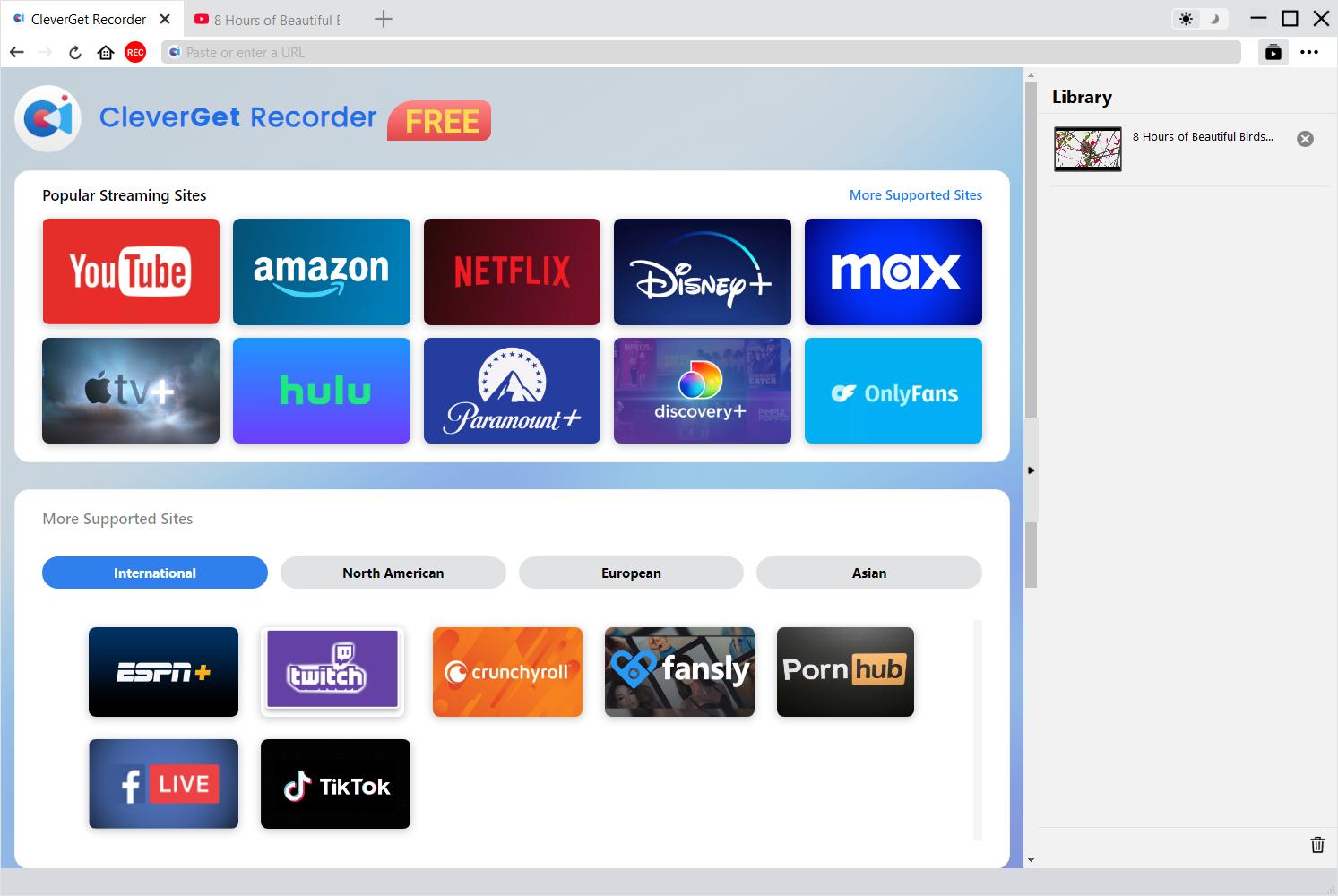
Firstly, free download and install CleverGet Recorder on your computer. It could run on Windows 7/8/10/11 and mac OS 10.15 and later. Check the tech specs for the detailed system requirements for installing CleverGet Recorder on your computer.
Step 2: Set Recording Preferences
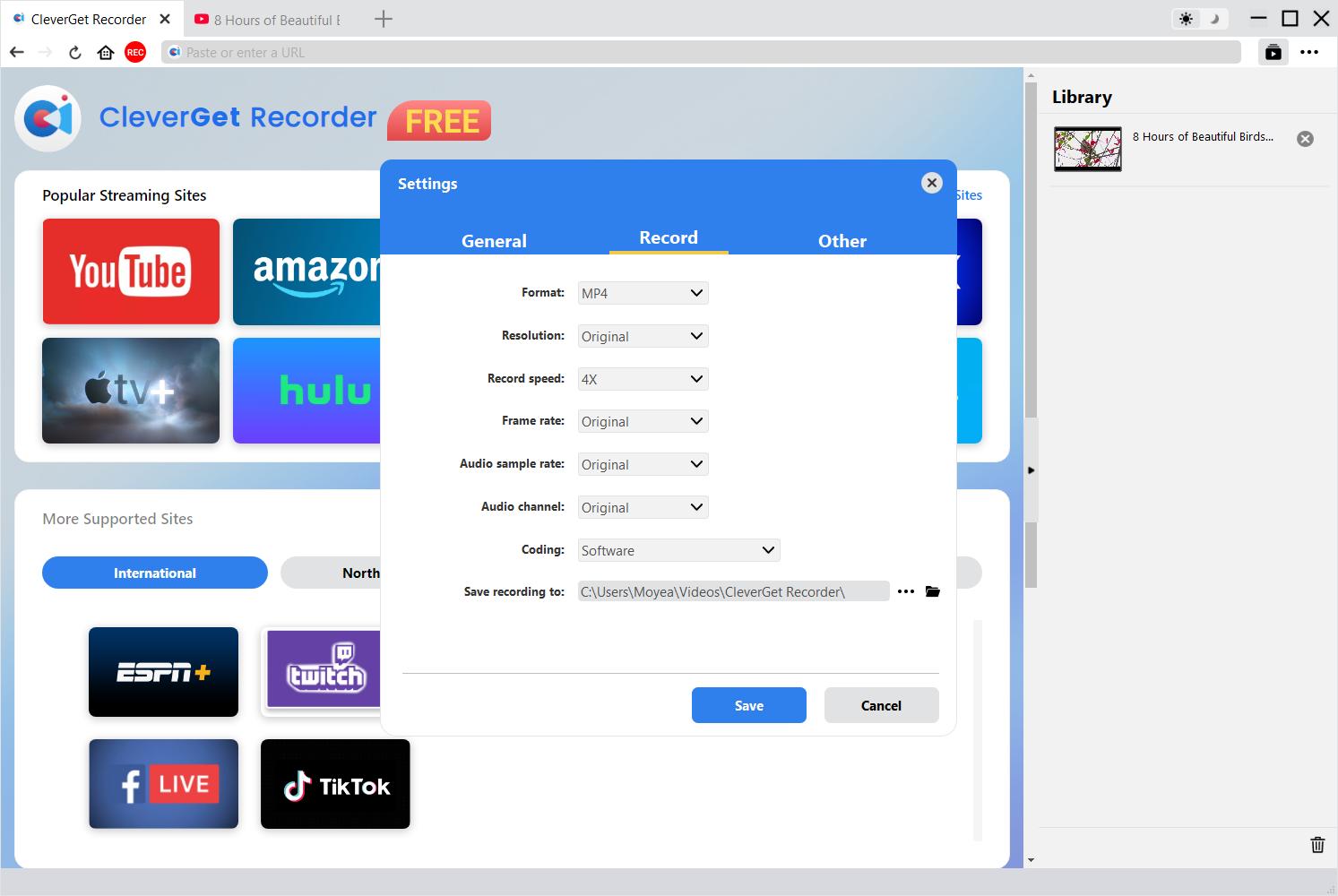
After installing CleverGet Recorder on your computer, kick it off. On the top-right corner, click the More option (in 3-dot icon  ) to choose "Settings" option on the drop-down menu. On the pop-up "Settings" panel, open the "Record" tab to specify recording settings, including: "Format", "Resolution", "Record speed", "Frame rate", "Audio sample rate", "Audio channel", "Coding", and "Save recording to" options. Click "Save" button to save all settings and quit the "Settings" panel.
Step 3: Play Back Target Video
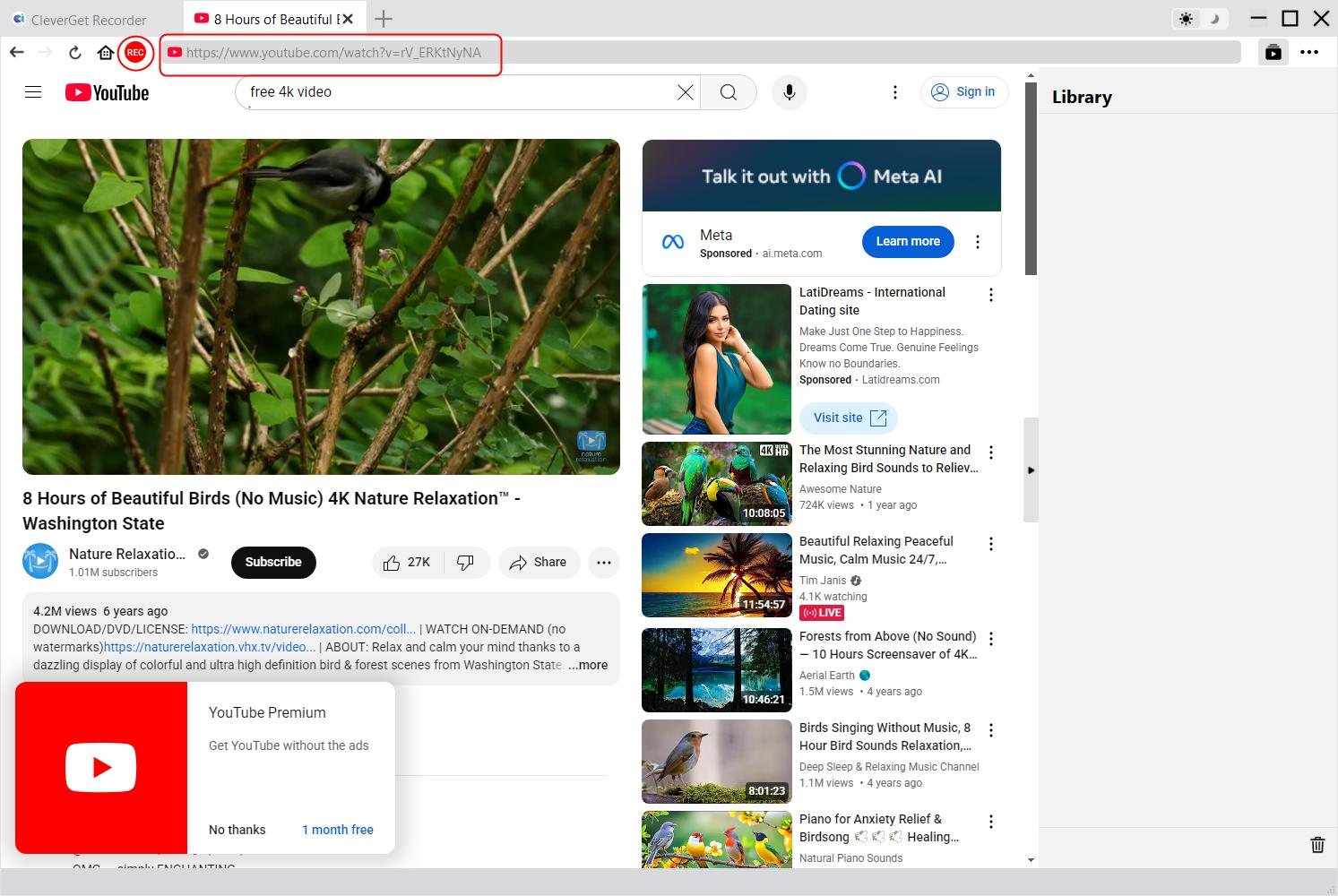
Open the target video streaming website within CleverGet Recorder, and then browse, search and play back the target video you want to record. Click the red REC icon  right next to the Home icon on the address bar to invoke the "Recording" toolbar at the bottom.
Step 4: Adjust Recording Settings on Toolbar
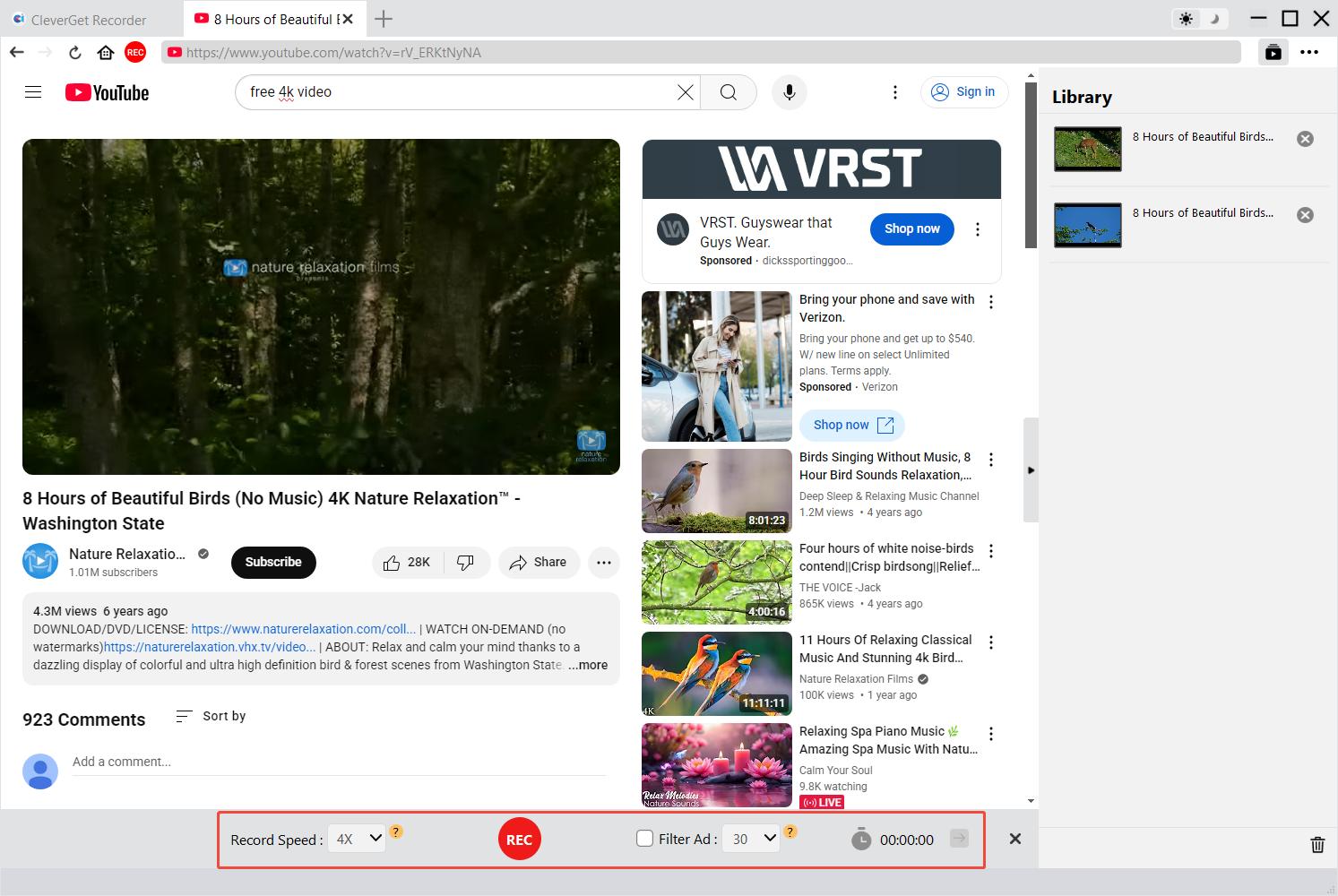
The recording toolbar at the bottom will show up and let you adjust recording speed, ad filter and recording scheduler.
Note:
- Any change in "Recording Speed" during recording will take effect instantly.
- Any change in "Filter Ad" option and ad filter length will take effect since the next ad playback during recording.
- The higher recording speed you set, the bigger odd target video playback will become choppy. Choppy video playback doesn’t affect the recording.
- For stable recording quality, please don’t set the video playback quality as "Auto". Set a specific video playback quality if available, and set audio track before recording.
- The "Filter Ad" feature is a beta feature, which might not apply to certain streaming services. If it is not checked, CleverGet will record target video with ads.
- The "Auto end in" feature(recording scheduler) allows you to set recording length and will take effect once you click the arrow icon. CleverGet Recorder will automatically stop and save recording once it reaches the length you have set.
Step 5: Start Recording
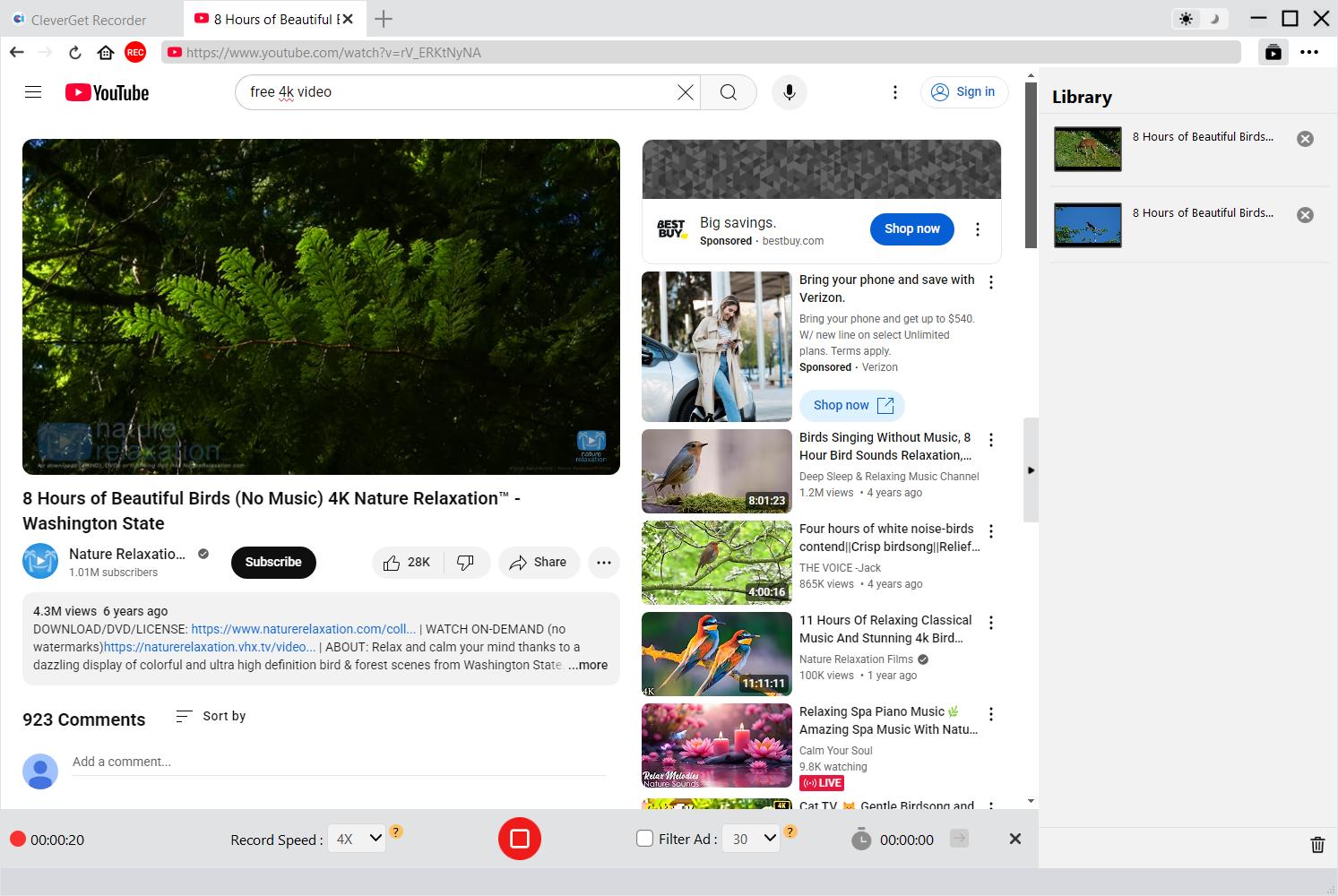
Afterwards, drag the playback bar to the point as recording start point and then click the red REC button to start recording online video.
Step 6: Check Recordings
You could view entire recording process on the recording toolbar, stop recording and then restart recording any time you like. CleverGet Recorder will generate a recording file every time you stop the recording. All recordings are available on the right sidebar, which could be opened/hidden by clicking the "Library" icon  at the top-right corner. Here, you could click "Play" button on the thumbnail of recording file to play it back with your default media player, open its file folder, play it with Leawo Blu-ray Player, burn to Blu-ray/DVD, delete it, or open web page of recorded video.