Detailed tutorial on how to use Leawo Photo Scissors to remove image background automatically and manually, edit photo foreground, and change photo background to transparent, solid color, or any desired images.
Leawo Photo Scissors is quite simple and handy to use. You can remove photo background in several simple clicks. This photo background remover will do all things for you quickly and intelligently. To get started, let’s get familiar with the user interface of Leawo Photo Scissors. Leawo Photo Scissors provides 3 main sections for you to erase and change photo background easily:
A: Top Menu Bar
B: Background Eraser Toolbar
C: Parameter Editor Panel
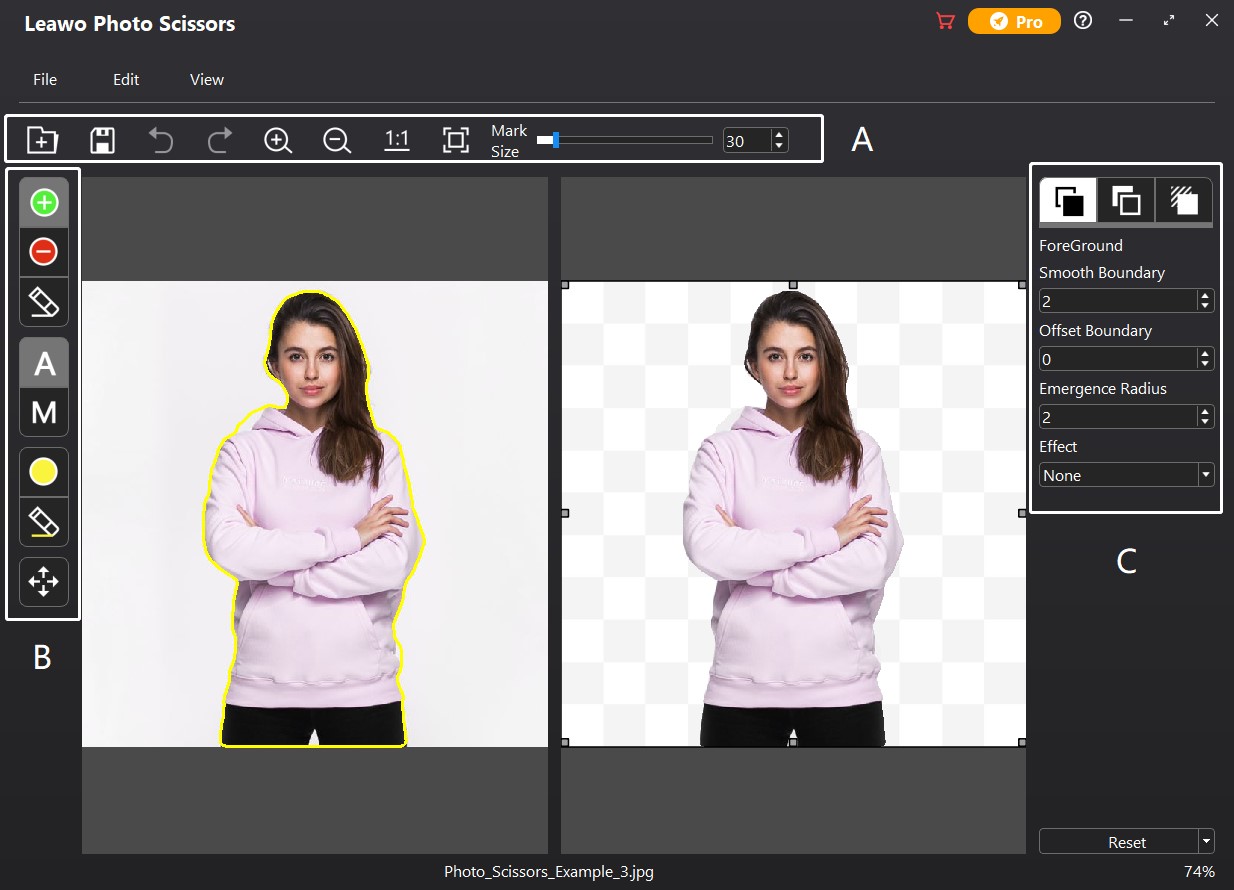

| Tool icon | Description |
 |
Open an existing file |
 |
Save image with a new name |
 |
Undo the last operation |
 |
Redo the last operation |
 |
Enlarge image |
 |
Narrow image |
 |
View image in original size |
 |
Scale to fit the program |
 |
Adjust mark size. Drag to the right end for the largest mark |

| Tool icon | Description |
 |
Reverse area mark – Use this tool to increase the area of marked object |
 |
Delete area mark – Use this tool to delete the area of marked object |
 |
Erase mark – Use this tool to erase the increased/deleted area |
 |
Auto mode – Object will be enclosed automatically with green lines |
 |
Manual mode – Object will be covered by green layers |
 |
Transparent matting area mark – Use this tool to add transparent area |
 |
Erase mark – Use this tool to erase added transparent area |
 |
Move image – Use this tool drag and scroll image in any direction |
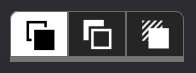
 |
ForeGround Editor – Use this editor to edit foreground on your photo |
 |
BackGround Editor – Use this editor to change and edit photo background |
 |
Shadow Editor – Use this editor to add and edit shadaw on object(s) |
After learning the function of each section and each button, you can follow the steps below to use Leawo Photo Scissors to remove and change photo background in automatic and manual modes respectively.
Kick off Leawo PhotoIns, and then enter Photo Scissors module.
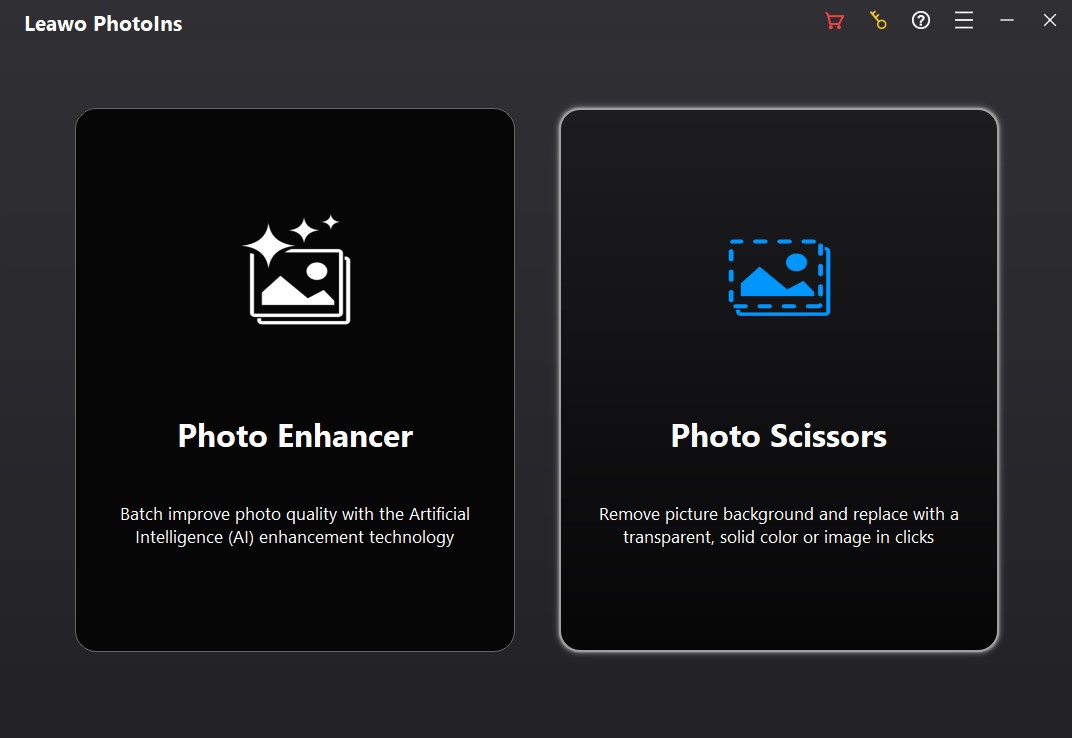
To remove background from image with this photo background remover, you need to firstly add source photos into Leawo Photo Scissors. Kick off Leawo PhotoIns and then enter Leawo Photo Scissors module. Then, follow any way listed below you to add photos for removing background from image:
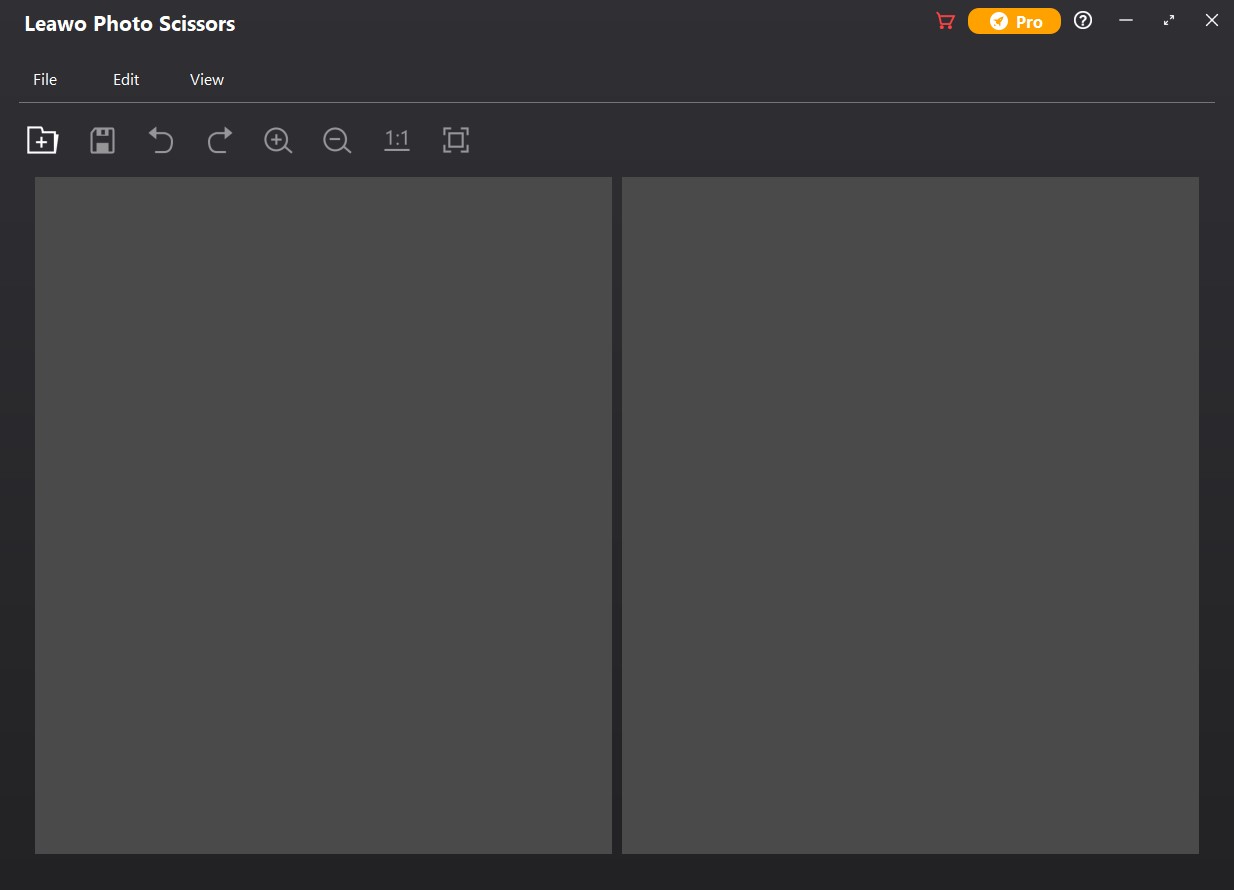
Once you have loaded source photo, you can click "File" button and choose "Close" option to delete photo from the program. Or, you can re-imported photo through the above paths.
Leawo Photo Scissors enables you to remove photo background automatically and manually. After loading source photos, you could do the below operations to erase background from image automatically and manually.
1. Remove Photo Background Automatically
By default, Leawo Photo Scissors will automatically erase photo background after you load the source photo. You can click "Edit" on the top-left menu bar, and choose "Preferences" option to uncheck the automatic calculation function after loading image. Also, you can click "Edit" on the top-left menu bar, and choose "Calculate" option to recalculate and re-enclose the object(s).
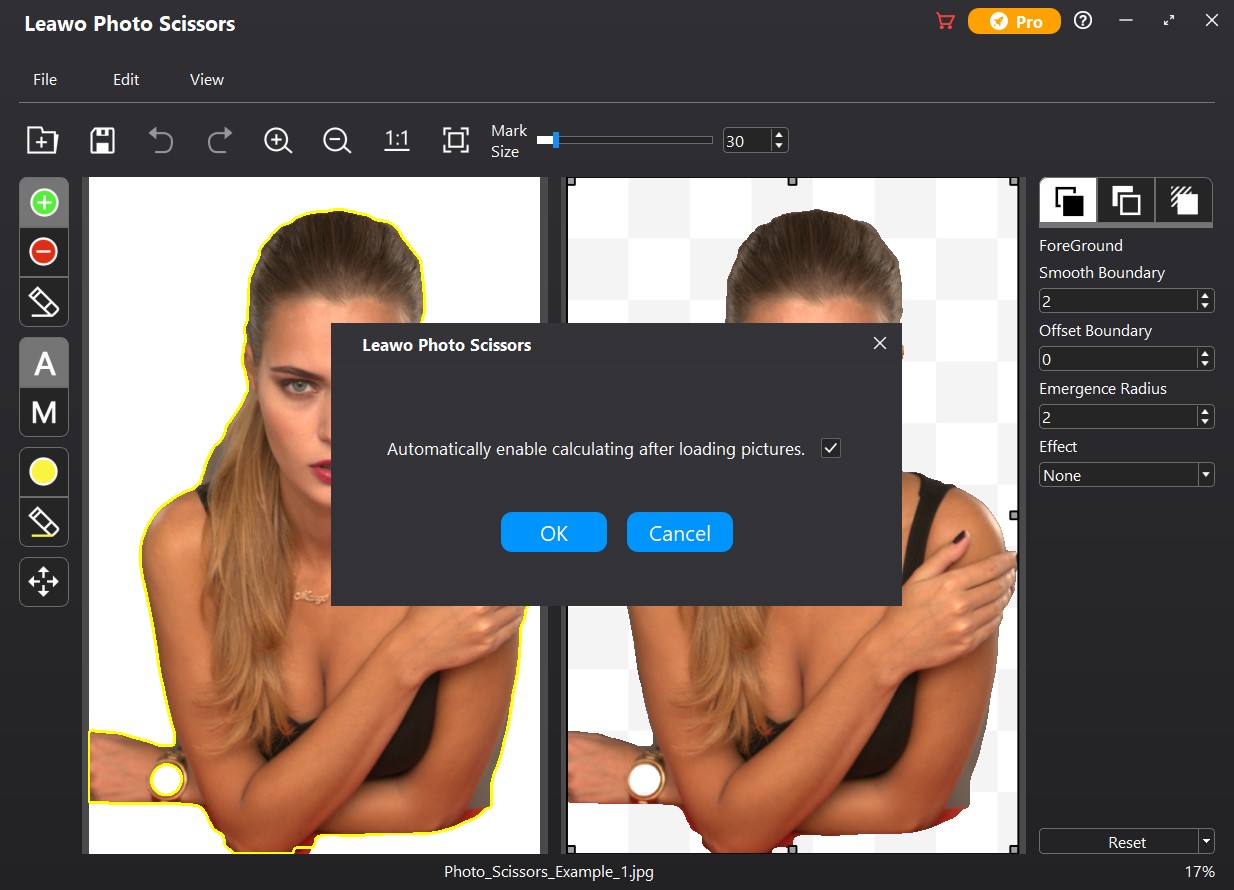
2. Remove Photo Background Manually
Generally, automatic background removing can meet normal needs. However, for more precise background removing, Photo Scissors provides you two modes to remove background from image: Auto mode and Manual mode .
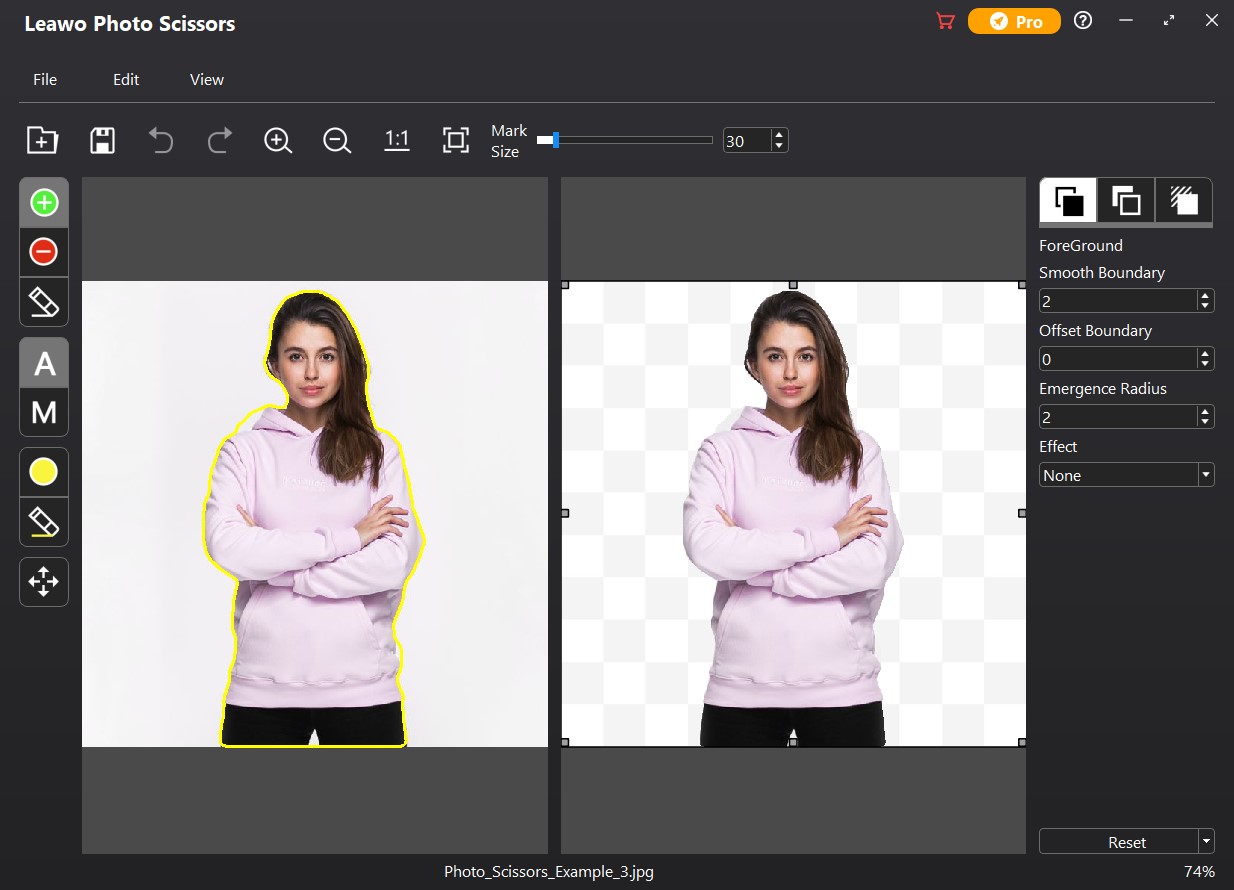
2.1. Auto mode
After choosing Auto mode, the object(s) on your photo will be enclosed with green lines. In this mode, you can roughly smear out the area you want to keep (or remove), this software will then recalculate and re-enclose the object(s) after smearing based on powerful algorithm.
2.2. Manual Mode
After choosing Manual mode, the object(s) on your photo will be covered with green layers. In this mode, your operations will not be intervened by algorithm.
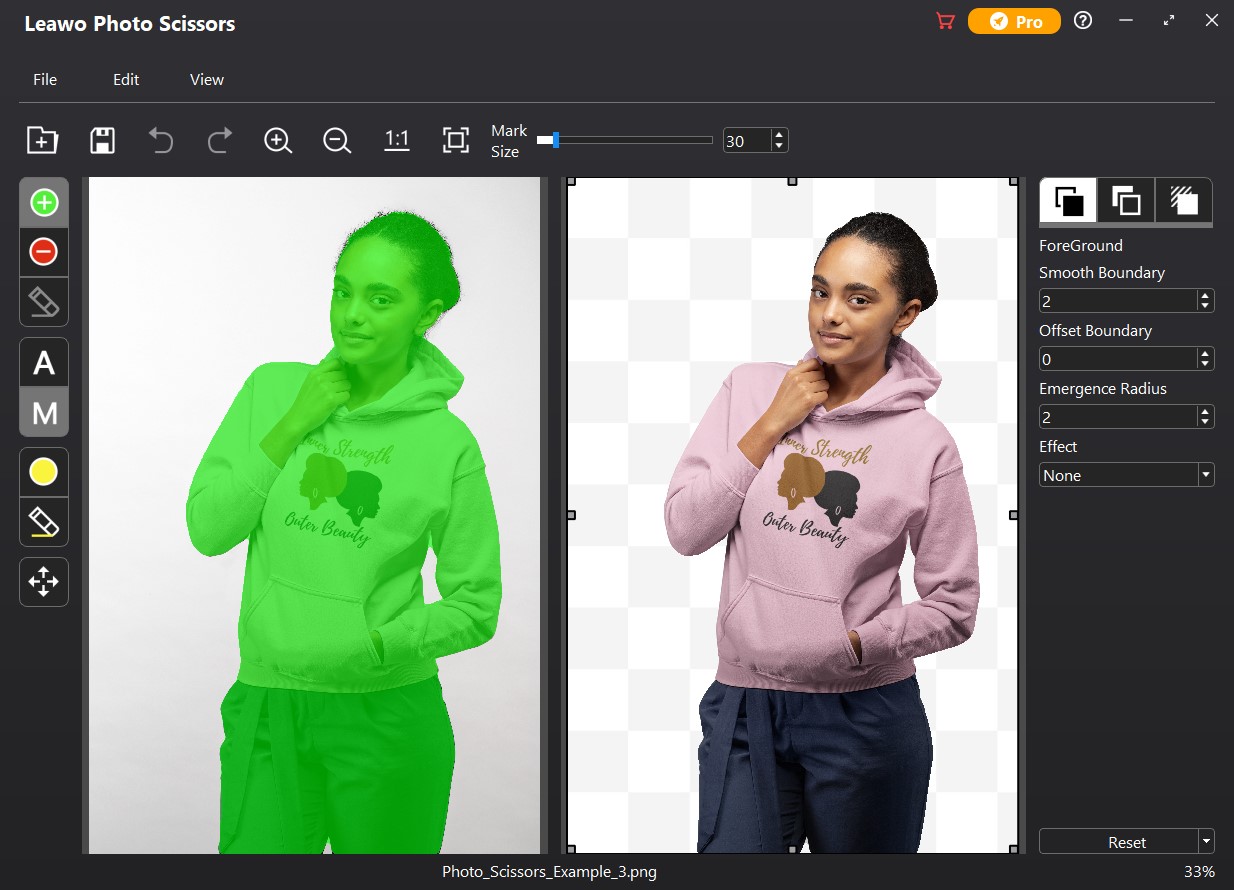
Select Reverse area mark to smear the area you don’t want to remove, and the smeared area will be green. Select Delete area mark to smear the area you want to remove, and the smeared area will be red. You can use Transparent matting area mark to add transparent area on the object(s). For more precise adjustment, you can scroll the mouse wheel to zoom in and out the image, or click Enlarge button to zoom in the image and click Narrow button to zoom out the image. When image is zoomed in, you can use Move image button to drag and scroll image to any direction. If the matting mark is too large (or too small), drag the slider to adjust the mark size. By dragging the slider to the right end, you can get maximize matting mark size. If you are not satisfied with the smeared area, you can click Undo button in the top menu bar to undo the last operation, or use erase mark to erase the smeared area.
Leawo Photo Scissors provides powerful Parameter Editor to edit image after removing photo background. You can choose editors on the right of the program to edit foreground, change and edit background, as well as apply and edit shadow to your photo.
1. ForeGround Editor
ForeGround Editor provides 4 options for you to apply on your photo foreground:
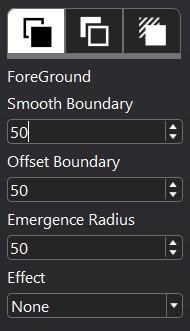
Smooth Boundary (0-50): This option can smooth uneven edges. The larger the smooth boundary value, the smoother the edges.
Offset Boundary (-100-100): This option can enlarge or narrow the enclosed edges of object(s). The larger the offset boundary value, the wider the enclosed range.
Emergence Radius (0-50): This option is to make the edges of the selected area dim. The larger the emergence radius value, the wider the dim range.
Effect: This option is to apply an effect on foreground.
2. BackGround Editor
BackGround Editor provides 4 options to change photo background and 3 options to edit photo background:
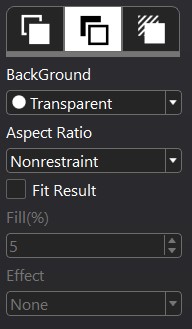
BackGround: This function enables you to change photo background among Transparent, Solid Color, Image or Origin (Keep object in original background).
Aspect Ratio: This option enables you to change aspect ratio of background among Nonrestraint, 1:1, 3:1, 3:2, 4:3, 5:3, 5:4, or 6:5. The front number stands for width, while the back number represents the height.
Fit Result: This option is to fit background to the result.
Fill(%): This box will only be available when Fit Result is checked. The larger the fill value, the larger the background.
Effect: This option is to apply an effect on the background. (Only available when using original background).
3. Effect Editor
Effect Editor is available in ForeGround Editor and BackGround Editor. It provides 6 effects for you to edit photo foreground and background:
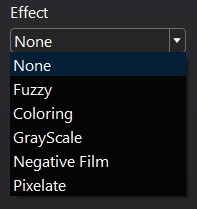
None: Apply nothing on foreground.
Fuzzy (0-100): This effect is to blur the foreground. The larger the fuzzy value, the more blurred the foreground.
Coloring (0-100): This effect is to color the foreground. The larger the intensity value, the deeper the color. You can also change color by clicking the Change button  .
.
GrayScale: This effect is to make your foreground black and white.
Negative Film: This effect is to put your foreground in reversal film.
Pixelate (0-100): This effect is to pixelate your foreground. The larger the pixelate value, the larger the single pixel.
4. Shadow Editor
Shadow Editor provides 3 options for you to apply and edit shadow on object(s):
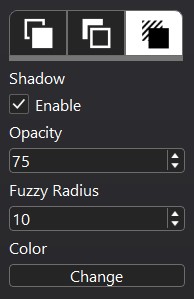
Enable: Tick to apply shadow on object(s). By default, shadow is black.
Opacity (0-100): This option is to change the opacity of the shadow. The larger the opacity value, the more opaque the color.
Fuzzy Radius (0-100): This option is to blur the shadow. The larger the fuzzy radius, the more blurred the shadow.
Color: Click Change button to enter Select Color Panel.
Finally, you can click "File" button on the top-left corner, and choose "Save Project" option on the drop-down panel to save the edited project for further use. Or, you can directly output the edited photo by following either way listed below:
on the top menu bar.If you are using a free trial version, a notice window will pop up to remind you that output pictures are watermarked in Free version. You can click the "Trial" button to experience the free trial version and output the edited photo with watermark. Or you can click the "Buy" button to purchase Pro version on its official page, and click "Register" button to register Leawo Photo Scissors to experience its full features.
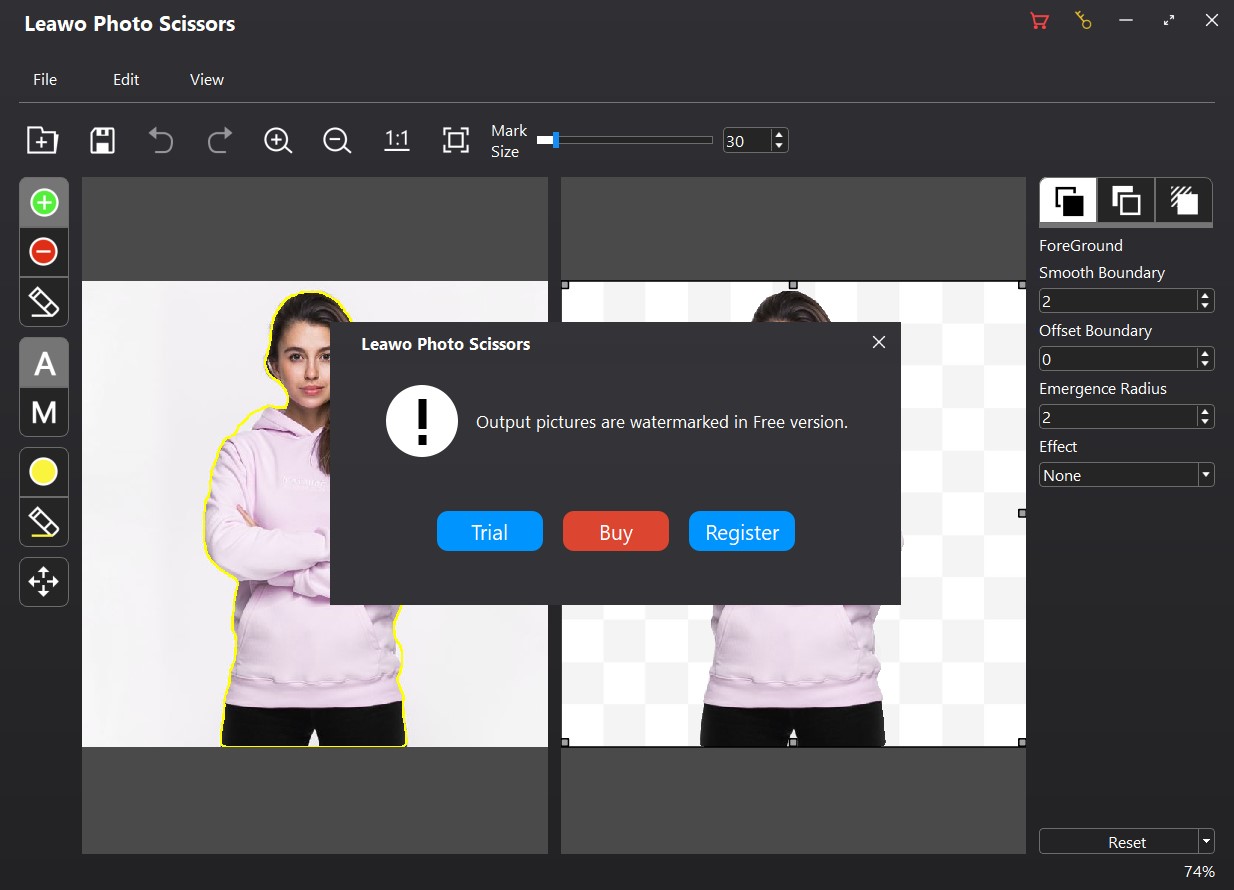
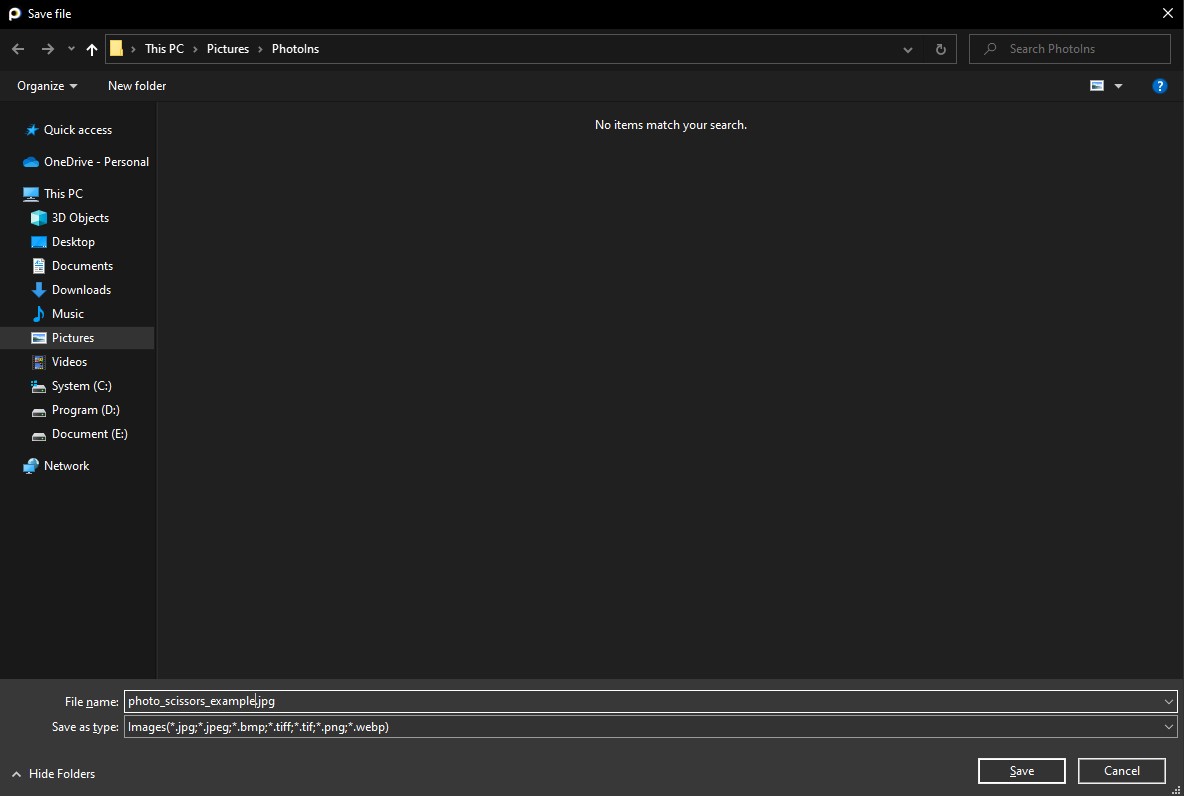
If you have registered Leawo Photo Scissors, or after clicking "Trial" button on notice window, you will be led to Save file interface, where you can set output directory, rename file, and set output format (supported output formats: jpg, jpeg, bmp, tiff, tif, png, webp). Then click "Save" button  on the bottom-right corner.
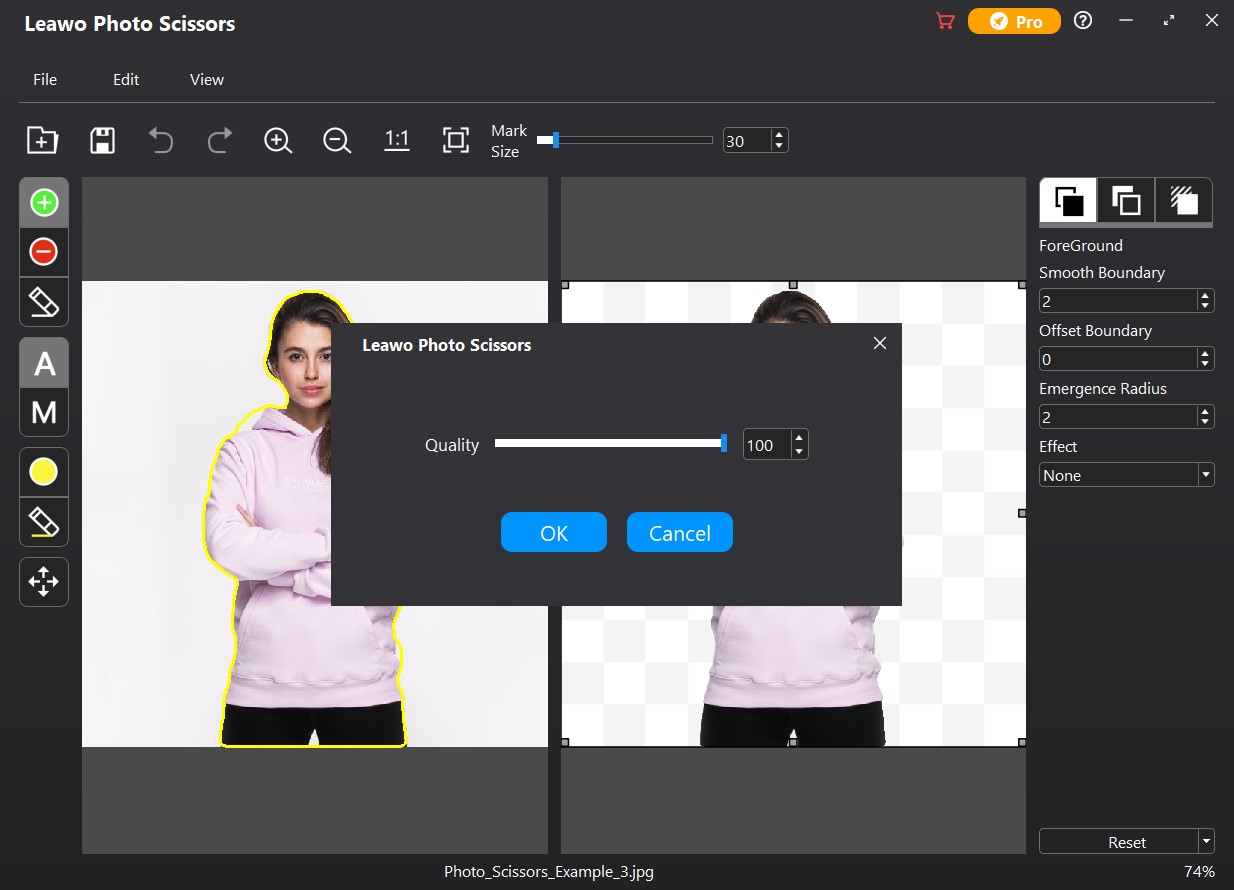
By clicking the "Save" button, a Quality panel will pop up. Drag the slider to the right end to get the best output quality. Then click "OK" button  to output the edited photo.
 [07/14/21] PhotoIns V2.0.0.0 NEW[07/14/21] Photo Scissors V1.0.0.0 NEW[07/07/21] UHD Drive Tool Mac V1.0.0 NEW
 10,000,000 people are using Leawo!
 All Transactions are protected!
 30-Day Money Back Guarantee!

 Prof. Media 11
 Blu-ray Ripper
 Blu-ray Copy
 Prof. DRM